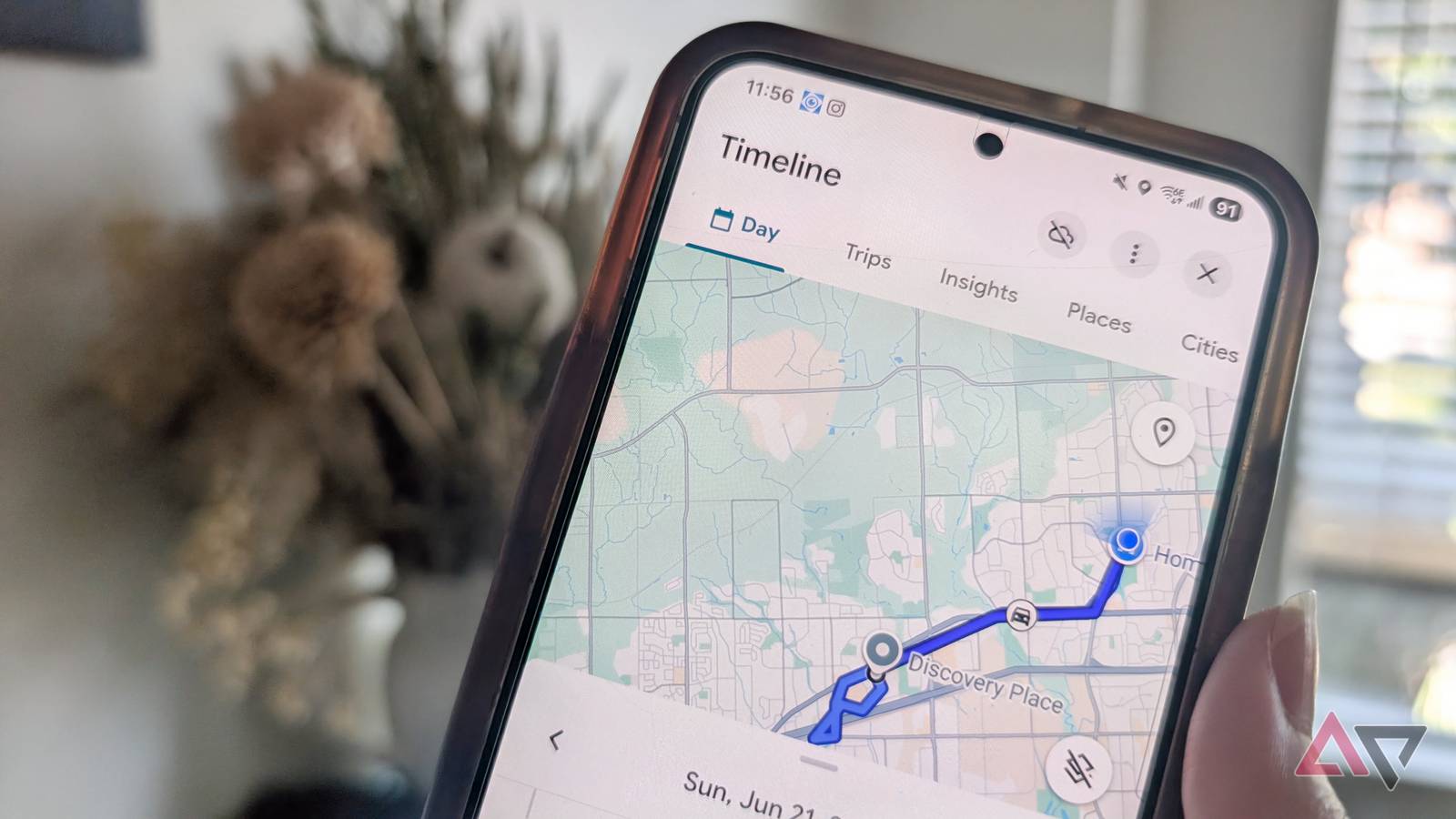
Sometimes, I can't recall exactly which routes I've taken, especially if I've only been to a place once or tried a new route on my .
And that's where Google Maps Timeline comes in. It silently logs my past locations, paths, and destinations, so I can review them when I want to recall where I've been.
Timeline is one of my favorite Google Maps location features, but I recently learned that Google stores much of my location history on my phone. That means my would disappear if I lose my device, factory reset it, or switch to a new phone.
I didn't want to take the chance. I enabled backup on Google Maps Timeline and saw how it works. Google lets me back up my Timeline to my account as an encrypted copy, which I can then import on another phone.
Why I'm not ready to let go of my Google Maps Timeline
Signing in to a Google account won't restore everything
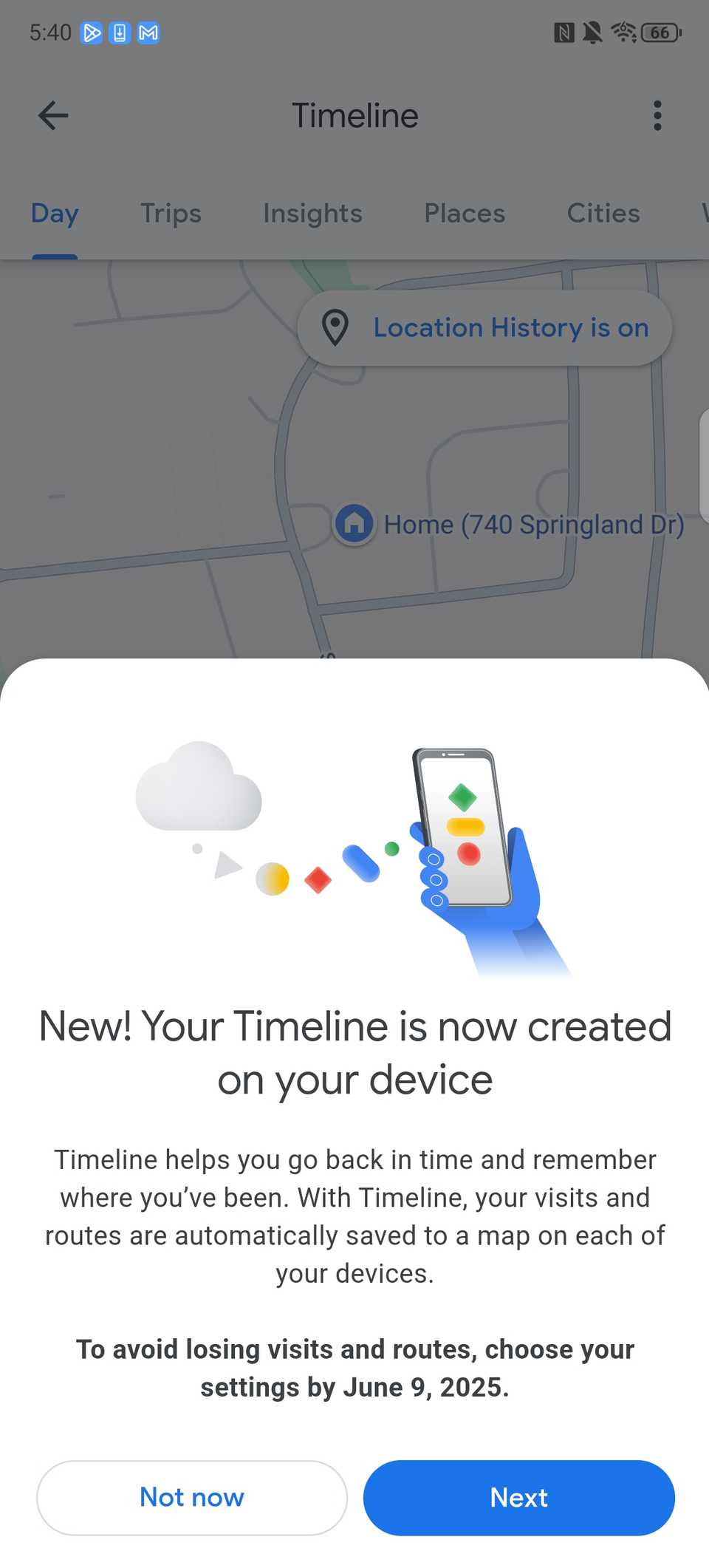
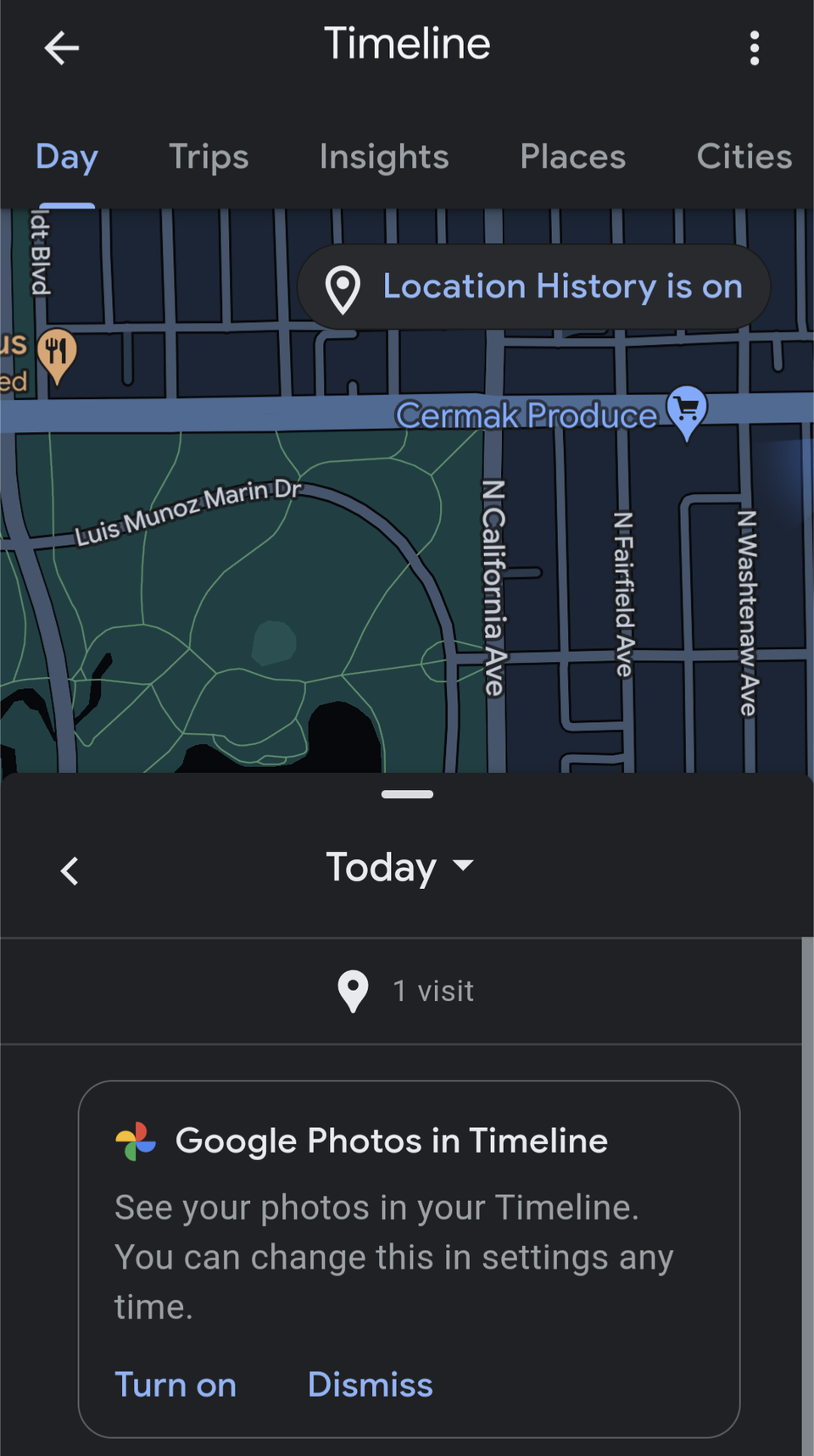
Google Maps Timeline is one of those things I don't think about every day until I need it. It logs the routes I've traveled and the places I have visited.
I can remember places from past trips that I'd otherwise have a hard time remembering. I also track my morning runs to see how I am improving and to find the best routes to follow.
Timeline data is stored on the device, rather than being automatically available on all devices logged in to the same Google account.
I wouldn't want to lose years of data because I got a new phone or had to reset it. For this reason, I made sure the backup option in Google Maps was turned on.
I enabled Google Maps Timeline backup to protect my location history
Google lets me save an encrypted copy of my Timeline
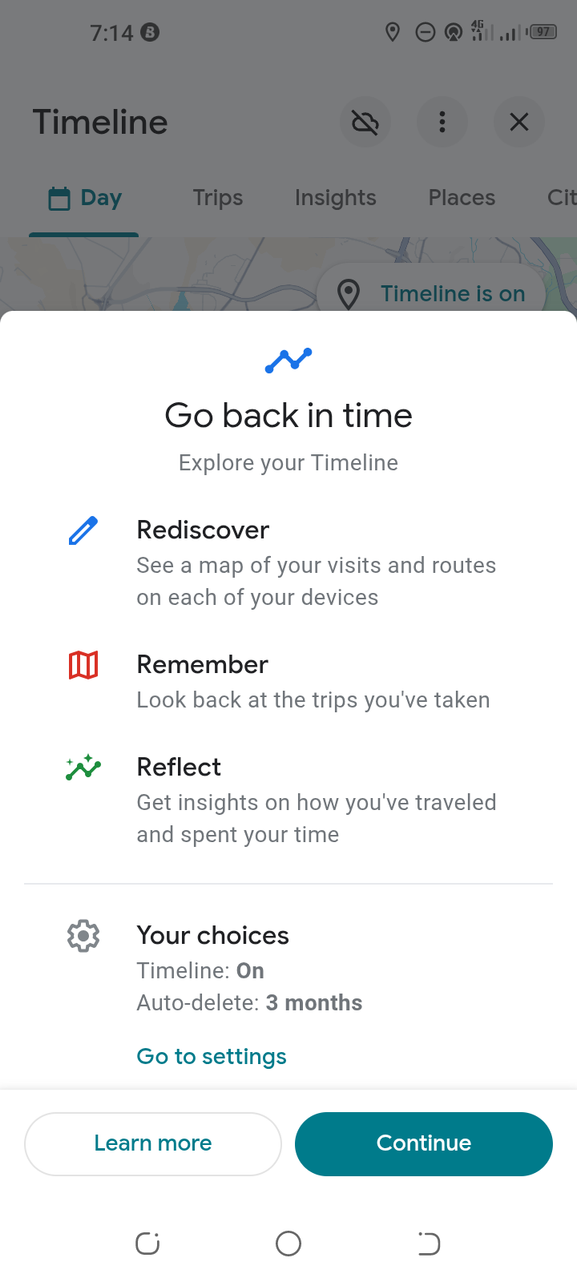
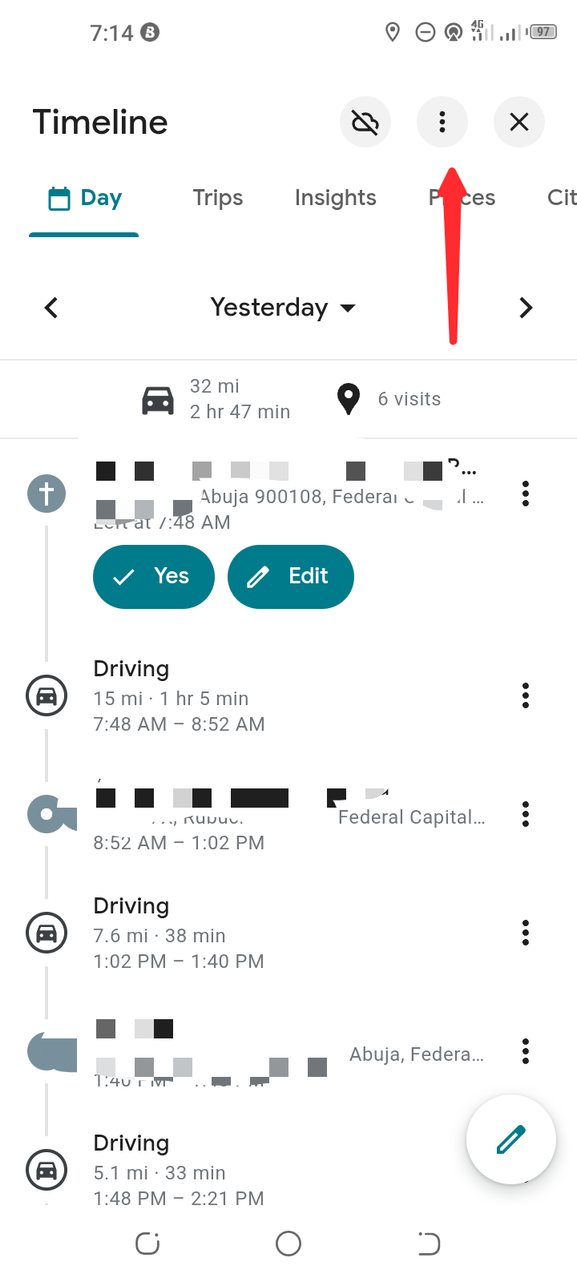
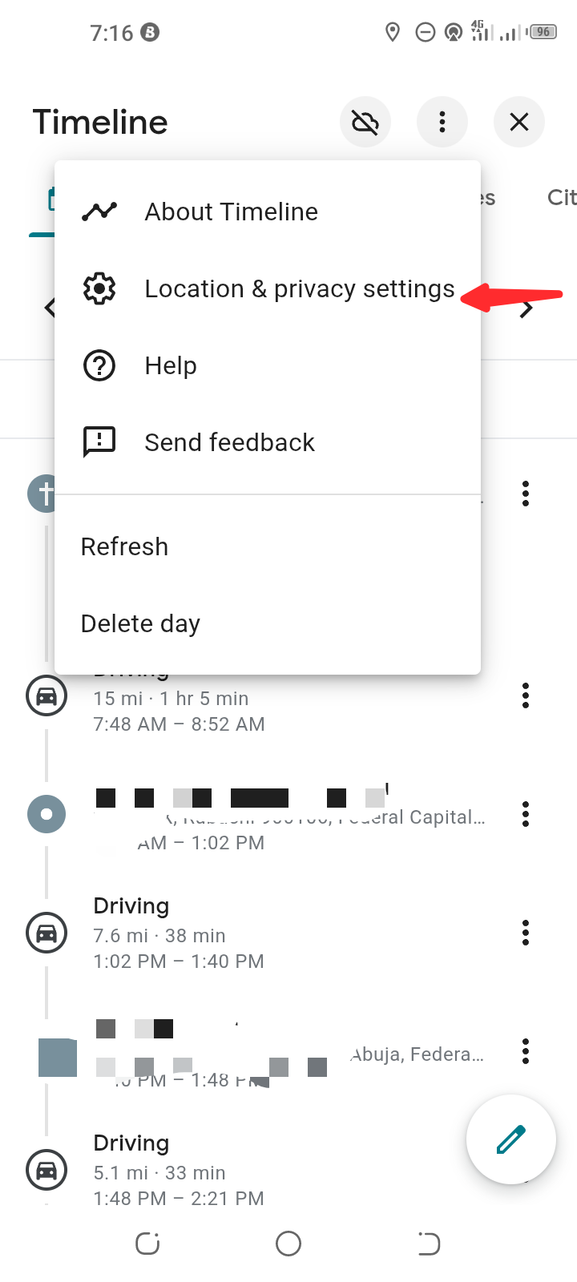
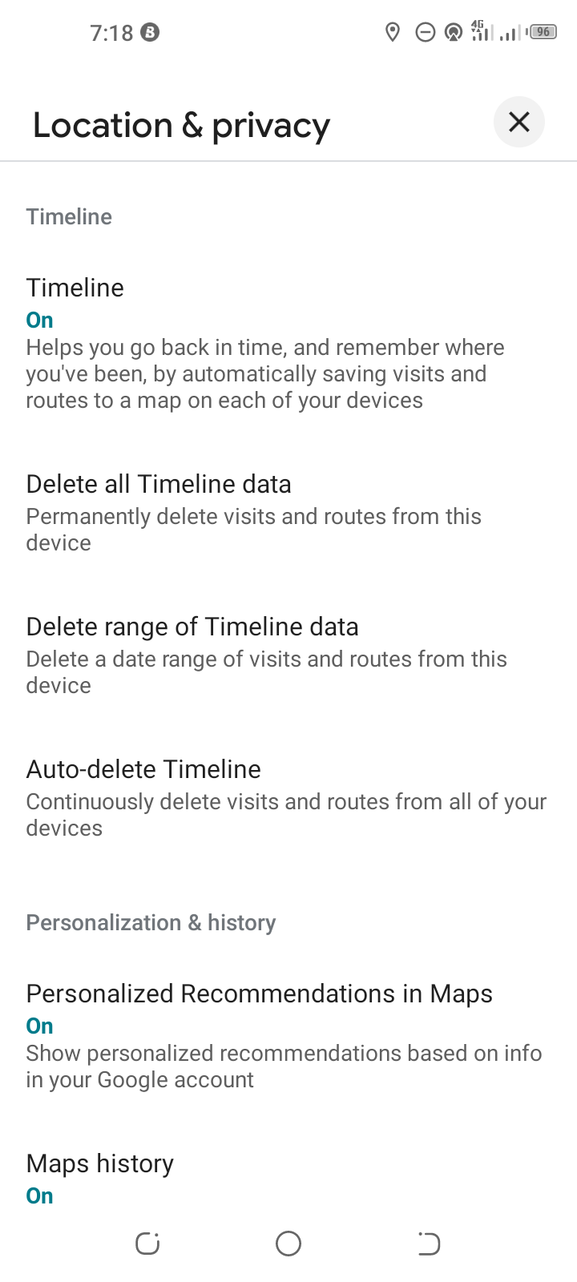
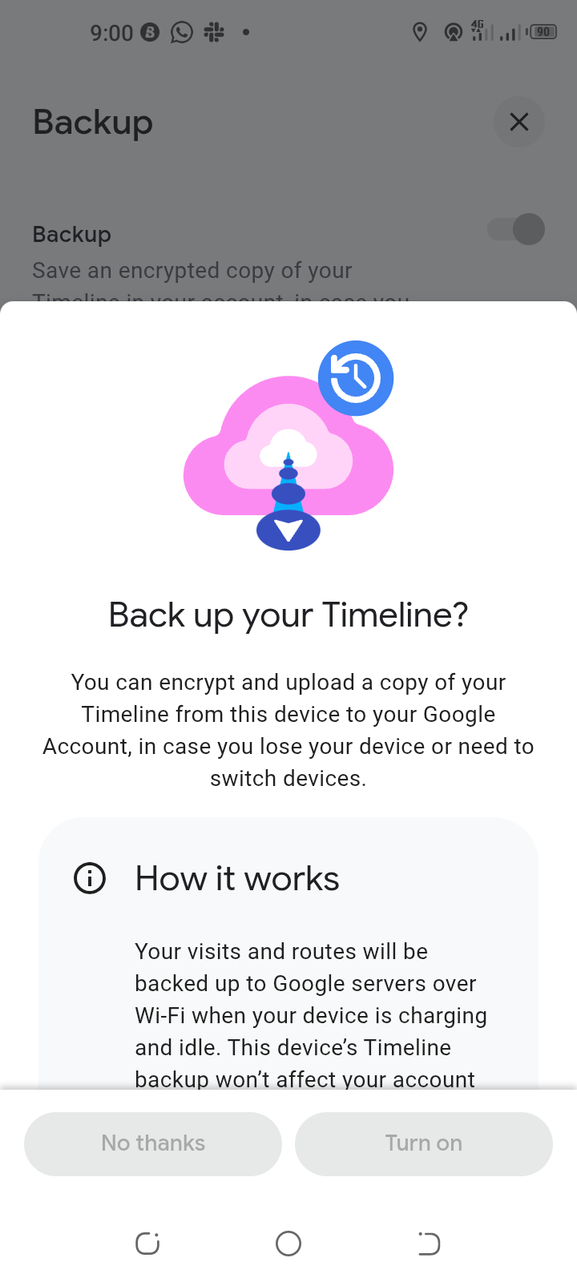
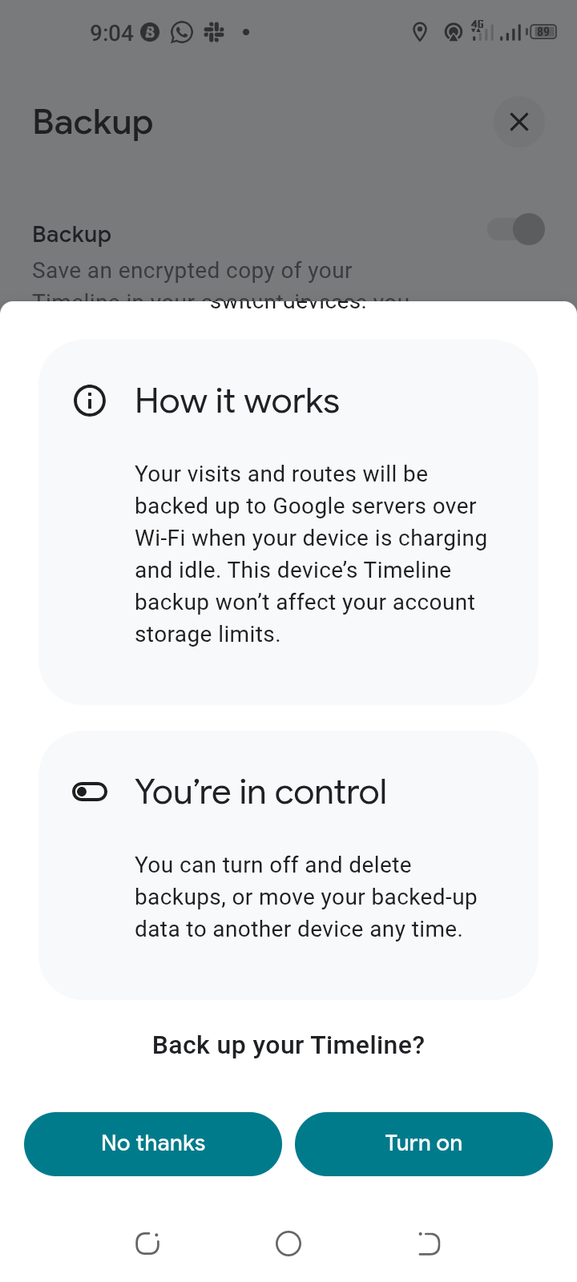
When I back up my Timeline, Google Maps saves an encrypted copy of the data on Google's servers. As long as the backup is turned on, I can import it on a different device, even if I lose or damage my phone. I like that this gives me one more way to keep my location history safe.
A few things are worth knowing before turning it on. First, Timeline backup isn't automatic or enabled by default. Google does not turn it on for all devices by default. You have to switch it on.
Second, you need to enable backup on each device where you want to keep Timeline history. If you have more than one phone, don't assume a backup on one will save the others.
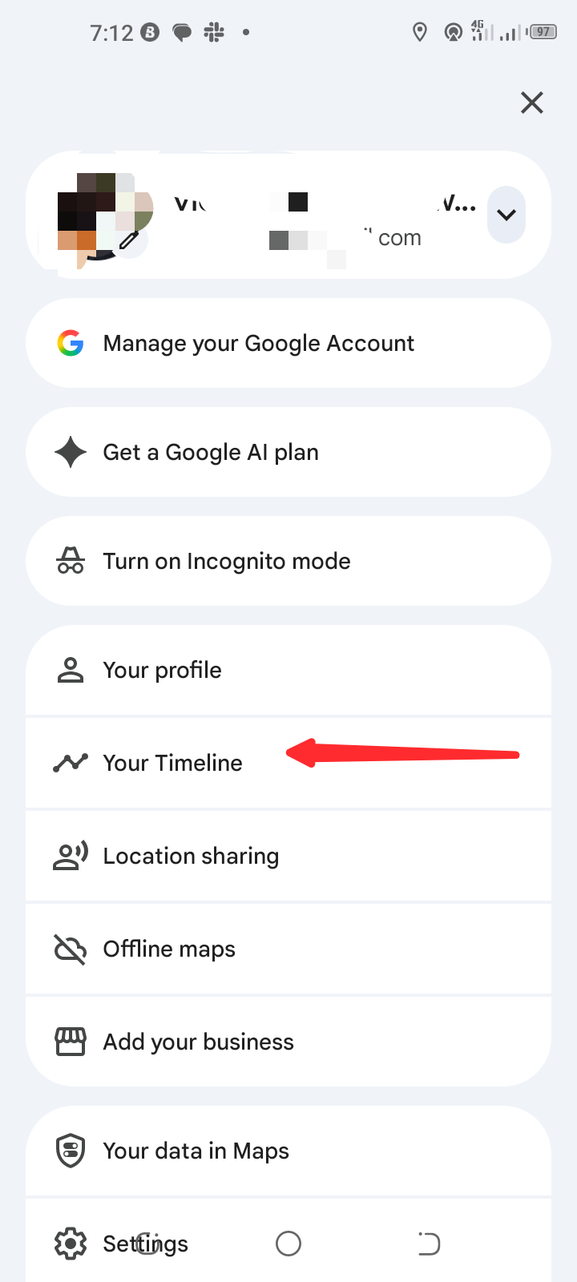
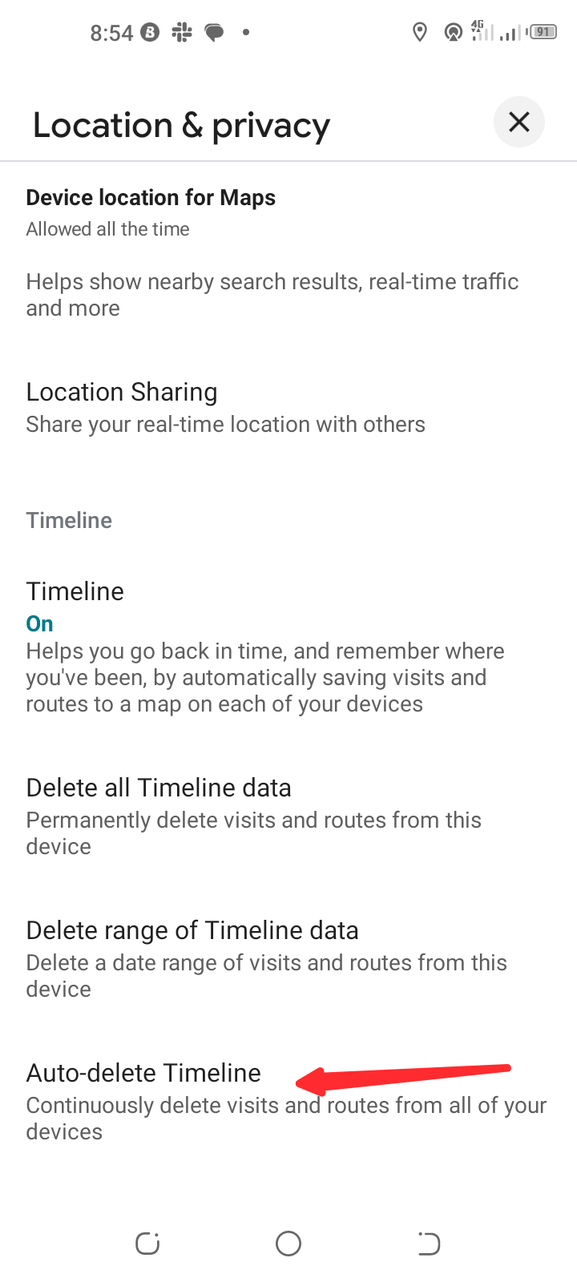
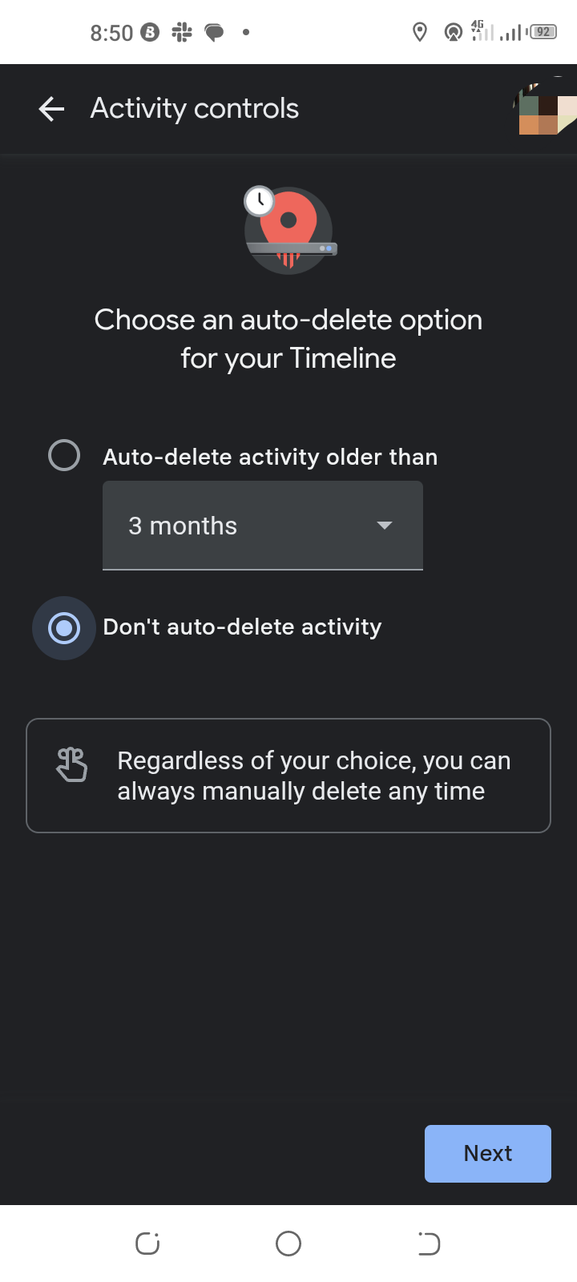
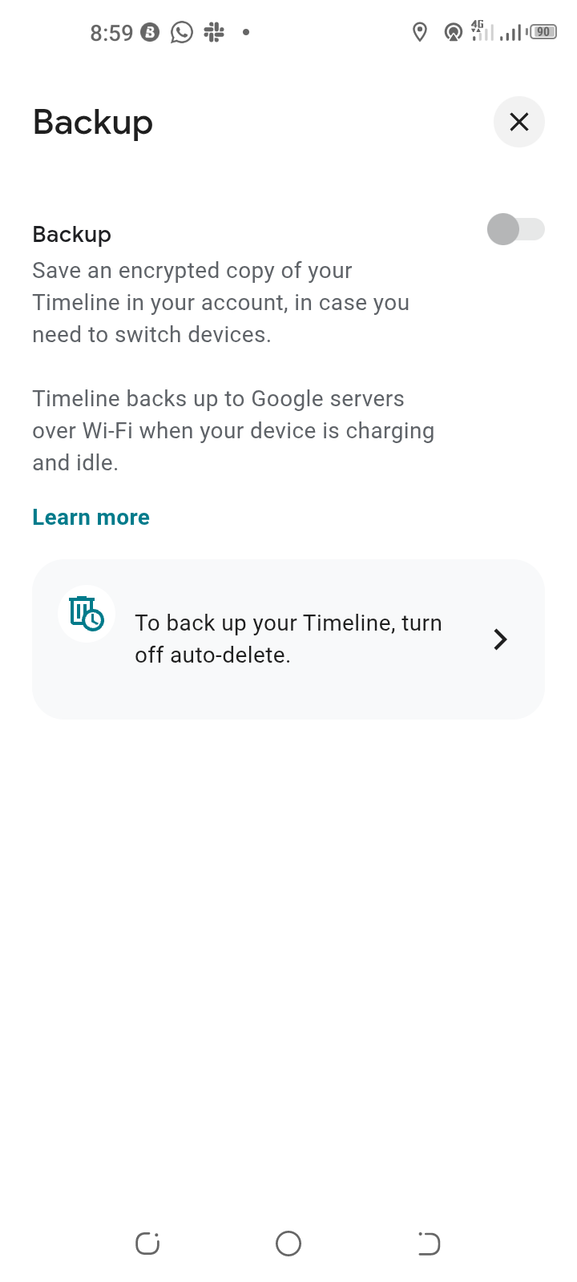
Google also requires you to turn off auto-delete before you can turn on backup. It's easy to overlook, so it's worth checking first. You don't need another app or a complicated setup to access it. Here are the steps:
- Open and tap the .
- Select .
- Tap the three-dot menu button in the upper-right corner.
- Tap .
- Scroll down to and select .
- Choose Don't delete activity automatically.
Google Maps will then make an encrypted copy of your Timeline data. Now go to the Backup screen and enable backup after making this change:
- Go to .
- Tap the in the upper-right corner.
- Tap .
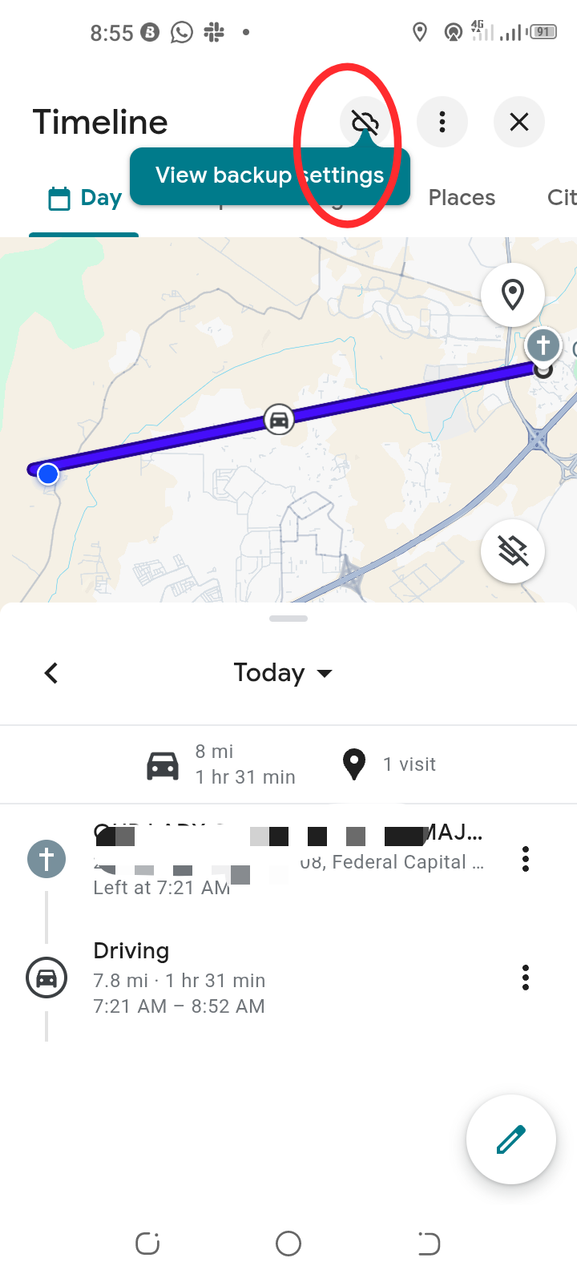
- Tap the cloud icon in the upper-right corner.
- Locate the button and switch it on.
- Tap for verification.
It's best to do this before resetting or replacing a phone, so there's no last-minute scramble, and Google has time to make the copy.
What happens if Timeline isn't backed up?
A missing backup could leave your location history unrecoverable
If your phone is lost, stolen, broken, or reset without a backup, you may lose the location history on your phone. Signing in to the same Google account on another device may not restore it.
That could mean losing the visits and routes you have stored in Google Maps over the years. That's a lot of information to lose if you've used Timeline to remember places you've been or to look back at trips you've taken.
That's where Google's backup feature comes in handy. But it only works if you have it on and let the backup finish before you lose access to the original device.
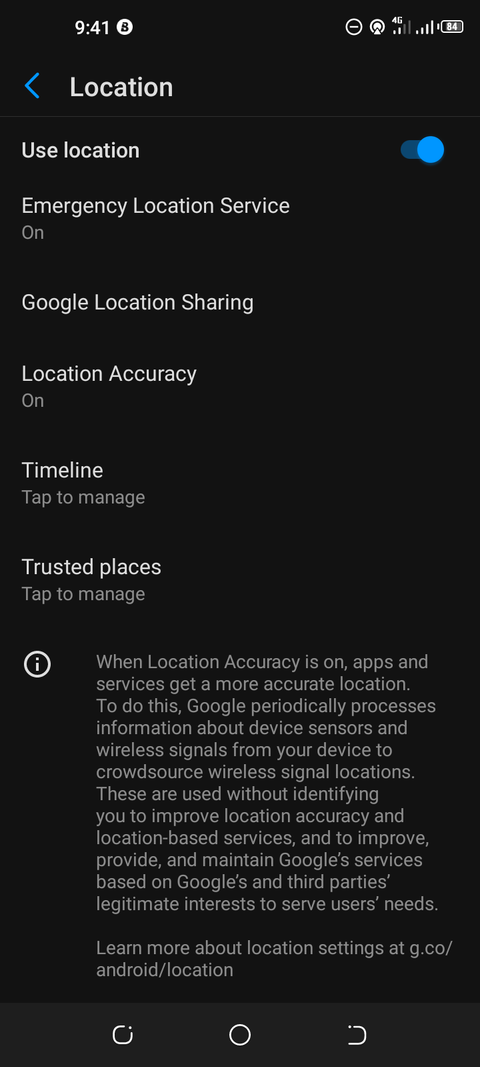
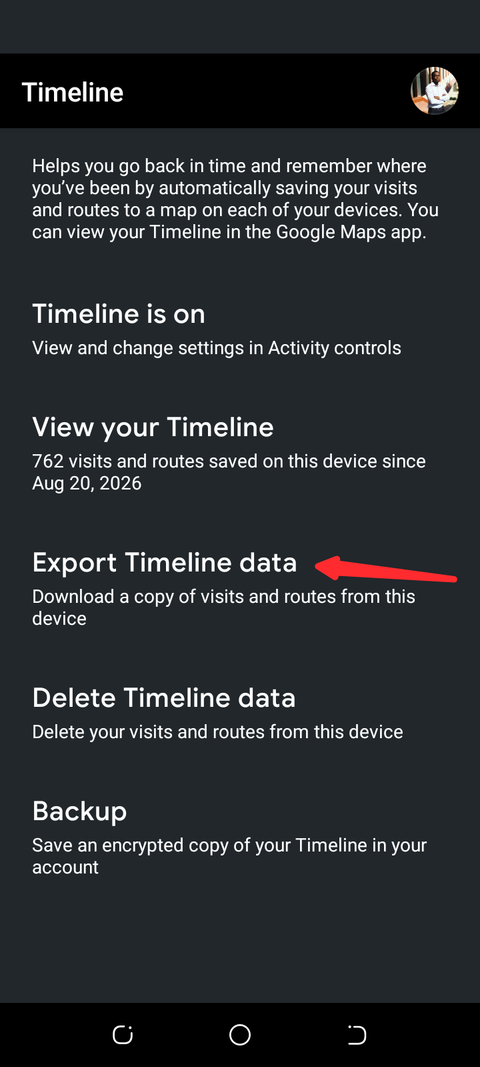
You can also export your Timeline data to create a copy. If you have an Android phone that supports it, open the Settings app and navigate to Location > Timeline > Export Timeline data. Follow the steps to save the exported file.
This is an added safety measure. It is not meant to replace Google's built-in backup. The built-in backup is separate from this. I can save the file on my Laptop or another phone so that I have an offline backup.
It stores an encrypted copy in my account and lets me import my history on another phone.
This is one Google Maps setting I'd never ignore
I don't check my Google Maps Timeline all the time, but it's good to have if I need to remember a place or revisit an old route.
The time it takes to enable Timeline backup is a worthwhile investment. Also, make sure that your backup is still available before you replace or . You can export a second copy of your location history for added security.
If you use Timeline like I do to recall old trips or to find places you have been, have a backup ready before you lose your phone. It's better to take a few minutes to protect my location history than discover it's gone when I need it.