No, but there are ways to make One UI less prominent.
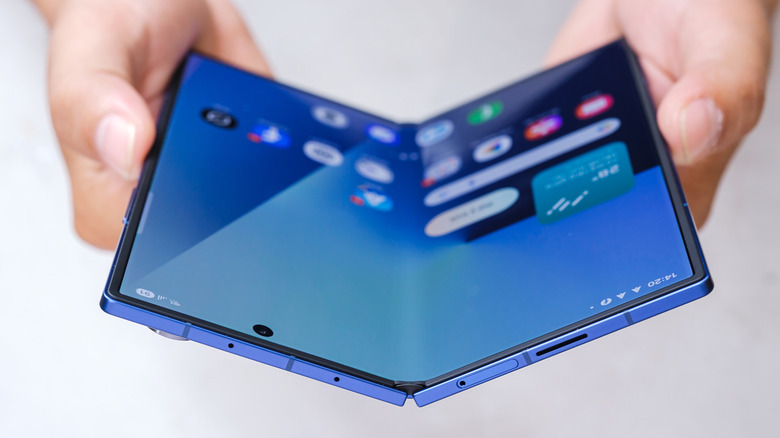
Samsung's One UI is a staple feature of the company's phones and tablets, and for most users, it handles everything well enough. That doesn't mean it's perfect, though, and there are plenty of reasons why you might want to replace it with another set of apps entirely. The bad news is that you can't remove One UI from a Samsung phone, but there are ways to cut out the parts you find frustrating or unhelpful with just a little effort.
First, it's important to understand what One UI actually is and the features it offers. One UI is custom software for Samsung phones, but in many cases, what people actually want to change is their launcher, which determines the look of the home screen. While that's part of the picture, One UI also encompasses a set of features and pre-installed apps that affect every aspect of your phone. Some parts of One UI will always be running on a Samsung phone, but replacing your launcher and removing other apps can help get the results you want without switching phones entirely.
A custom launcher can replace the look of One UI
Switching out your launcher will have the biggest impact on how your phone looks and behaves. Fortunately, it's extremely easy to change, since launchers can be downloaded from the Play Store like any other app. Once you've downloaded a new launcher, just open the app, tap the menu, then Choose default apps. Make sure you set your new launcher under Home app and it should automatically replace One UI Home when you open your phone.
Niagara Launcher and Smart Launcher are among the most popular third-party launchers for Android, but there are plenty of other options out there. If you'd rather keep the home screen but tune it to your liking, Samsung even offers its own solution for customizing your phone with One UI 9. The Good Lock app isn't an entirely new launcher, but it offers tons of customization settings that can change your home screen so much it might solve your One UI woes in the same way.
Limiting pre-installed apps can cut out the bloat of One UI
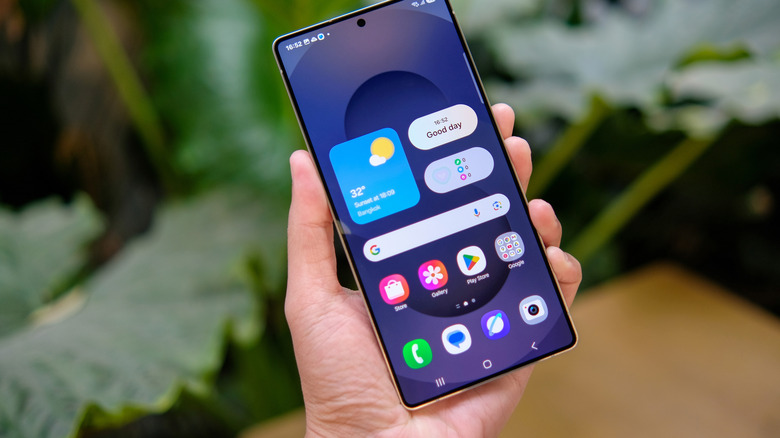
Even if you're happy with One UI, it's still packed with apps you might be better off without. By default, One UI includes a suite of apps to handle basic functions covering everything from health tracking to a digital wallet. While they're perfectly serviceable, there are plenty of other apps out there that do the same things, and there's no reason to keep the built-in options if you're not using them.
Since they're system apps, most of these can't be completely deleted, but you can hide them and limit how much space they take up on your phone. First, head to , then and type Samsung into the search bar. Tap the option you want to remove. Some, like Notes, allow you to uninstall them completely. If there's no uninstall option, tap the three dots menu in the top right and select Uninstall updates. The app will remain, but it won't take up as much storage space.
Once you've done that, you can also keep the icons of remaining apps from cluttering up your phone. In , head to Home screen, then scroll down to . Then, just select the apps you don't want to see and they'll be hidden. It's an imperfect solution for sure, but it can help make your phone much easier to navigate.