Save your phone's battery and use your old iPad as a FaceTime machine instead.
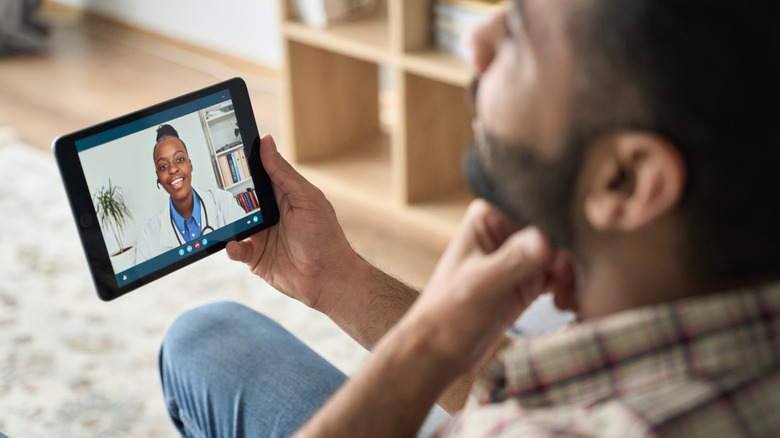
How to set up your old iPad for video calls
The first thing to check is which apps your iPad can still run, because the version of iPadOS it's running determines just how useful an older iPad can be. For FaceTime, most iPad models still work since it comes built-in. You might not have access to some of the latest features, but it works for basic video calls — unless we're talking about a really old iPad, like an iPad 2. On your iPad, open the app and tap , then to find your iPad's software version and model. For example, Zoom requires iPadOS 15 or later, which means it can run on supported older tablets such as the iPad Air 2 if they are updated to the latest compatible software.
For FaceTime users, you can simply open the app on your iPad and check if you're still signed in to your Apple Account. If not, just enter your email and password to sign in. And if you want to use other apps, find them in the App Store. Now it's time to find a good place to set your iPad. Although some cases allow you to prop your iPad up on a table, a stand that brings the camera closer to eye level usually works best. Wall mounts are also an option, especially since many people were already mounting their iPads on the wall to control their homes long before HomeView became a thing.
Also, it's best to always keep your iPad plugged into the charger. The battery in an older iPad might not be able to hold up for very long anymore. Older iPads don't show battery health in Settings the way newer ones do, but you can still check it if you want using Mac apps like CoconutBattery. And if you're setting up your iPad for a relative who isn't very tech-savvy, try turning on in > to lock the iPad to a single app.