You’ll have to switch off auto-renewal to cancel, and it’s pretty easy to do so.
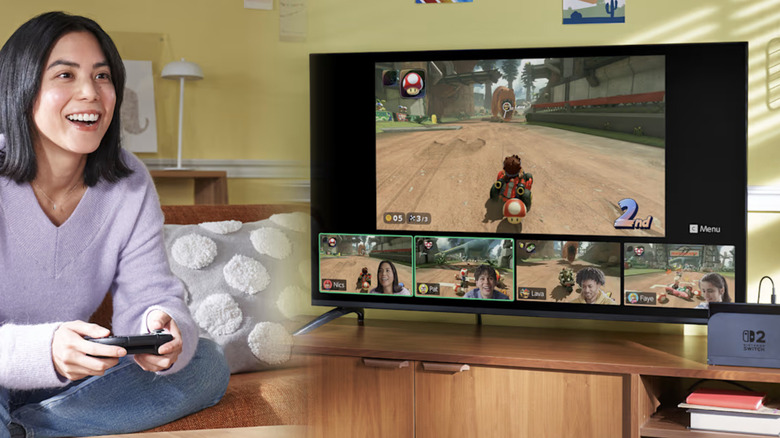
Nintendo Switch Online gives you access to features that could make gaming more enjoyable, like playing online with friends even if they're halfway around the world, for supported games like and . The service also lets you play retro games originally released for Nintendo's old consoles, including the Game Boy and the NES, on your Switch. If you have a Switch 2 and pay for the service's Expansion Pack, you can even play games made for the GameCube. In addition, it gives you access to exclusive games and cloud save, and you'll be able to talk to your friends via a feature called GameChat on the Switch 2.
But what if, upon looking at it closely, you've decided that paying for Switch Online is no longer worth it? Maybe you don't use its features as much and won't miss them if you stop paying for the service. Maybe you're cutting down on subscriptions, and Switch Online has to go.
The good news is that canceling your membership is fairly easy. Just take note that you can't get a refund for unused days if you cancel in the middle of your subscription term. For example, if you paid $20 for a full year, you can't get $10 back because you canceled six months in.
For Nintendo Switch Online, you have to switch off auto-renewal, which is supposed to kick in by the end of your current membership period, to cancel a subscription. When you switch off auto-renewal, you can prevent Nintendo from charging your payment method when your current term expires. One important thing to note, however, is that you must turn off auto-renewal at least 48 hours before your membership is set to end. If you're unsure about keeping your subscription, we suggest switching it off early on. You won't be losing access the service's features anyway and can still enjoy its benefits, as long as the subscription term you've already paid for hasn't ended yet.
How to switch off auto-renewal
You can change your auto-renewal settings on a computer or your Switch console. On a Switch, go to the , select the account that pays for the membership plan and then click on the icon on the upper-right corner to access its . Click the section on the left menu and then the Cancel Your Subscription by Turning Off Automatic Renewal button. On a Switch 2, you'll find the Cancel Your Subscription by Turning Off Automatic Renewal option within your page. Clicking the button will show you a notice that says you can still continue using the service until your pass expires at a certain date.
On a phone or a computer, go to the Nintendo accounts portal and sign into the account that purchased the membership plan. Select and then find Cancel Your Pass by Turning Off Auto-Renewal in the section. Choose . While you're in there, you may want to change your log-in method too: Nintendo is ending Google and Apple account sign-ins in early 2027.
If you have a family subscription, auto-renewal will be turned off for all members of the group. Take note that once your turn auto-renewal off, you can't turn it on again. If you want to continue your membership after all, you'll just have to purchase a new subscription pass for the service.