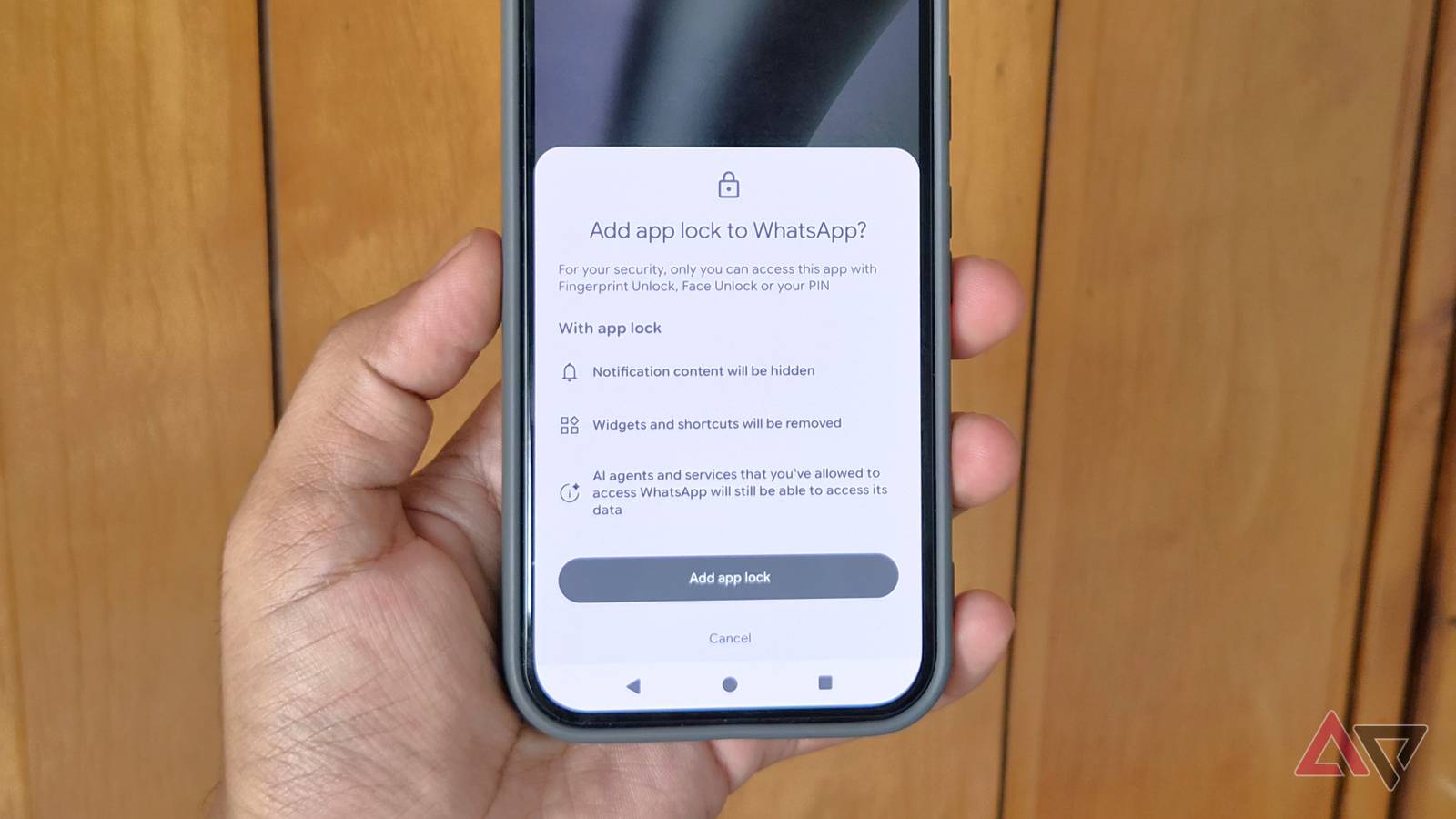
Android 17 QPR3 Beta 3 is here, and I've been using it on my for a week now. The most interesting addition this time is App lock.
Yes, it's finally here, which means you no longer need to rely on Private Space or other workarounds to keep your sensitive apps separate.
It's a simple feature, really. Heck, companies like OnePlus, Oppo, and Nothing have offered it for years through their custom skins. And yet, it took Google this long to bring it to Pixels.
I tried it, compared it to Private Space, and walked away with mixed feelings.
App lock on Pixel works exactly as you'd expect
No surprises here
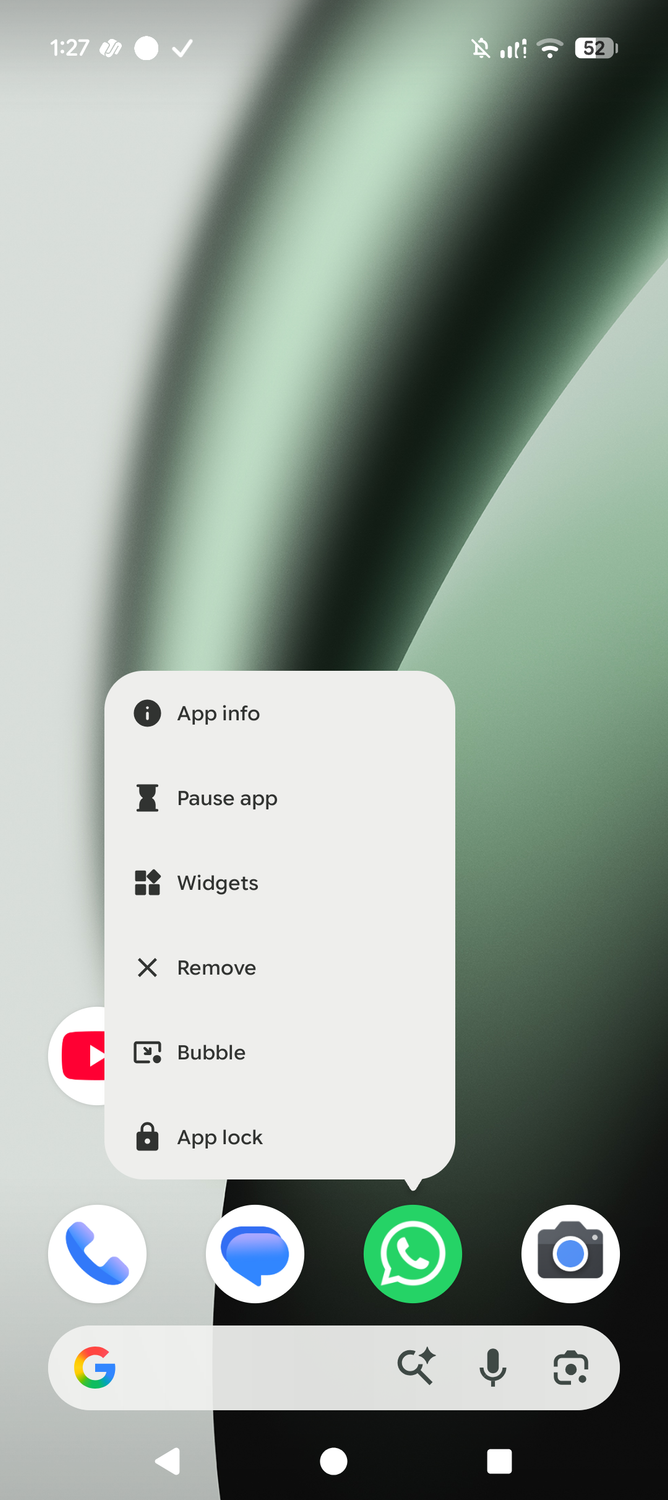
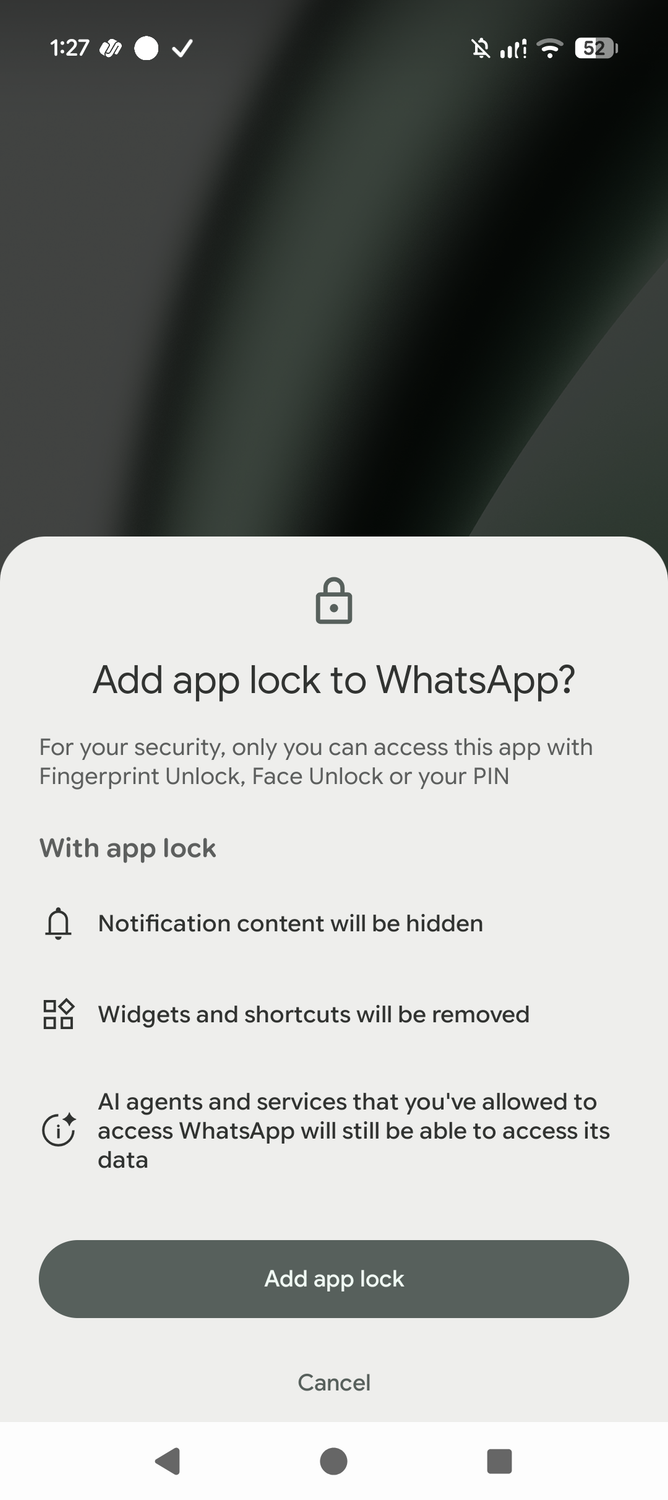
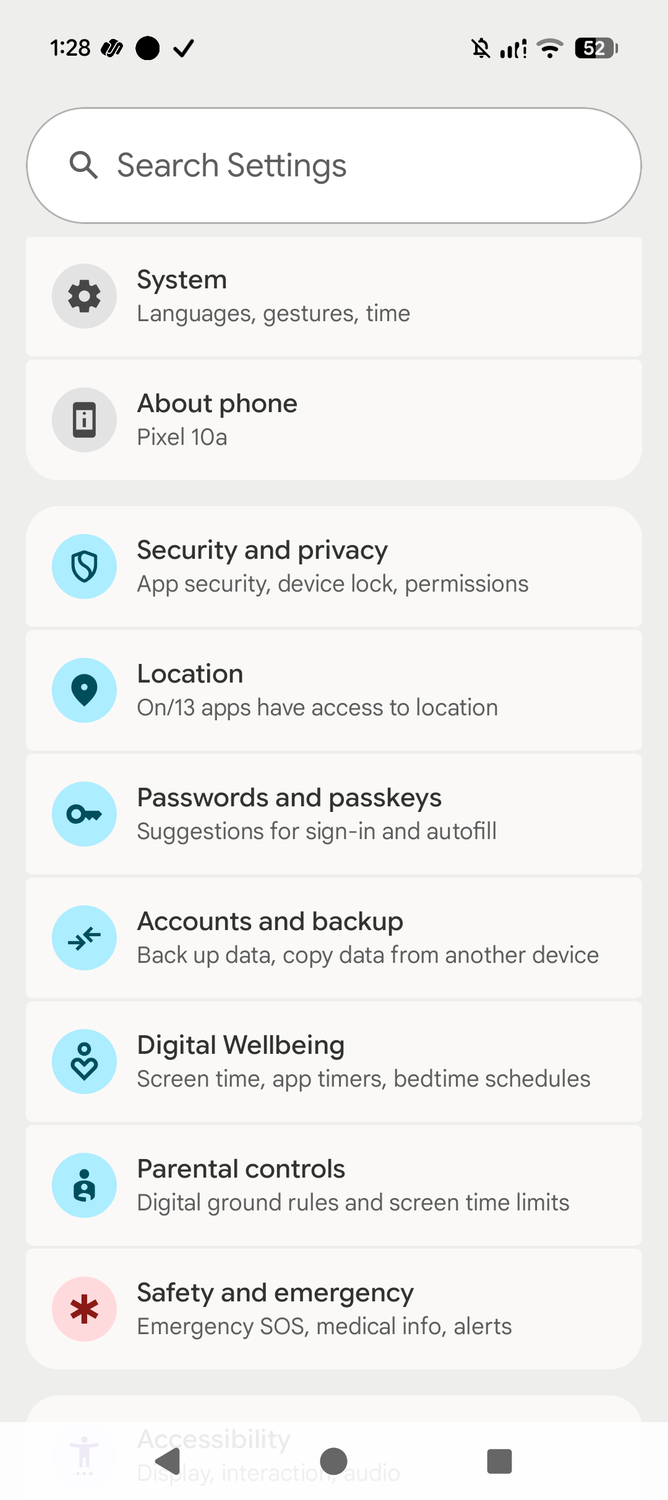
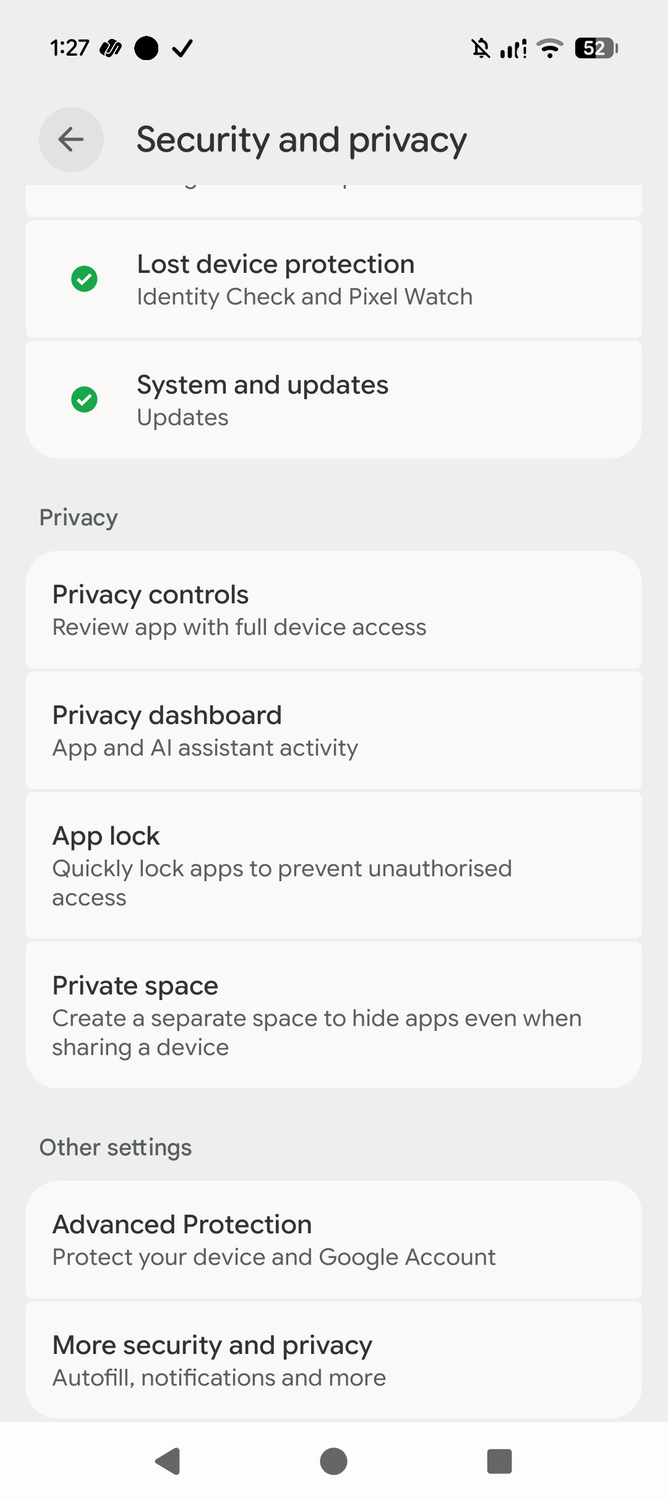
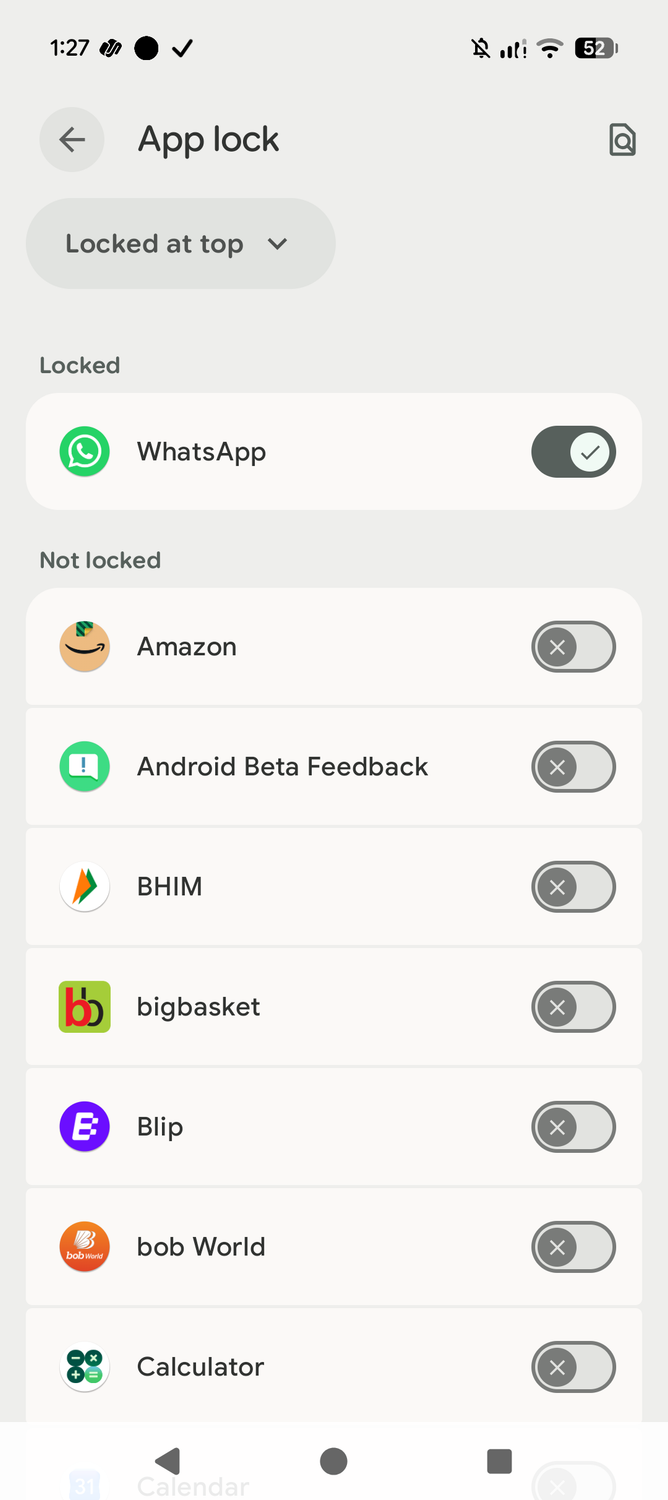
App lock in Android 17 is a simple idea. After you lock an app, it asks for your lock screen PIN, fingerprint, or face recognition every time you try to open it.
Locking an app automatically removes any home screen widgets tied to it and hides its notification content, so nobody glancing at your phone can get a sneak peek at data from your locked apps.
Using App lock is almost ridiculously quick, as it should be. You simply need to long press the app's icon and choose App lock. It'll then show a confirmation pop-up.
Choose Add app lock, verify with your fingerprint, face, or PIN, and you're done. If you need to undo this later, long press the app icon again and choose Remove app lock.
Locking half a dozen apps this way is obviously not convenient. Thankfully, there's a quicker way, and for that, you need to head over to Settings > Security and privacy > App lock. Here, you'll see a list of apps that can be locked.
Scroll through the list or use the search tool to find apps you need to lock, then enable the toggles next to them. You can lock most apps from this menu, except for a few preloaded system ones.
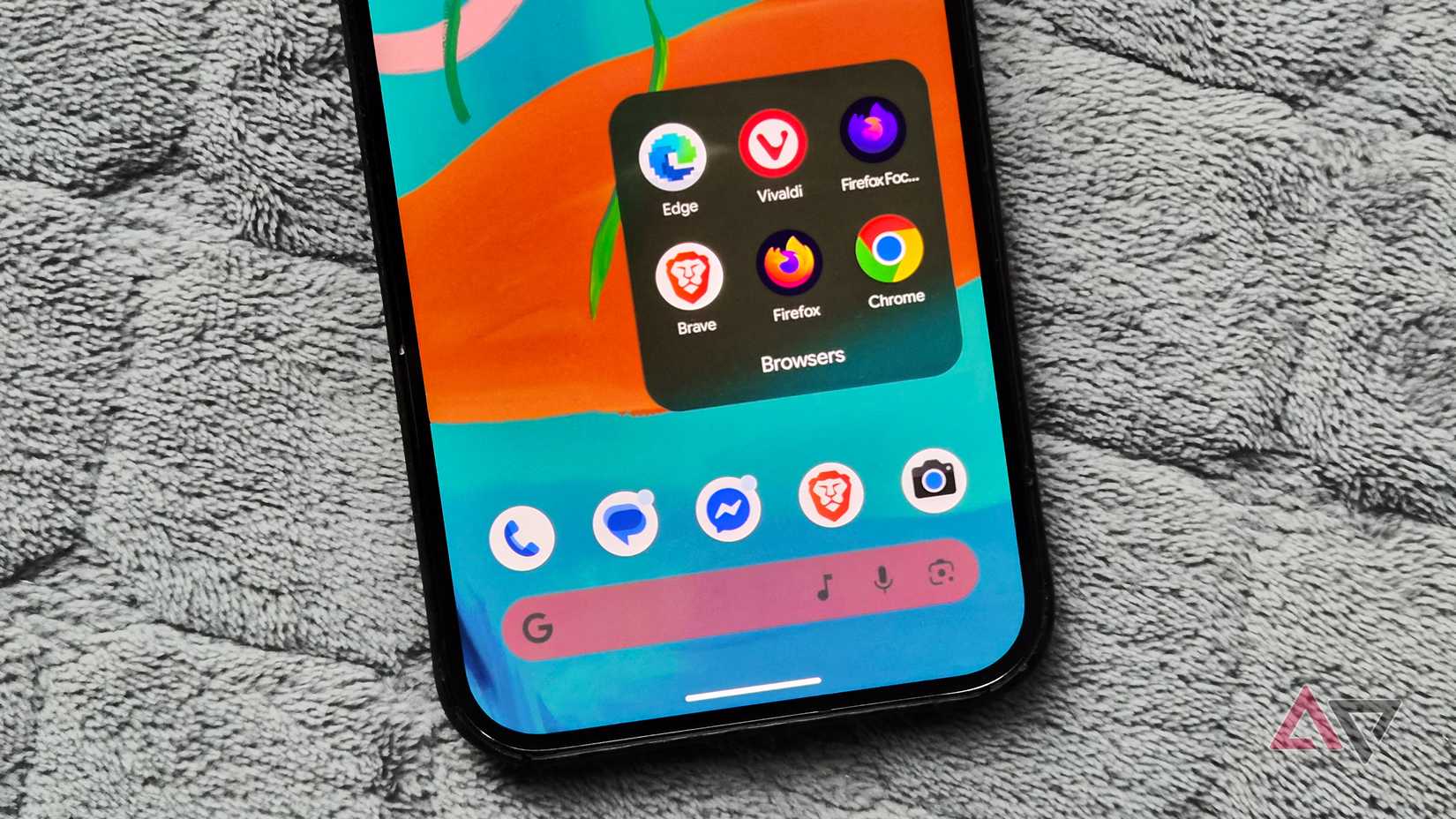
What I really like about App lock is that it doesn't slap a padlock icon onto locked apps. So, at a glance, you can't tell if an app is locked or not.
The bigger deal is that app locking works flawlessly even when you . That means you don't necessarily have to stick to the bare-bones Pixel Launcher just for App lock.
The only catch is that some of the data from your locked apps might still show up in other apps.
For instance, if your banking app has access to your messages for autofilling one-time passwords, that'll likely keep working even after you've locked the Messages app itself.
AI agents like Gemini can also access the data from your locked apps.
The good thing is that your Pixel will warn you about which other apps can still access data from the one you're about to lock. You can then revoke permissions if you want better privacy.
Private Space is useful, but App lock is more convenient
Accessing locked apps shouldn't take three taps
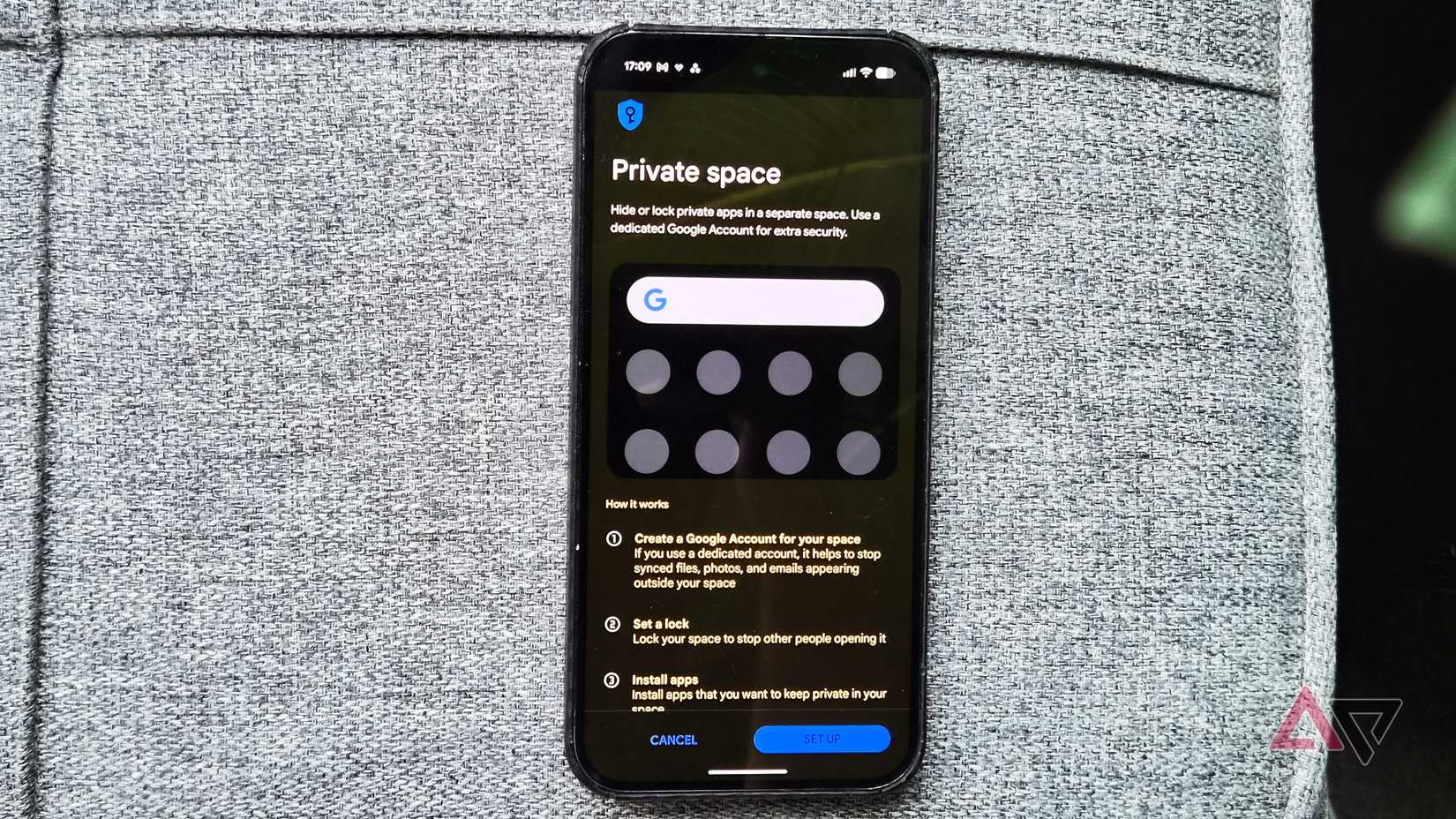
Technically, Pixel phones have offered app locking for a couple of years now through Private Space. You can add apps there to keep them locked and separate from the rest of your apps.
Apps added here don't appear anywhere on the home screen, but that separation is also its biggest drawback for me.
For starters, I have to install an app separately if I want to use it in Private Space.
Also, accessing it later means I have to first open the app drawer, unlock Private Space, and then open the app. That's three steps for something that should take one.
App lock is obviously way more convenient than this because I can keep locked apps right on my home screen and open them with a tap, just like any other app.
App lock doesn't make Private Space completely irrelevant, though. It's still handy for sensitive apps whose data you don't want appearing anywhere.
The other big advantage of Private Space is that it lets you set up a PIN that's separate from your main lock screen PIN.
This is something App lock doesn't offer yet, and I really hope Google changes it. Otherwise, anyone who figures out your device PIN can access all your locked apps too, which kind of defeats the purpose.
Google should have added this years ago
Apps like WhatsApp already offer built-in app locking, but the option is usually buried a few menus deep. Native app locking is much simpler.
There are still a few rough edges, though. For instance, locking an app also makes the option to clear its data inaccessible, but for some reason, it doesn't stop someone from uninstalling the app entirely.
Again, App lock is still in beta, so I don't want to be too critical just yet. I'm just glad it's here now. If this sounds useful, you can also try App lock by installing the latest Android 17 beta on your Pixel.