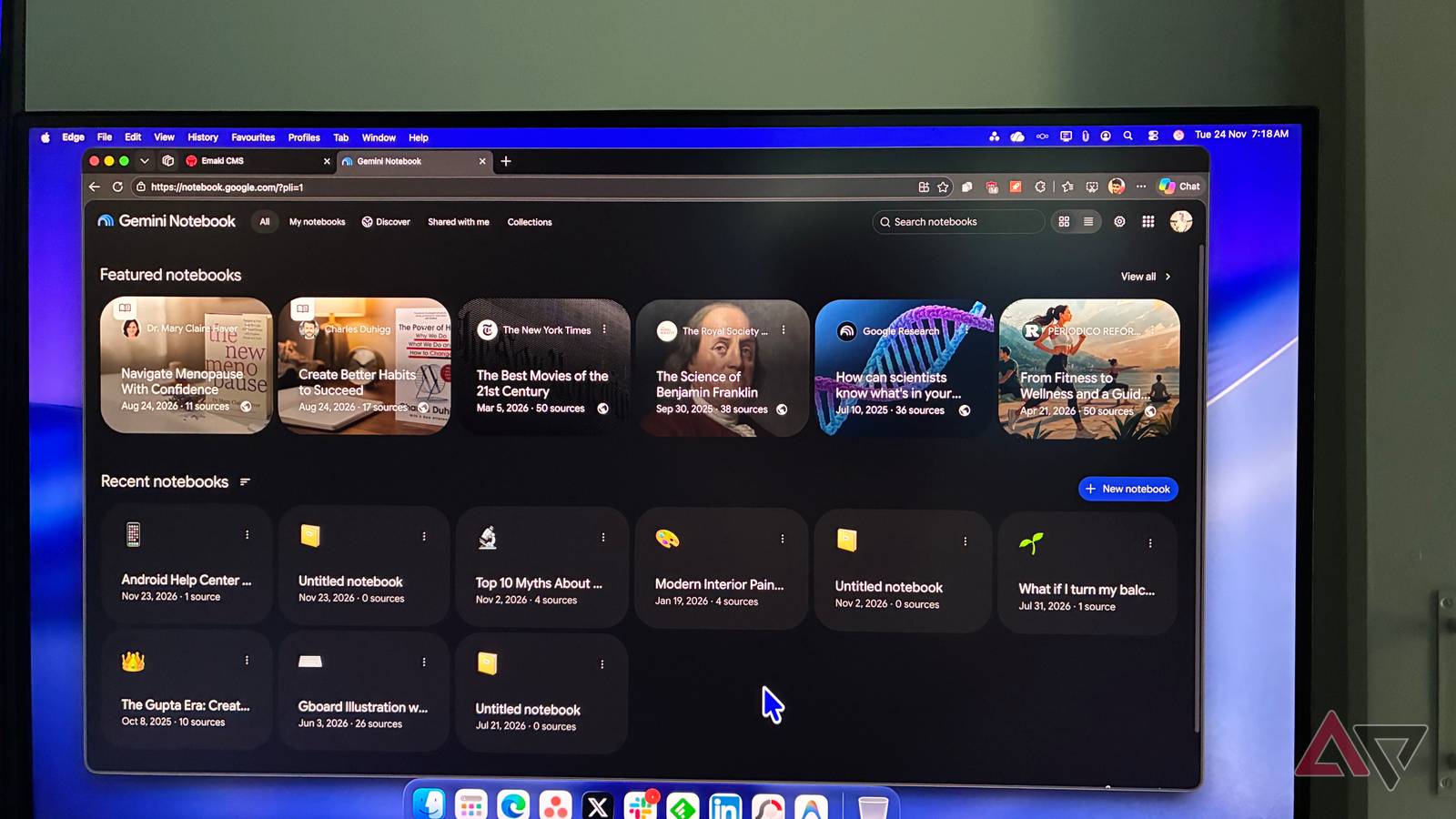
I read several stories online about how Google Gemini Notebook has changed users' workflows. It motivated me to try it, and I haven't looked back since.
A lot has changed since I first tried it. While I don't like everything Google has added since launch, the company has kept introducing handy features to Gemini Notebook, making it better overall.
However, many of those features lost their charm over time, and I no longer need them in my workflow. But I'm certain I'll never stop using Gemini Notebook's latest website builder.
It's nowhere near perfect, but it's capable enough to become an essential component in my daily . I could see myself using it in almost all my projects right after I built my first website.
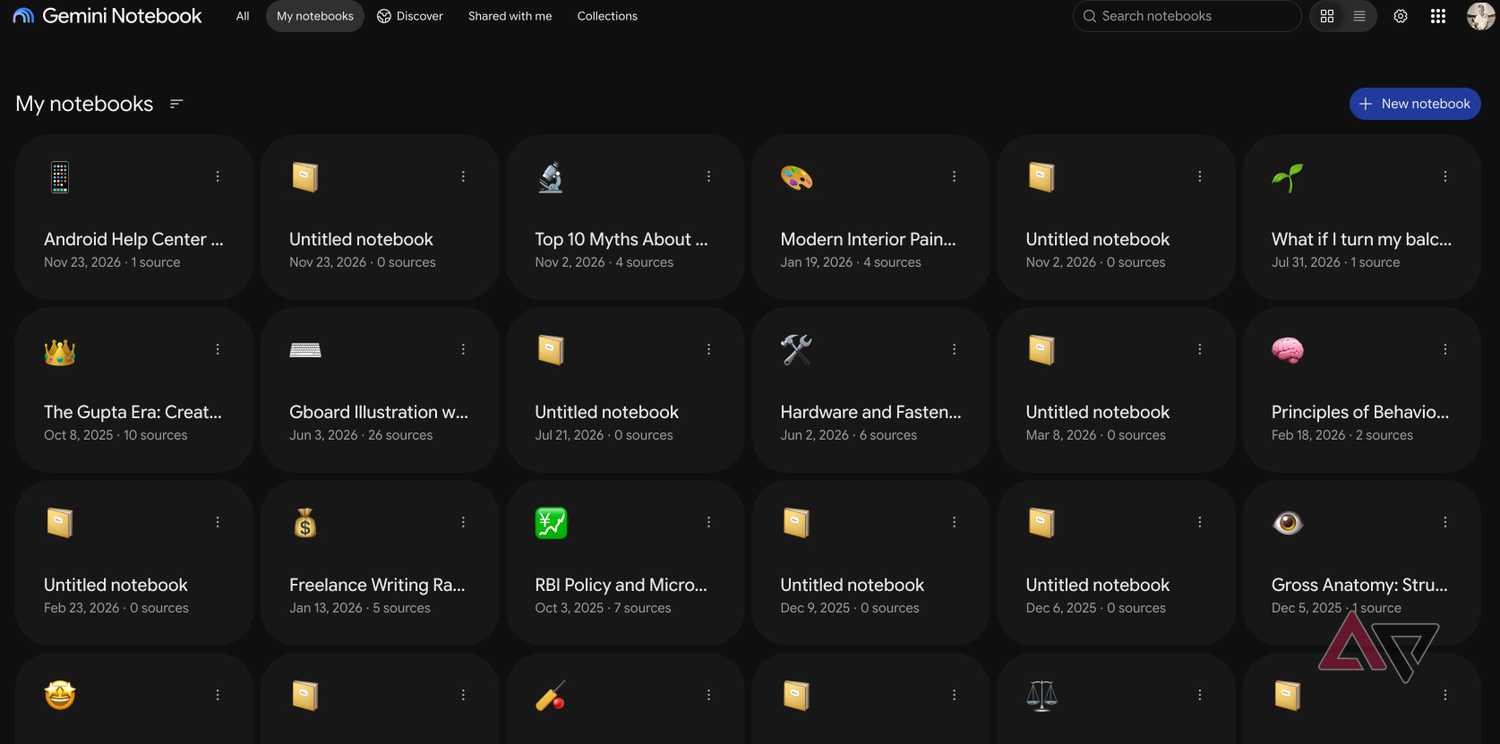
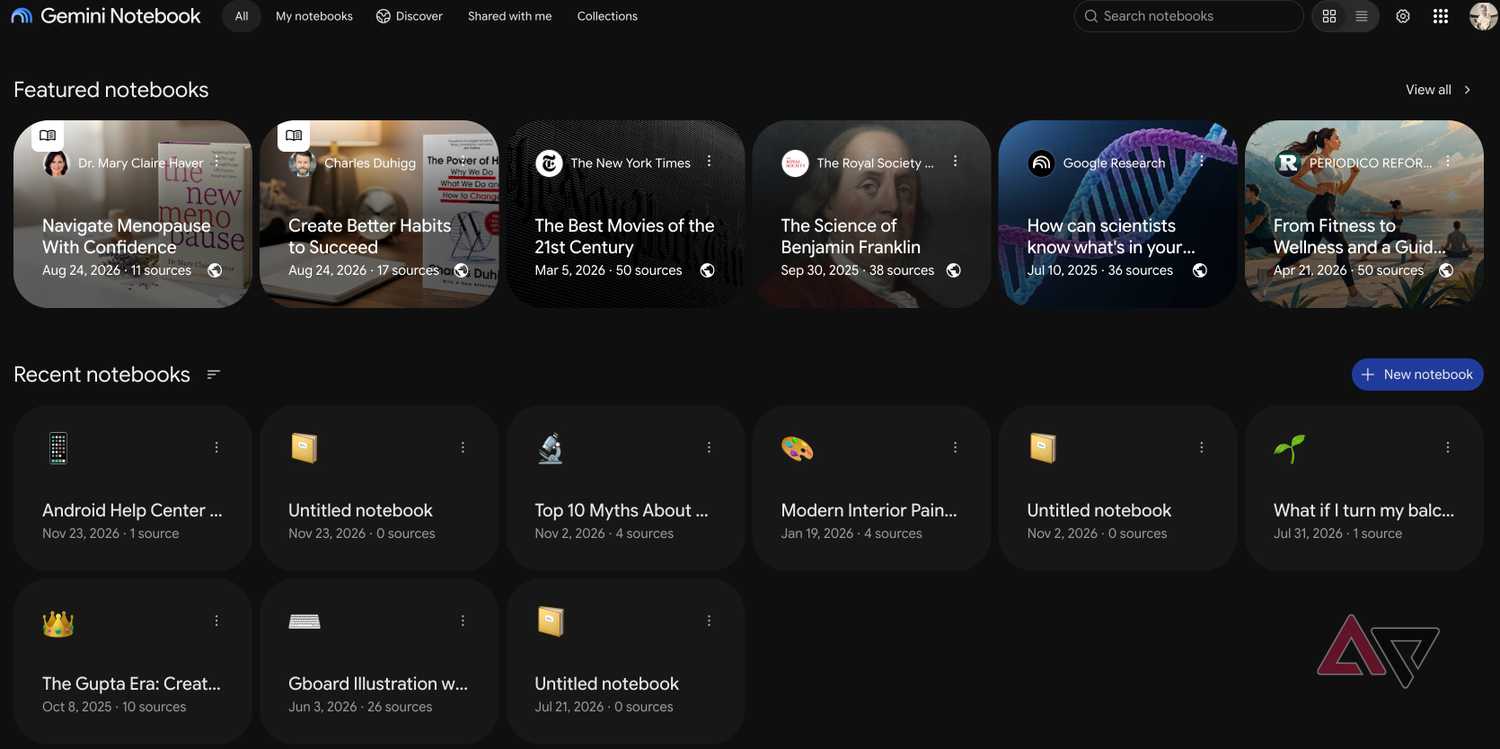
However, I'm more proud and excited about the one I built recently: an Android Help Center with Gemini Notebook, and here is how it went.
How did I build my own Android Help Center with Gemini Notebook?
There is no magic button for this
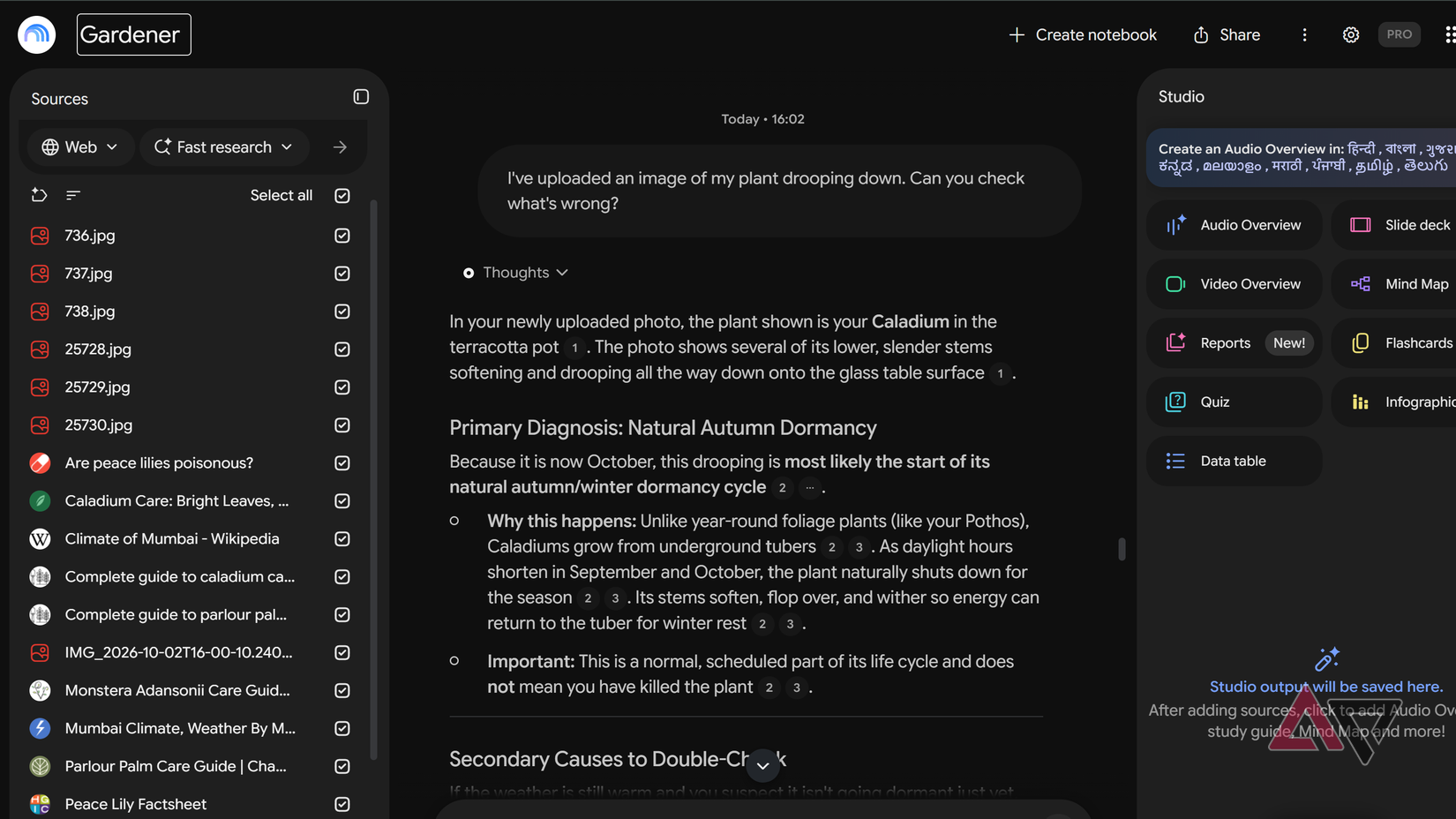
The website builder is available to everyone . However, it doesn't have a button that explicitly says it can create a website in a few minutes, unlike prominent features such as Audio Overview and Video Overview.
You need to know just two things: adding sources and writing a prompt.
After opening Gemini Notebook, I added the Android Help page, a few handy articles from reliable websites, and some YouTube videos as sources. This step is important because Gemini Notebook will only show what you add as sources.
Next, I wrote a prompt. It wasn't anything complicated; I only wrote "make me a site" in the chat box at the bottom. It took a few minutes to create a fully functional, interactive website.
However, it doesn't take the same time for everyone. If you add a short list of sources, it'll take less time to create the website. For context, it took around 5 minutes to build a website based on 10 sources I added.
The Android Help Center has only six sources, and it took only a couple of minutes to make the website.
I created 10 websites using the same prompt, and the way they organized the information was impressive. If you want to build a no-nonsense website from scratch, you can take inspiration from how Gemini Notebook does it.
Gemini Notebook doesn't create fancy websites, and I love it this way
It should inform rather than entertain
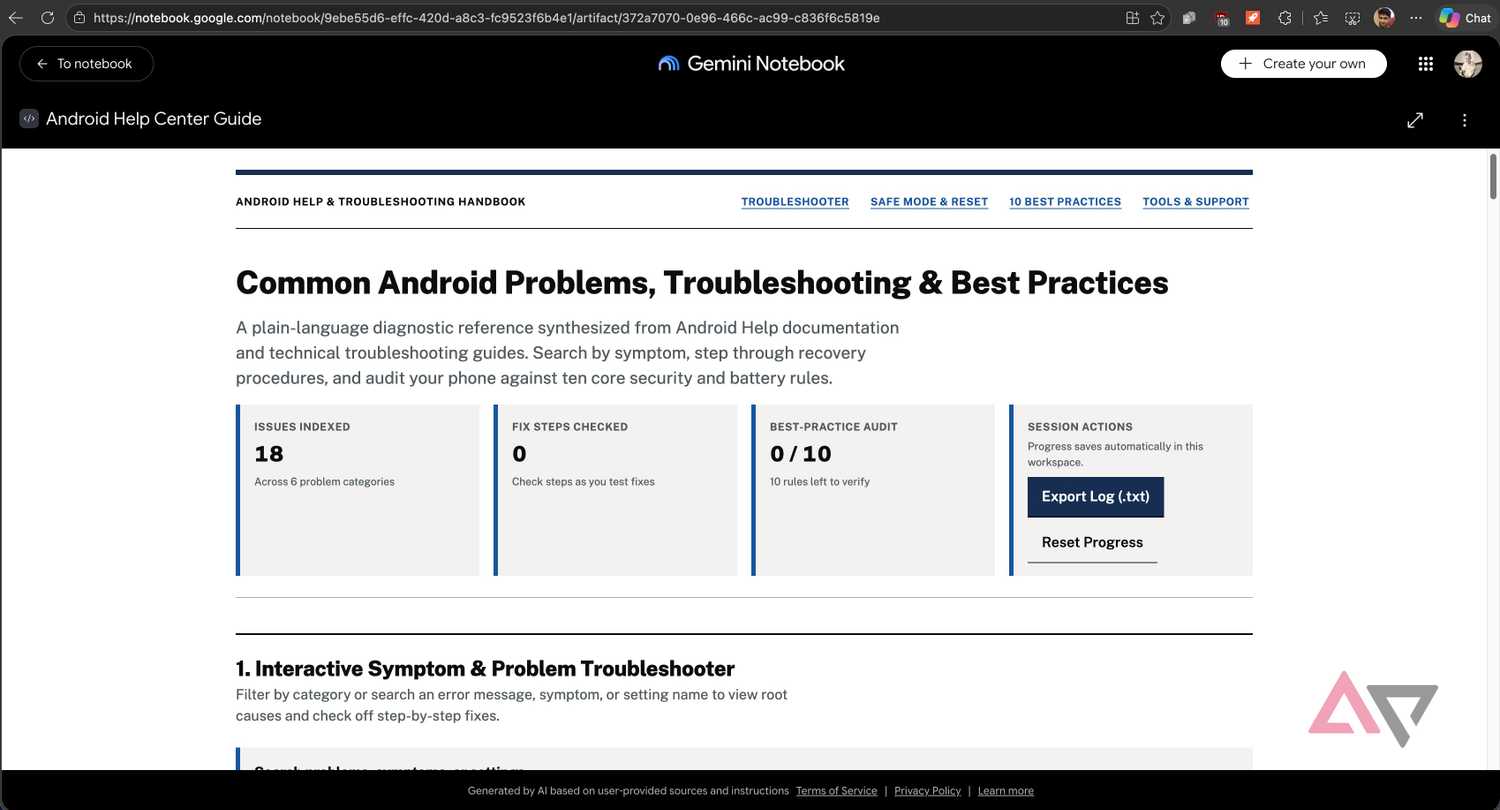
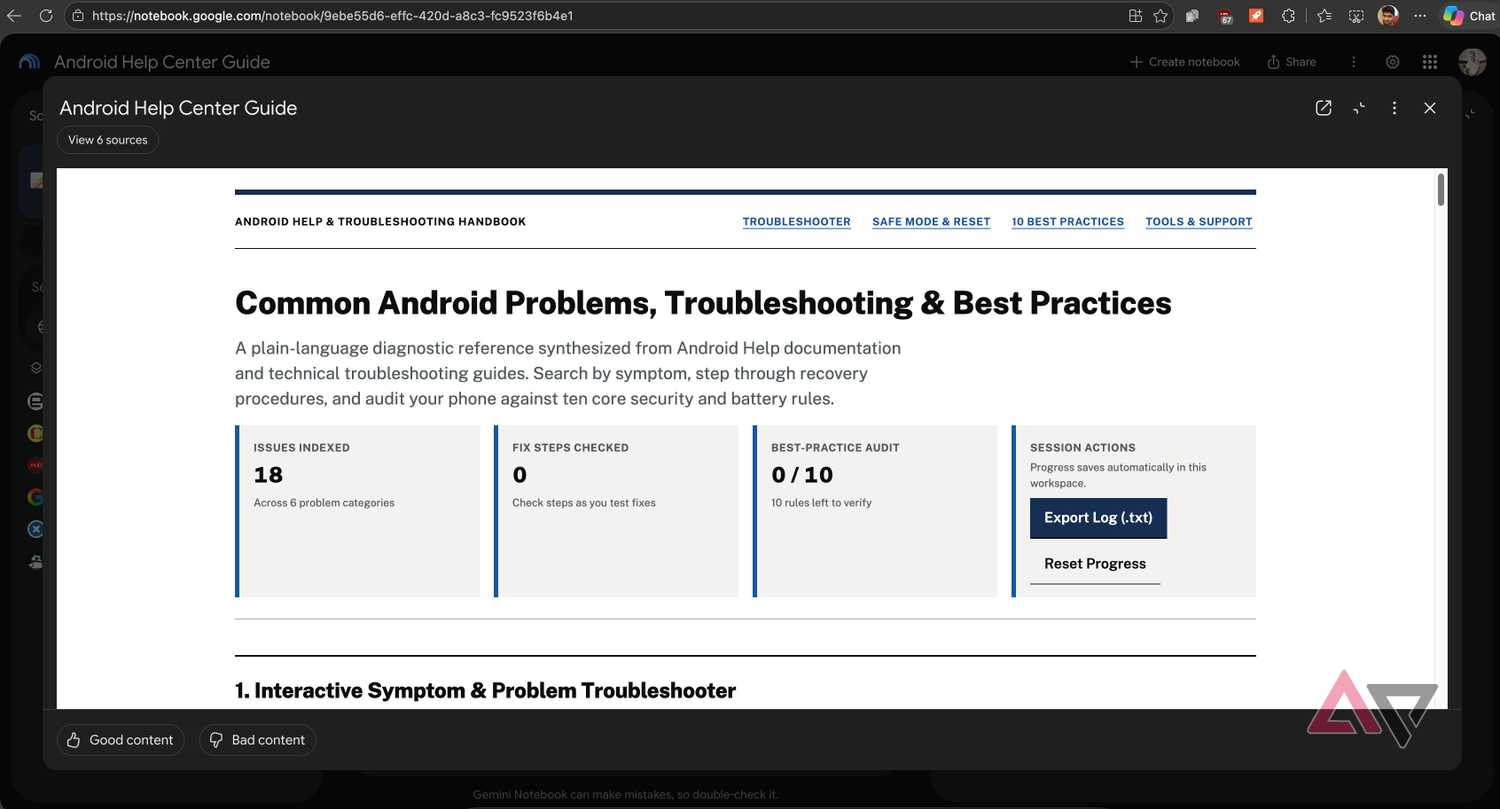
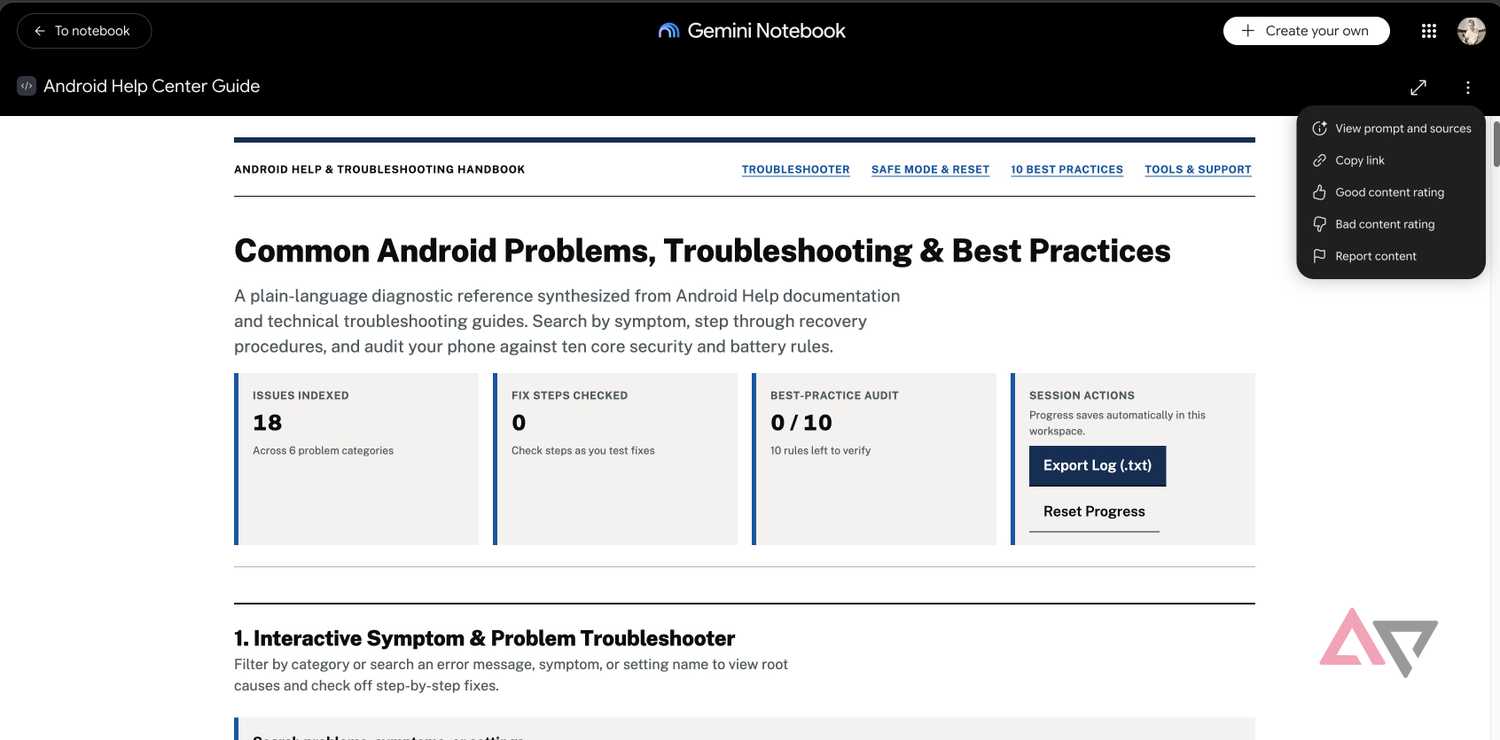
I love how simple the websites look. This is not because I always prefer it, but because a simple-looking website lets users consume information much faster.
I would like to believe that this isn't by accident. There are also some serious downsides to creating websites with complicated effects. For one, it'll take more time.
Instead, Gemini Notebook focuses on readability. The site builder even gave me a dark mode switch when I created websites during the nighttime.
While I love the attention to detail, one small improvement I would like to see is the dark mode switch being permanent regardless of when I create or use the sites.
I don't have any other complaints about accessibility. It has everything you need to quickly reach the page or piece of information you want to access.
My Android Help Center website has several filters that help me find the exact issues and their solutions in a few seconds. Of course, the websites also have buttons, links, and switches for quick access.
The Help Center also shows "Common escalation cases" for each major Android phone brand, including Google, Samsung, Motorola, and Xiaomi. If you have a handset from any of these brands, you can instantly know whether your current issue is widespread.
It is also my Android guide, listing important features and their functionalities, along with dos and don'ts.
These are all available on a single-page website, so don't expect it to open a page in a new tab when you click a link. Those links don't actually open any other websites; they are just shortcuts to important segments on your current page.
This isn't bad, as I can stay on the current tab for the entire web session. It's even better for users with a laptop that doesn't have good battery life.
This is my mini Android encyclopedia
The site builder in Gemini Notebook uses information that you provide and doesn't do any research on its own. Naturally, my Android Help Center website doesn't have the information related to Android, its issues, and their solutions.
But I still call it a mini encyclopedia because the sources I added are comprehensive enough to give you solutions to common .
Before I search online for a solution to a specific Android problem on my phone, I never forget to check the Help Center website that Gemini Notebook created.