
I've tested several notes or tasks apps but keep going back to for various reasons. One is its ability to work with Gemini, which has transformed how I use the app now.
But I find other note apps lacking, even though they might do some things better than Keep.
But when I discovered and started using some of Keep's nifty tricks, I deleted most third-party productivity apps I no longer needed.
I use Gemini and Google Keep to extract notes from notebooks and whiteboards
It works flawlessly
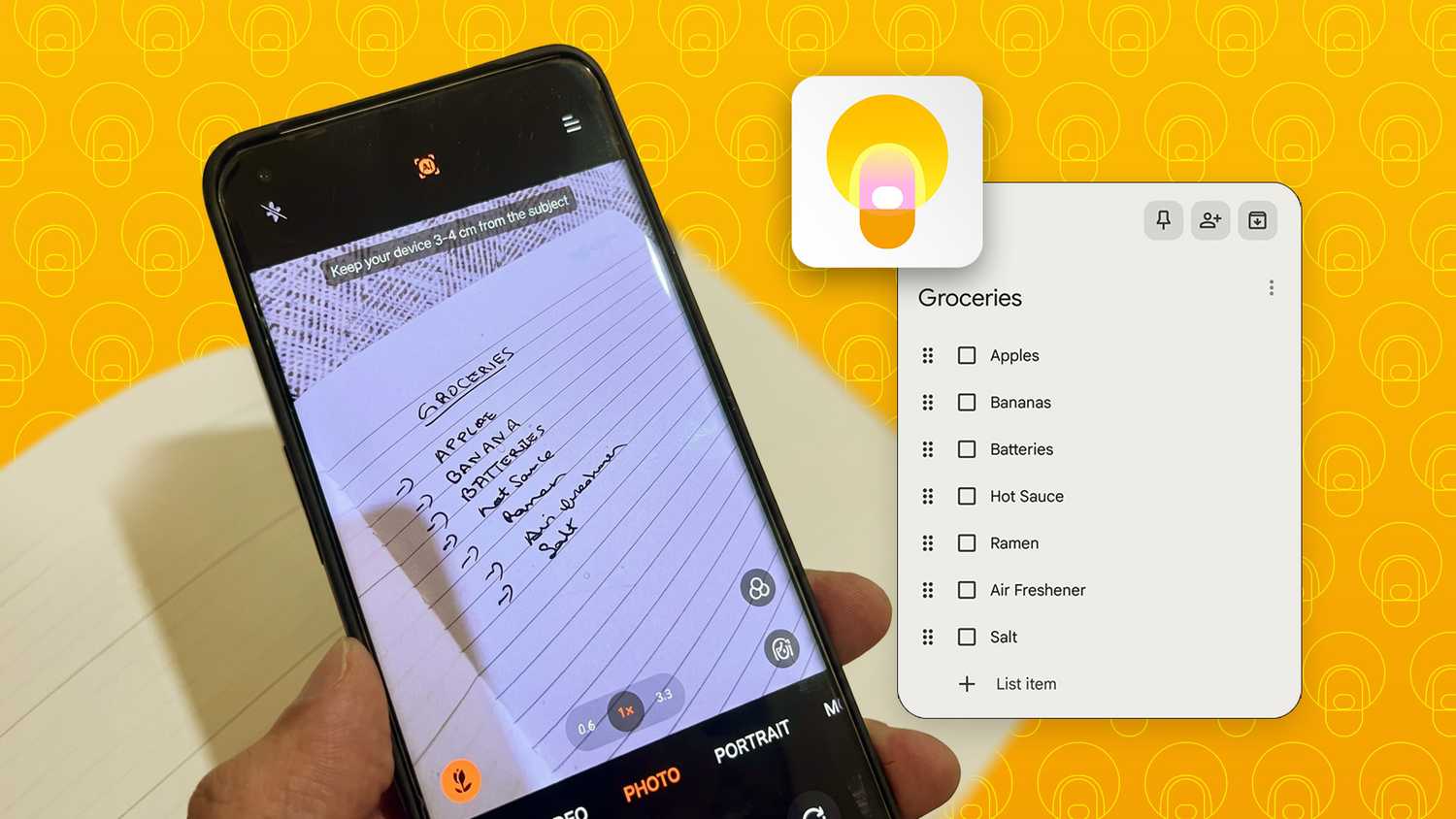
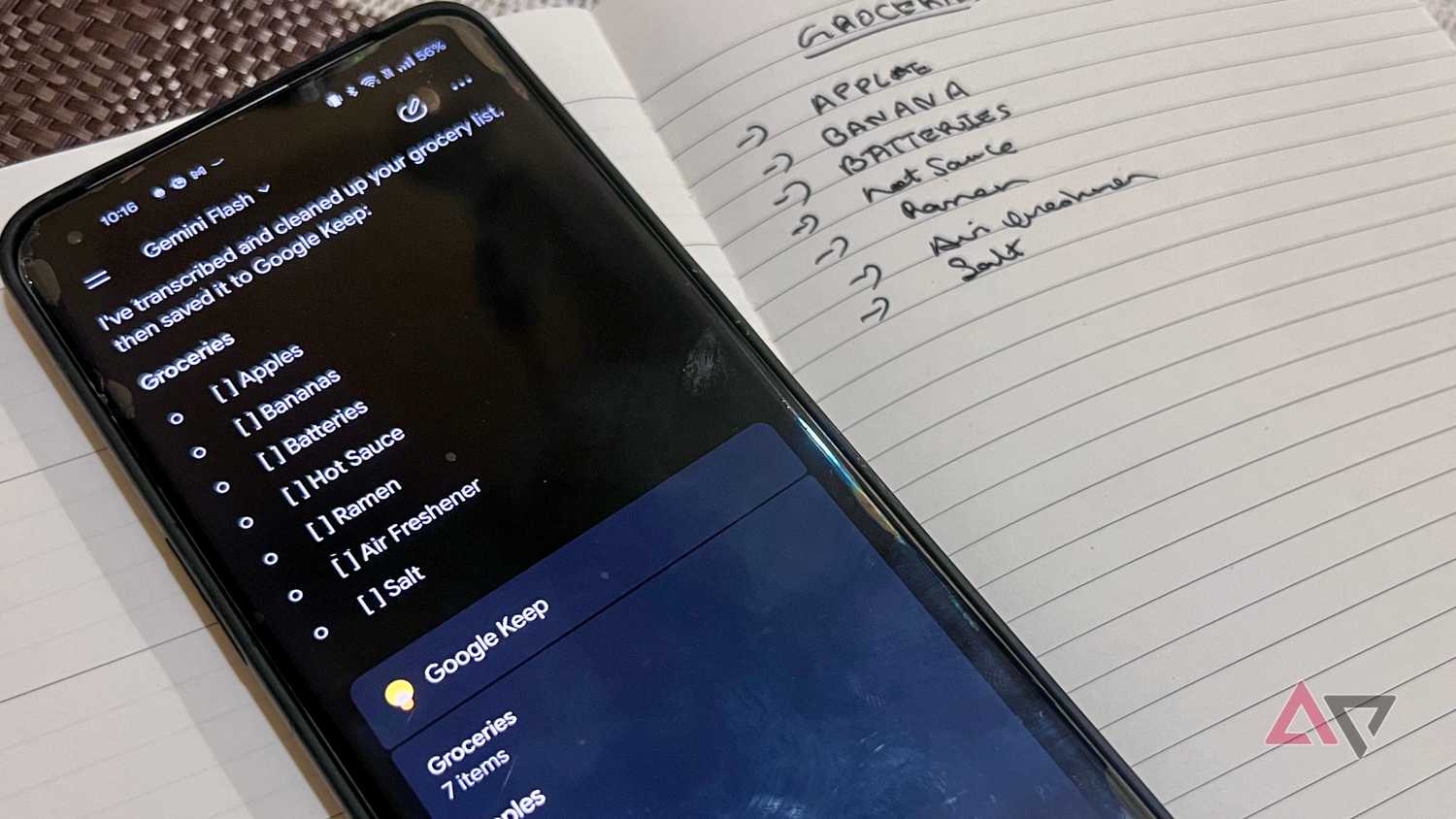
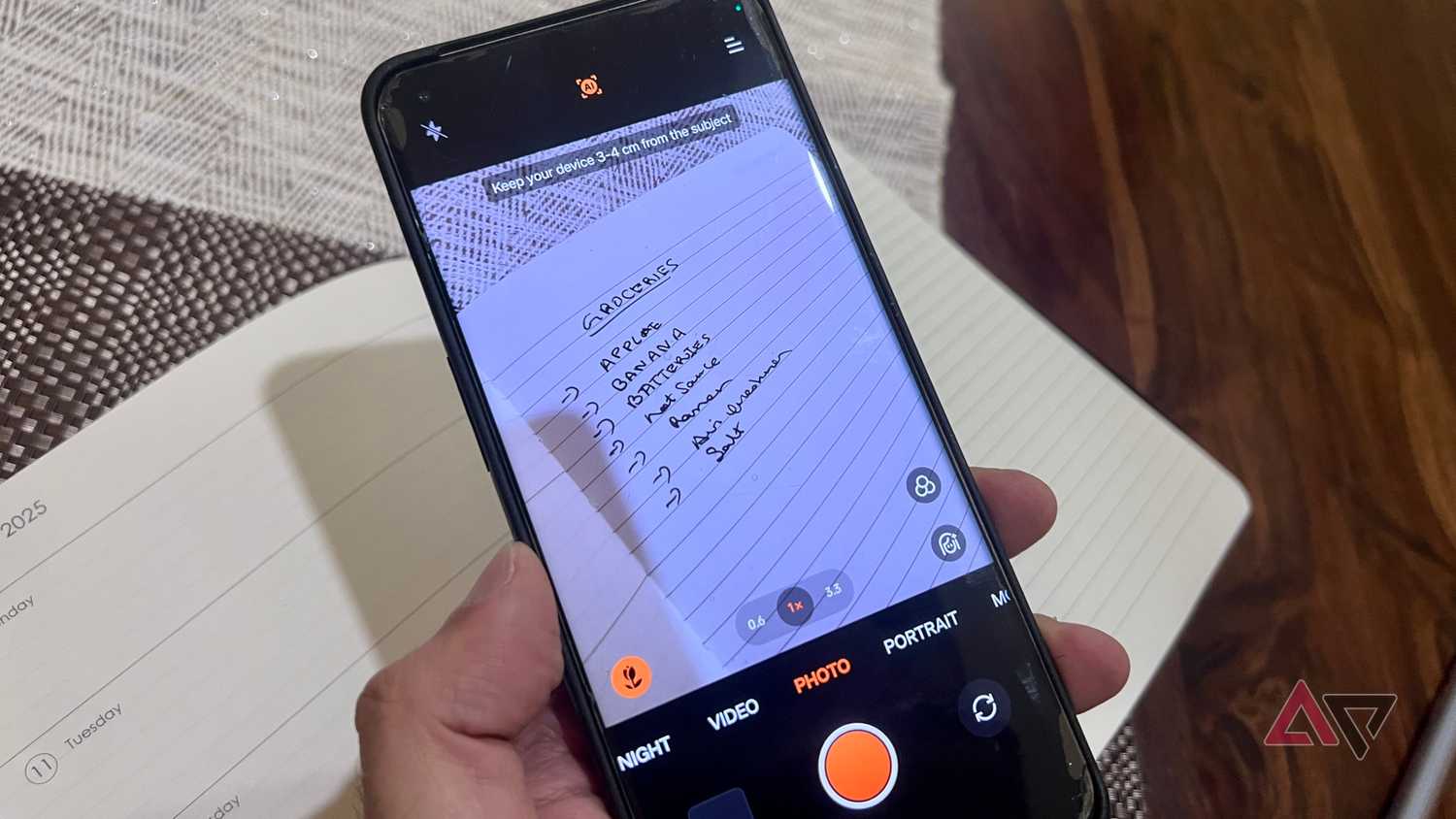
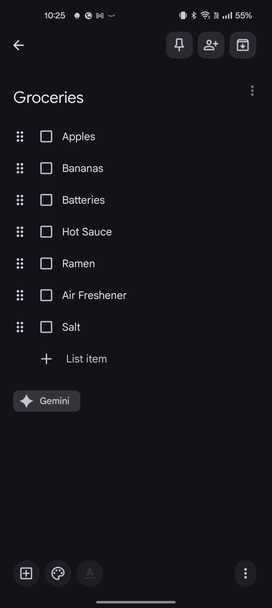
Gemini can now convert an image to a list in Google Keep by scanning any physical note, list, or even tasks.
It's simple: I snap a picture of a notebook page or a whiteboard, open the image in Keep, and select Grab image text. The extracted text becomes an editable note and can even be converted into checklist items.
I also add reminders or other checklist items as soon as the text is generated, so I don't forget them.
After the text is extracted, I recommend cleaning it up and setting reminders while you still have context for the note you are making. This habit has helped me make Keep a productivity powerhouse.
For example, I set grocery lists with location-based reminders that trigger as soon as I am near my neighborhood grocery store.
Alternatively, I can upload an image to Gemini and ask it to save it as a checklist in Google Keep because both are connected via Google Workspace.
Whether it is a physical list or a whiteboard, I use this feature more often because I don't have time to type it out individually, and social norms prevent me from staring at my phone during meetings.
Earlier, I used a dedicated app for scanning images, but it didn't do a great job of extracting text. But after using Keep's image-to-text feature, I no longer needed it.
In fact, I've turned this into a routine. I capture an image, extract the text in Keep, and set reminders. It's a great trick for busy days or meetings where a whiteboard is being used and I need that information later.
Google Keep's cross-device reminders actually feel more reliable
It works on my phone, my tablet, and the web
I use multiple devices, including two phones, an iPad, and a laptop, and I need access to all of my notes and reminders.
I have Keep across all those devices with the same Google account, and having them synced has been a lifesaver.
But the one feature I've started to appreciate most is getting reminders across all my devices and having them work reliably.
I use both location- and time-based reminders on specific notes, and with Google Keep, they come with me wherever I go.
Whether some checklists are location-specific or need to be completed at a certain time, Google Keep never fails me.
For example, I have work-related that only trigger when I'm at the office, or, like my previous example, I have my grocery list set to remind me when I'm near my local grocery store.
After I started using Google Keep across all my devices as my sole notes app, it removed the mental load of checking multiple note apps or worrying whether a reminder will pop up.
With Google Keep, I get reminders on my phone, iPad, and Chrome, so I always know what needs to be done, no matter which device I'm using.
The side panel that ties Keep to other Google apps
The secret sauce that I discovered recently
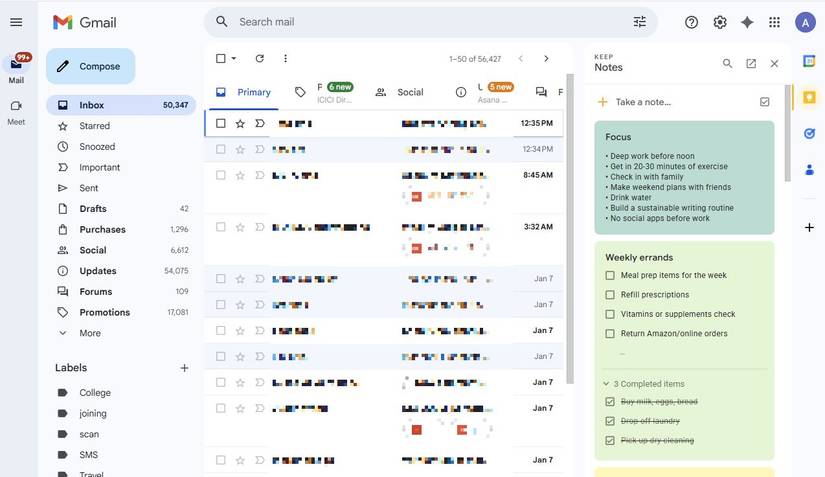
Google added a side panel across its apps, including Gmail, Docs, Sheets, and Slides, which I can access on a laptop each time I need a note from a meeting.
Whether it is extracting notes from Google's Recorder app and transferring them to Keep, or using the image-to-text feature I mentioned earlier, having access to them within an app is a total game changer.
In Gmail, Docs, or Sheets, I open the Keep side panel within the webpage itself and drag notes or checklists directly into a document or email.
When I need to reference my notes, I no longer open a separate tab because the panel lets me see them while I'm already in an email or document.
This gives me context on the fly, as I can access meeting notes, project-related checklists, or talking points right beside a Google Doc or Slides draft.
It is an understatement to say the reduced app and tab hopping and removed the manual process of copying and pasting text.
After I started using this underappreciated feature, my need for having a separate note app for work vanished instantly. Because Keep already lived inside the apps and tools I used most, it let me clear storage space on my phone and keep everything in one place.
Google Keep features prevent me from switching for good
Whether it is the image-to-text feature in or side-panel shortcuts, plenty of features keep me loyal.
I use the app for taking every important and useless note I can think of. But after I started using the three aforementioned features to their full potential, I deleted most of my other apps.
I recommend trying these features if you haven't already, and if you know of any other tricks, I would love to hear them to improve my productivity.