
Gmail has been my go-to email service for years. It's my default inbox for work, personal conversations, receipts, newsletters, account alerts, and more.
I never felt the need to replace it, but I also can't say it ever made managing my email feel easier.
What wore me down was the constant decision-making.
Every message demanded attention: Do I read this properly or skim it? Should I reply now or come back later? Is there an actual task hidden somewhere in this long thread?
Over time, that mental overhead became the real problem.
I needed Gmail to reduce the cognitive load of dealing with email. That's where Gemini earned its place.
Summaries that make long threads manageable
Gemini's summaries help me catch up in seconds
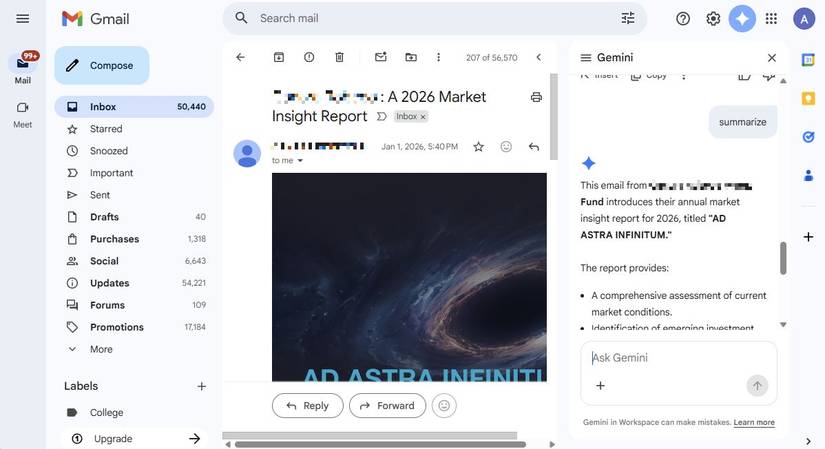
Long email threads in Gmail have always slowed me down.
A single conversation can span dozens of replies, forwarded messages, and quoted text, often stretching days or weeks.
Here is where Gemini's summaries feel useful.
On the desktop, I click Summarize this email, and the summary appears right at the top of a long thread. At a glance, I can see the current state of the discussion and decide whether to read the thread or move on.
This feature is even more valuable on mobile. Long threads are more challenging to read on smaller screens, and scrolling through repeated replies can be frustrating.
Gemini's summary sits at the top of the conversation, letting me catch up in seconds instead of swiping endlessly.
If you don't see a summary for an email, you can still generate it manually.
After opening the message, tap the Gemini icon at the top and type in the prompt window.
Gemini creates a concise summary, even for threads that didn't trigger one by default.
Drafting emails without the awkward starting point
Gemini gives me ideas

The hardest part of writing an email is often the first sentence.
Even when I know what I want to say, staring at a blank Compose window slows everything down.
In Gmail, I use Gemini to generate a first draft based on the thread's context.
On desktop, I click , select Help me write (the sparkling at the bottom), and type a short prompt like "reply confirming availability" or "polite follow-up asking for an update."
On mobile, the flow is the same. The sparkling appears at the top when composing, making it easy to generate a draft without leaving the app.
On mobile, tapping Help me write in the upper-right corner of the compose screen opens drafting tools, while full side-panel inbox Q&A andDrive file referencing apply to the desktop web interface.
What I appreciate is that Gemini gives me a solid starting point. From there, I tweak the wording to sound like me.
I rarely send Gemini's drafts as-is, but I also no longer waste time figuring out how to begin.
"Smart features" must be enabled in Gmail settings. While thread summaries and Help me write are free on US personal accounts, the full Ask Gemini side panel (for inbox Q&A and Drive file referencing) requires a paid Google AI subscription or an eligible Google Workspace plan.
Pulling information without digging through my inbox
Gemini does the searching for me
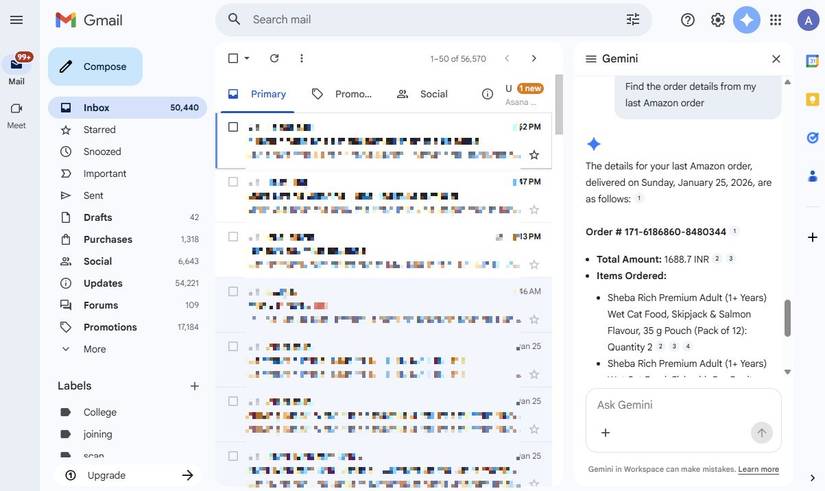
Searching Gmail has always worked, but Gemini takes it a step further by answering natural-language questions about your inbox.
Instead of hunting for confirmation emails or scanning old messages, I can ask Gemini for specific details.
I'll click the Gemini icon on desktop or mobile and type prompts like "What date did we agree on for the meeting?" or "Find the order details from my last Amazon order."
Gemini scans my inbox and pulls the relevant details into a single response.
It doesn't replace Gmail's search bar, but it's often faster.
When I need a quick answer rather than the full message, asking Gemini feels more natural than guessing keywords.
Reference Workspace files without leaving Gmail
It's all in the @ symbol
One of the more helpful things Gemini does in Gmail is tie my inbox to the rest of Google Workspace.
When I'm drafting an email and need to reference a document, spreadsheet, or presentation, I don't have to open a new tab or search through Drive.
Instead, I click the Gemini icon to ask questions that retrieve information from my emails and my Google Drive.
The key is using the symbol to point Gemini at a specific file or folder.
On the desktop Ask Gemini side panel, click Add sources > Add from Drive to select files or folders, or type to search and select specific Drive files or skills.
Google is transitioning some personal paid accounts from the side panel to inline AI experiences.
For instance, I can type a question like "What were the key decisions from last week's meeting outlined in @Meeting_Notes?"
As I type, Gemini suggests matching files from my Drive, which I can select instantly.
I use this most when I need clarity without opening the file.
Pulling decisions, timelines, or action items from a specific document inside Gmail saves me from bouncing between apps.
Using the Gemini app to ask questions about my inbox
No more switching between apps to find the information I need

It also comes in handy when I'm using Gemini for something else, like planning my day or checking my schedule.
Instead of switching apps, I ask a quick follow-up question in the Gemini app about my email.
It's also surprisingly convenient when I'm on the go, since typing or dictating a question is faster than opening Gmail.
Gemini extracts the relevant information from Gmail and offers a direct answer.
You must enable the Google Workspace extension/connected app in Gemini settings (with Gmail Smart features and Gemini Apps Activity turned on) before the Gemini app can access inbox data.
Gemini changed how I manage my email
Gemini doesn't or reduce the volume of messages, but it does strip away a lot of unnecessary friction.
By summarizing email threads, assisting with replies, and providing context, Gemini reduces the effort required to manage emails.
For anyone drowning in messages, juggling priorities, or sick of endless scrolling, unlocking Gemini in Gmail could be one of the biggest time-savers you never knew you were missing.