Google Messages is where I receive everything from delivery updates to banking alerts and one-time passwords. However, not every text is trustworthy.
Scam messages can look surprisingly convincing, suspicious links can lead to phishing websites, and even seemingly harmless features can expose more information than I want to share.
While includes several protections, some useful security and privacy settings are easy to overlook. I checked the app's settings and enabled a few features that offer better protection against scams, unwanted content, and potential privacy risks.
Here's what I changed and why you should check these settings on your phone, too.
I stopped relying on basic spam filtering
Google Messages has spam protection enabled by default. It uses on-device machine learning to identify suspicious messages and moves suspected spam into the Spam & blocked folder.
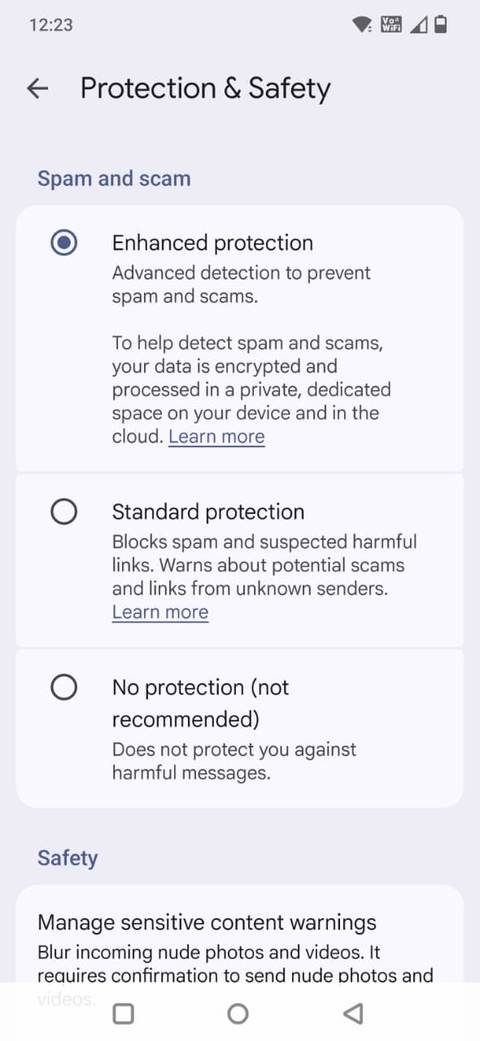
However, Google also offers Enhanced protection for stronger detection of sophisticated scams.
Some scammers gradually build a conversation with an unfamiliar person before introducing a fraudulent investment, payment request, or other suspicious offer.
Enhanced protection uses Google's Private AI Compute to analyze complex message conversations with cloud-based AI models. It supplements standard on-device detection to identify suspicious patterns that might otherwise go unnoticed.
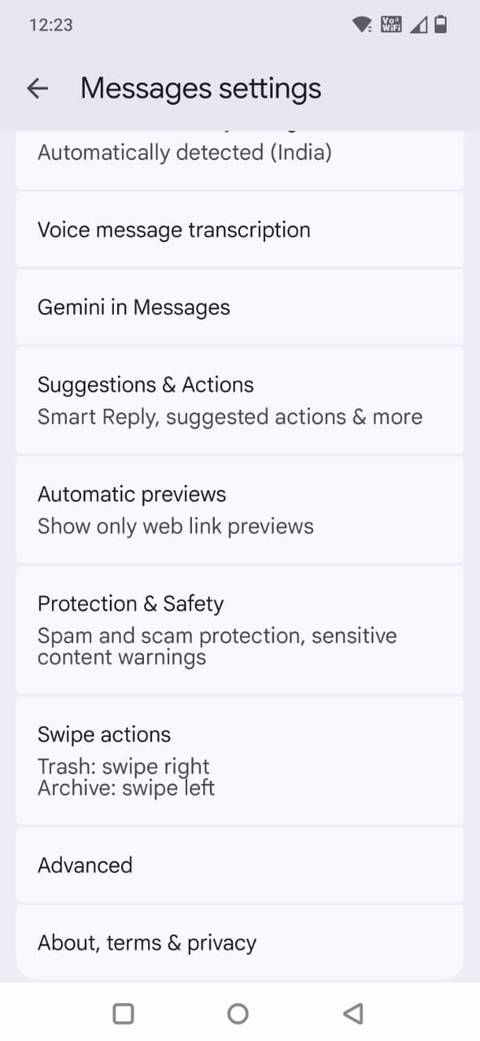
To enable it, open Google Messages, tap your , select Messages settings, navigate to , and select Enhanced protection.
Check that your RCS conversations are end-to-end encrypted
Look for the lock icon
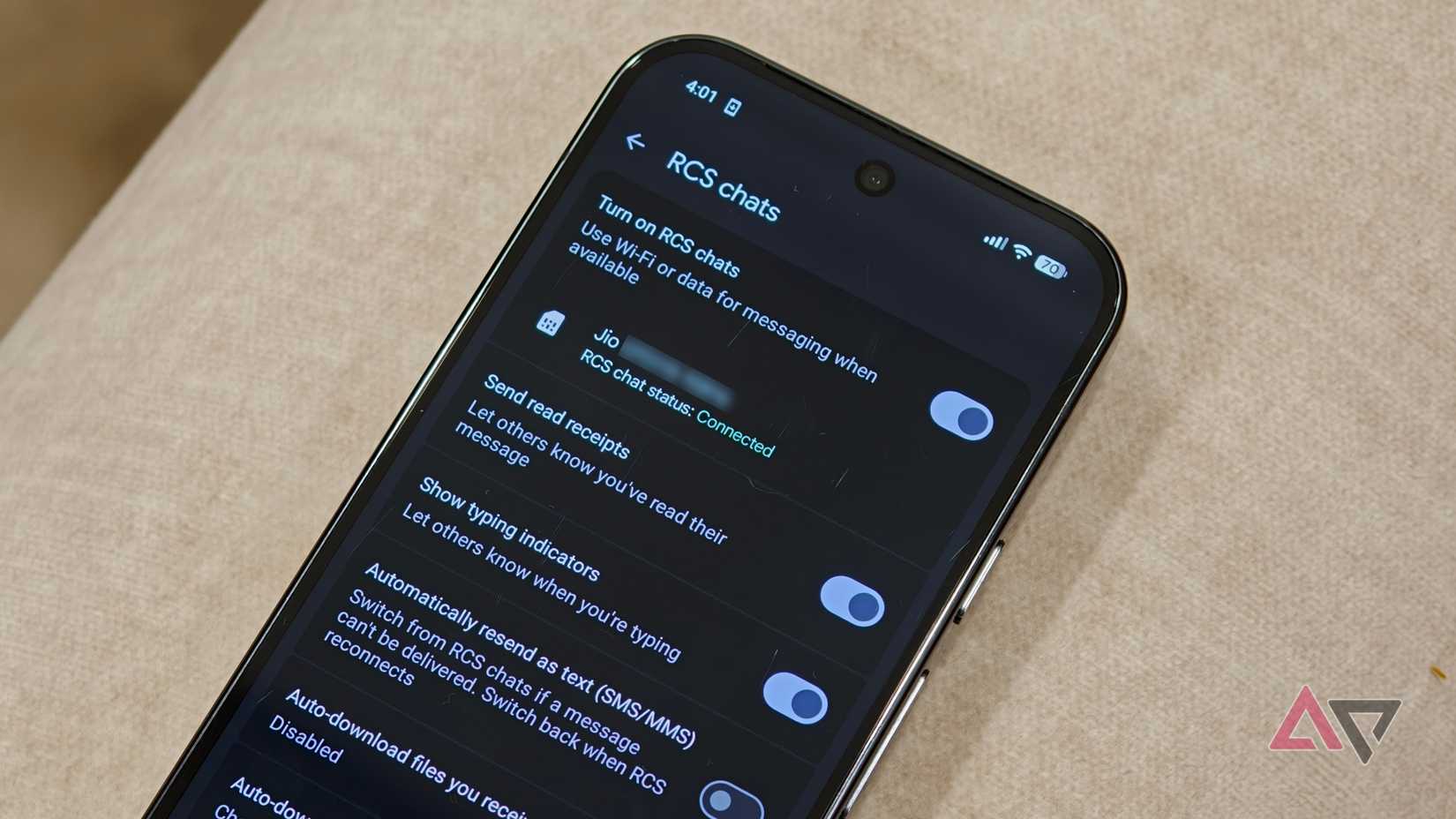
RCS chats between Google Messages users are automatically end-to-end encrypted when both participants have RCS enabled.
However, traditional SMS and MMS messages aren't end-to-end encrypted.
To check whether a conversation is encrypted, open a conversation in Google Messages and look for the lock icon on the send button.
Google also displays an RCS chat banner at the top of conversations. The conversation might not be end-to-end encrypted if these indicators are missing.
If you don't see the lock icon, check that both you and your contact are using the latest version of Google Messages and have RCS chats enabled.
You can check your status by tapping your , opening Messages settings, and selecting . If RCS is disconnected or unavailable for either participant, messages may fall back to SMS or MMS, which don't have end-to-end encryption.
Verify your contacts with Key Verifier for added security
Don't take encrypted conversations at face value
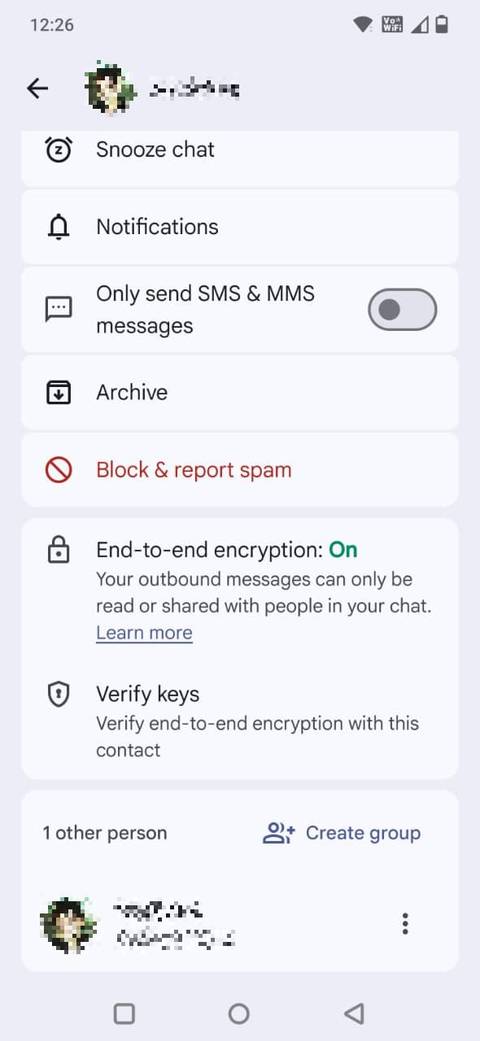
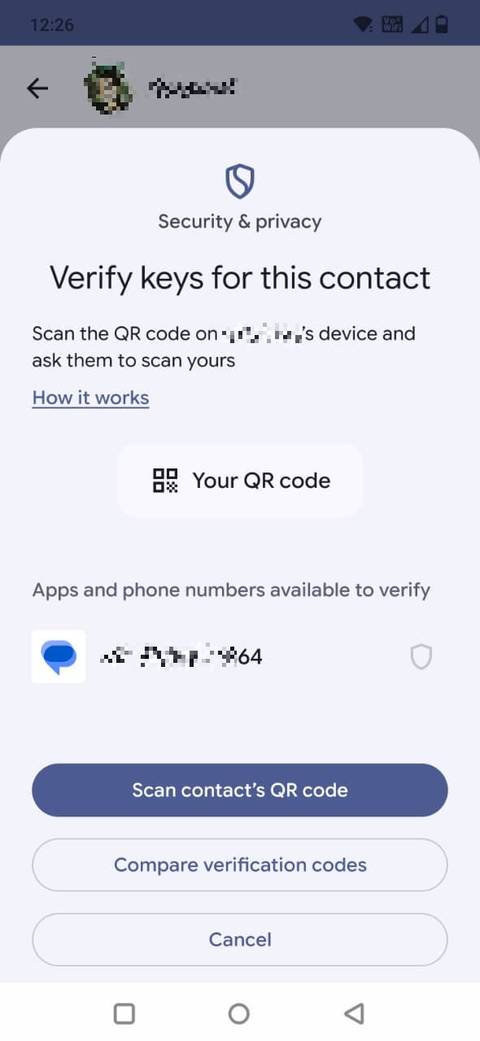
Scammers can impersonate people you know, and encryption alone doesn't confirm someone's identity. Google's Key Verifier adds another layer of protection by verifying a contact's public encryption keys.
It works through Android System Key Verifier, a system service that helps verify the authenticity of encryption keys. You and your contact can scan each other's QR codes to compare keys and establish a verified status.
This makes it harder for someone to intercept a conversation and substitute their encryption keys without being detected.
Both participants need Android 10 or later, updated Google Messages and Google Contacts apps, and the Android System Key Verifier app.
The feature also requires RCS with end-to-end encryption enabled; it won't work for SMS or MMS conversations.
Here's how to set it up:
- Open and select the conversation with the contact you want to verify.
- Tap the contact's name at the top of the conversation.
- Select Verify keys.
- Follow the on-screen instructions to display and scan the QR codes.
- Ask your contact to complete the verification process on their device.
After verification, Google Messages displays a verified status in the contact details. You can check this status later to make sure the contact's keys haven't changed.
Hide sensitive message previews on your lock screen
Keep them hidden from curious eyes

I often check my phone when I'm out, whether I'm waiting in a queue, commuting, or sitting in a crowded café. But incoming message notifications can reveal a lot, especially when someone nearby can glance at my screen.
People around me could see a private conversation, banking alert, or one-time password. To avoid exposing that information, I prefer hiding sensitive message previews on my lock screen while still receiving notifications.
This isn't a setting inside Google Messages. Android lets you control how much notification content appears while your phone is locked.
You can hide message previews while still receiving notifications, so you know when someone has contacted you without exposing the actual message.
To enable this protection, open your phone's app and navigate to > Notifications on lock screen. Look for an option called Show sensitive content and turn it off.
A few minutes of setup can save you from a costly scam
I don't want to second-guess every text I receive, but I also don't want to hand scammers an easy opportunity to catch me off guard.
That's why I think it's worth spending a few minutes going through security settings.
Turning on stronger , checking encryption, and being more careful about unfamiliar links won't make you immune to scams. However, they can help you spot suspicious messages before you make a costly mistake.