
My ever-growing list of unread emails recently reached 55,275.
The handful of important ones are buried inside thousands of store promotions, newsletters, and deals I'm supposed to love. I could , but new ones would just pile up again.
The popular fix is Superhuman, a premium email app that costs about $30 a month. Its best feature, , sorts your mail into sections, so the important stuff sits at the top.
Gmail can do something similar for free. Here's how I set it up.
Superhuman's best feature is hiding in Gmail
Split Inbox without the $30 monthly fee
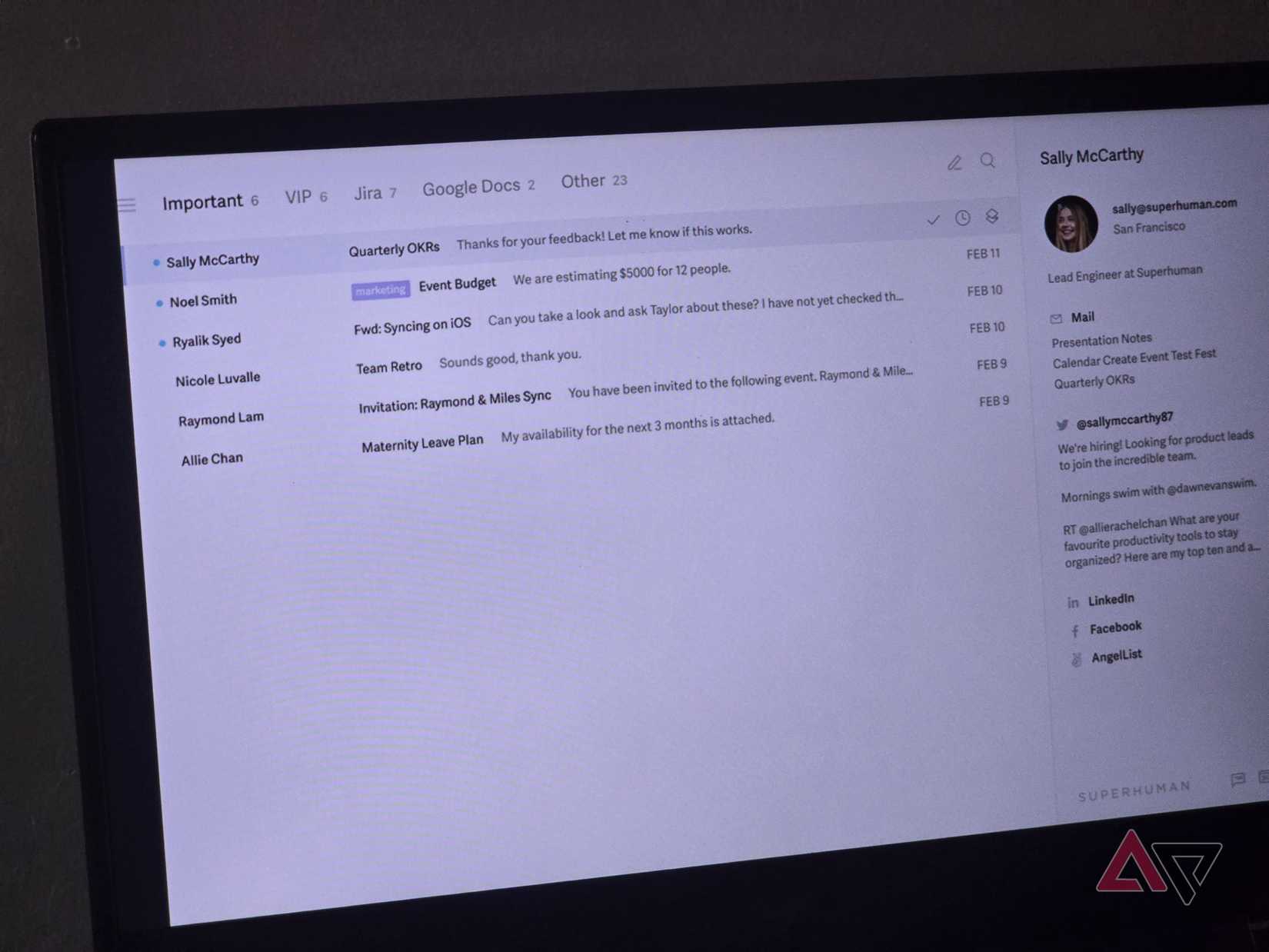
Gmail has a setting called that adds up to five custom sections to your inbox page.
Each custom section is a saved search that controls what goes where. So you could have a group for unread mail from real people, one for emails you've starred, and another for every promo Gmail detects.
It doesn't copy everything Superhuman does. You have to set the rules manually, and the sections only appear on the Gmail desktop site.
But if your main problem is promotional emails drowning out real ones, this does the trick.
Since you write the rules, it's also more predictable than , which automatically decides what goes where.
How to set up Multiple Inboxes
Three quick sections that sort your email for you
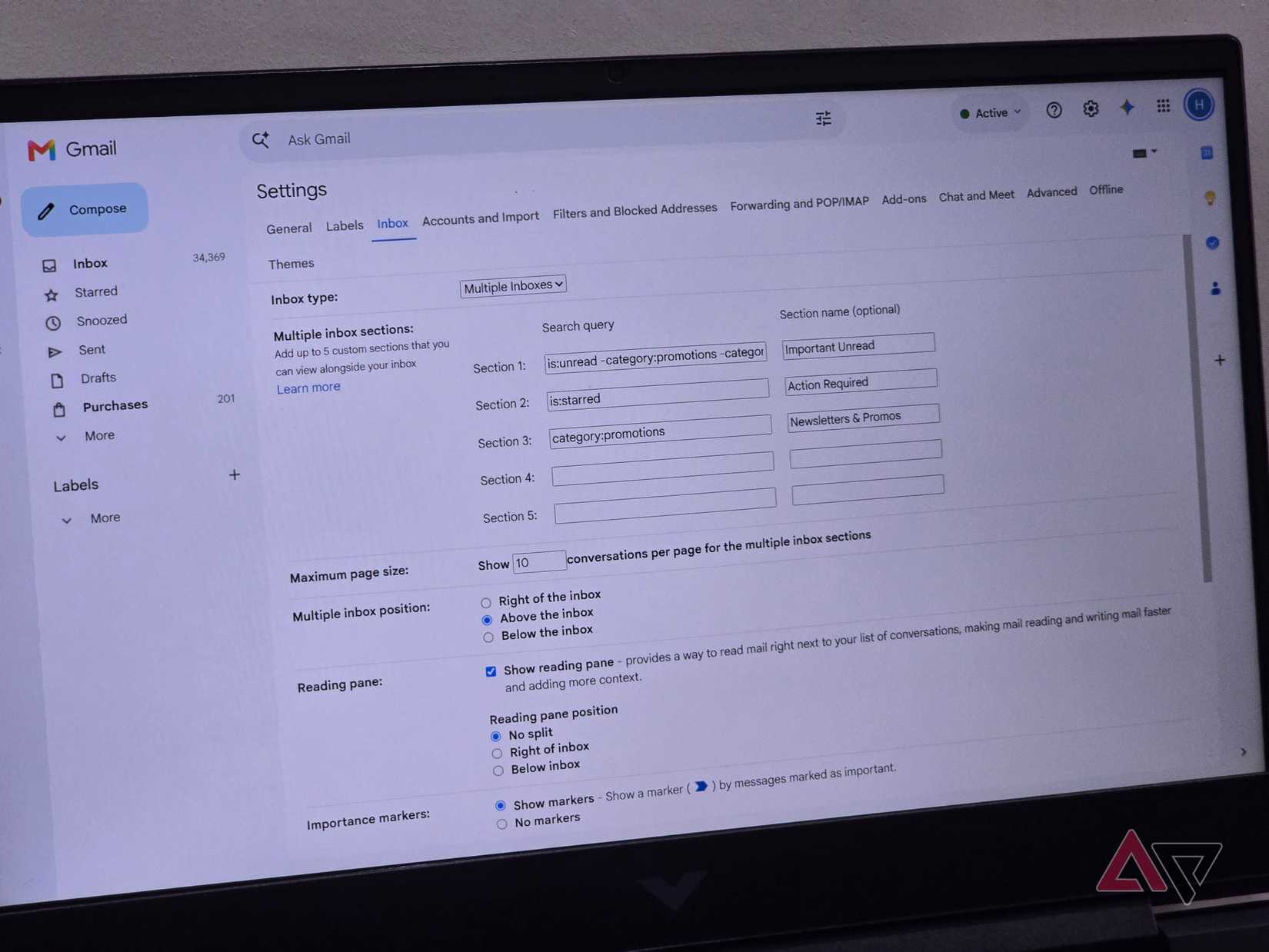
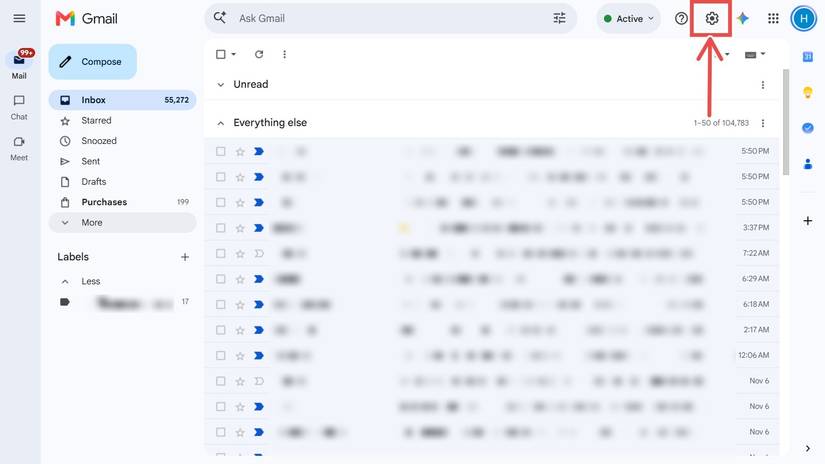
To start using Gmail's Multiple Inboxes:
- in the upper-right corner.
- See all settings tab.
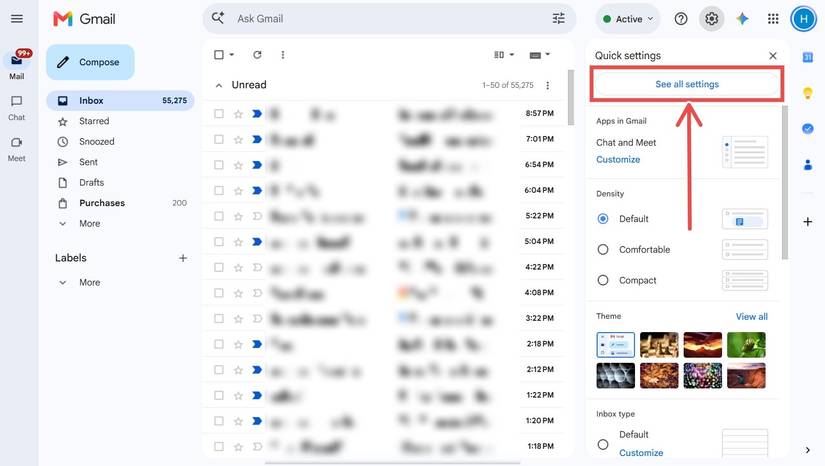
-
Next to Inbox type.
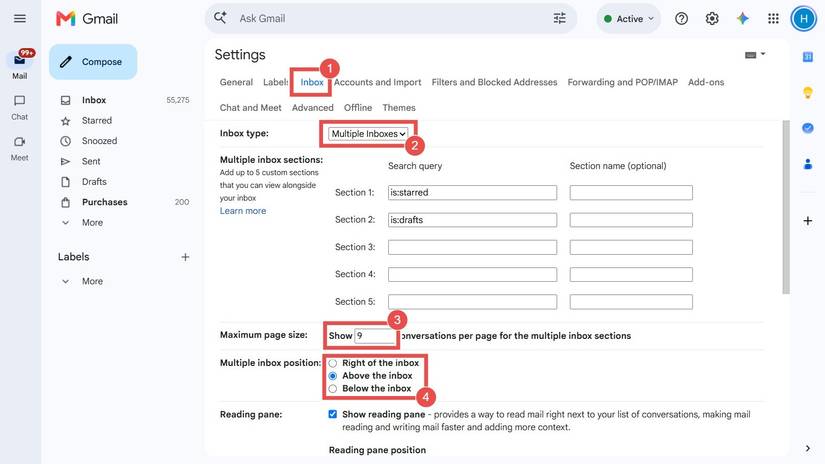
You'll get a couple of options. Under Multiple inbox sections, add the following:
|
Search query |
Section name |
|
Set the Maximum page size to show 10 items, so each section remains short, and choose Above the inbox under Multiple inbox position. Then, scroll to the bottom and click .
With the sections on top, you see them first when you open your mail, and each section collapses with one click.
Start decluttering your Gmail immediately
One filter against thousands of unread promos
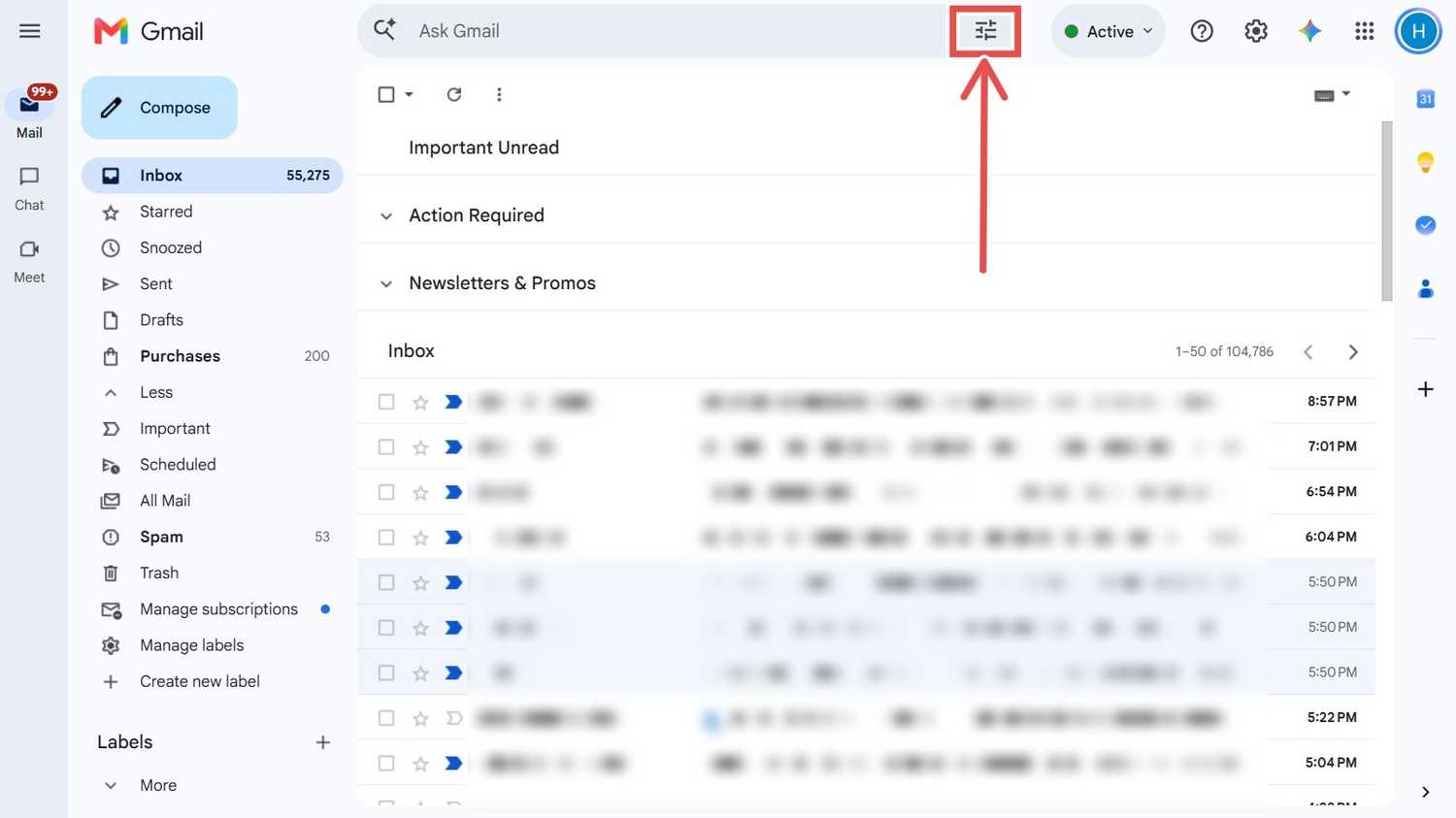
Putting promo emails in one section helps you find the emails you want to see. But you can also stop them from inflating your unread count. Here's how:
- Click the Search options icon on the right side of the Gmail search bar.
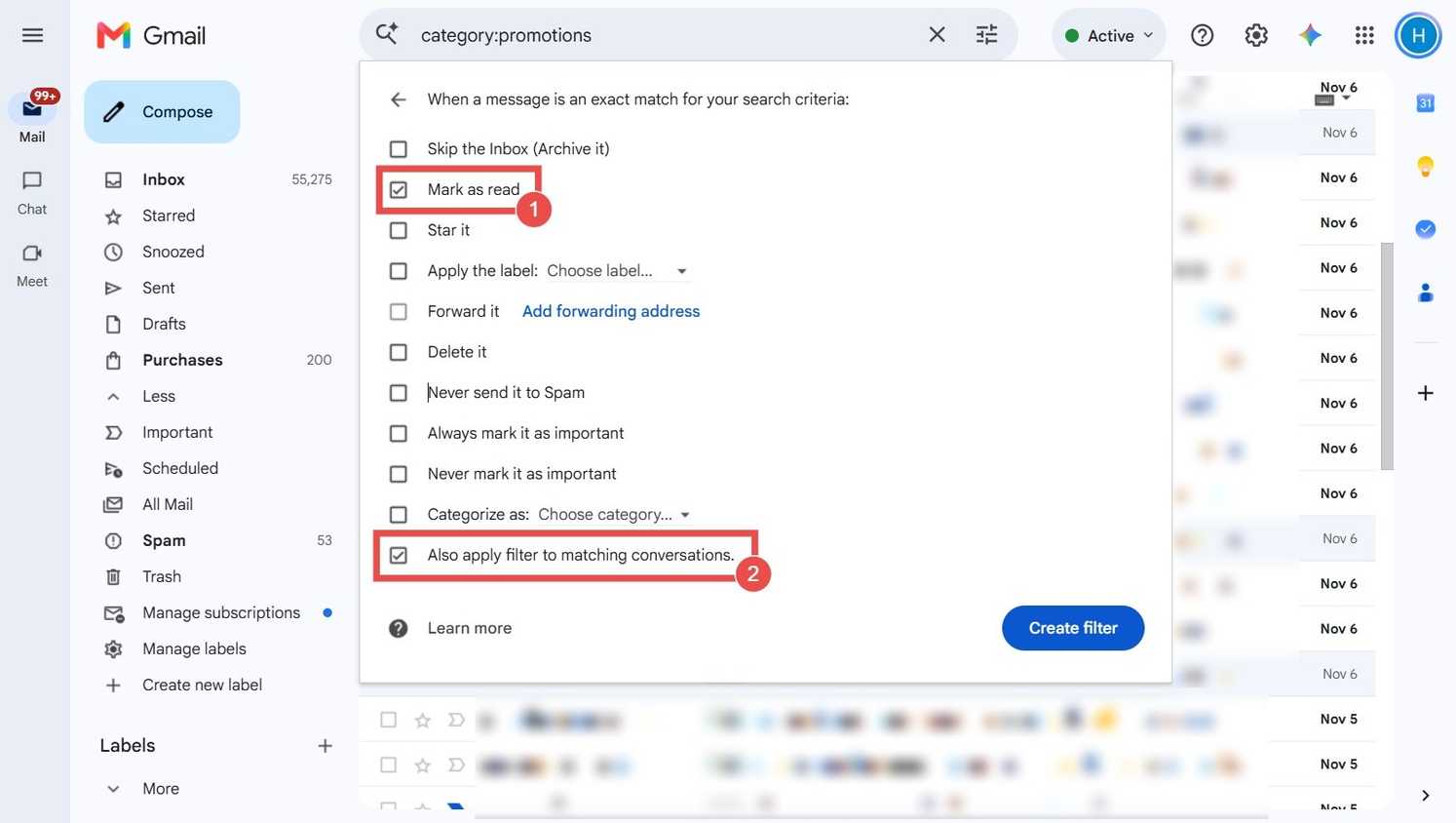
- In the Has the words field, type , then click Create filter.
- Tick Mark as read and Also apply filter to matching conversations in the new dialog box that appears.
- Click Create filter.
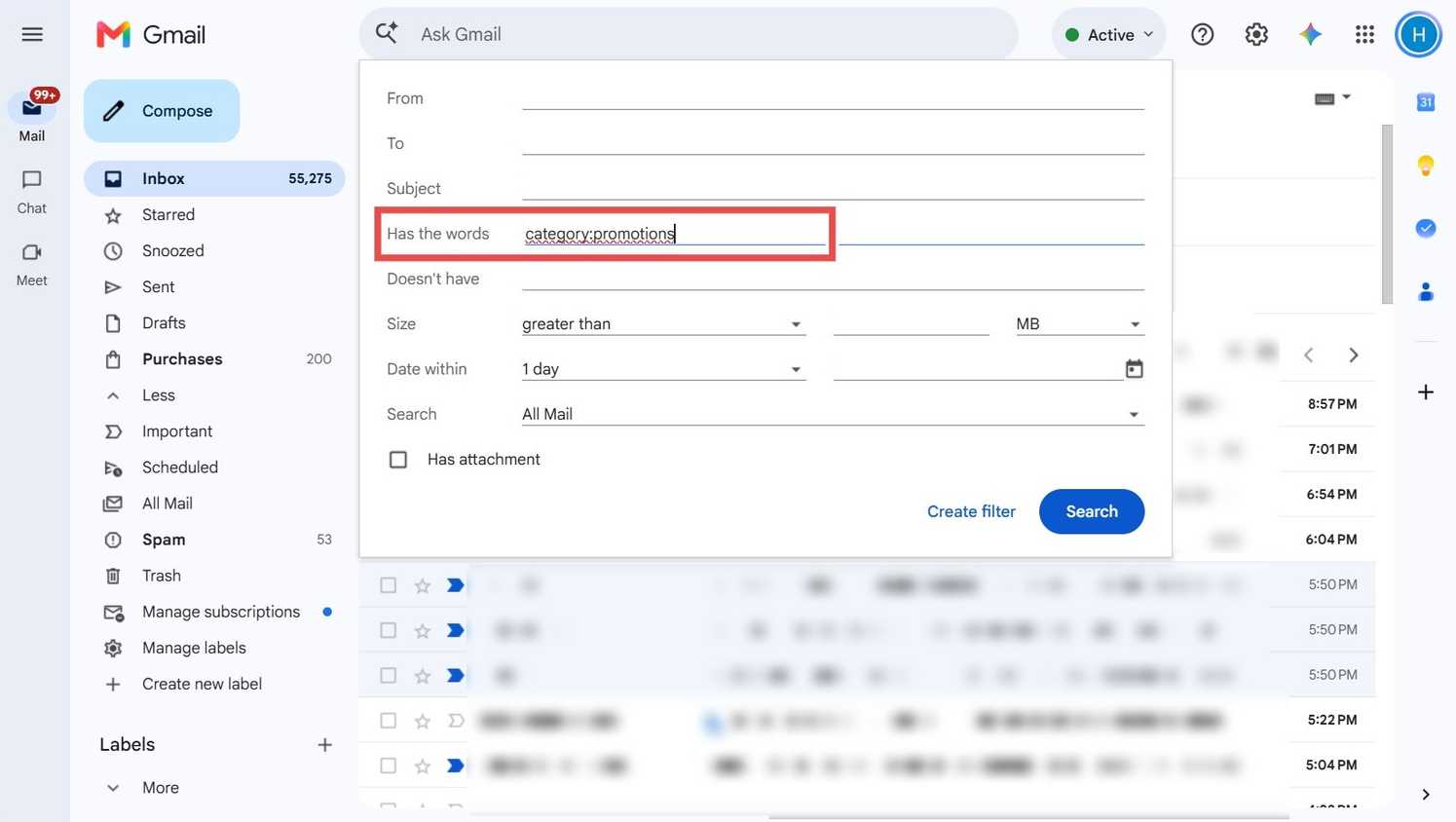
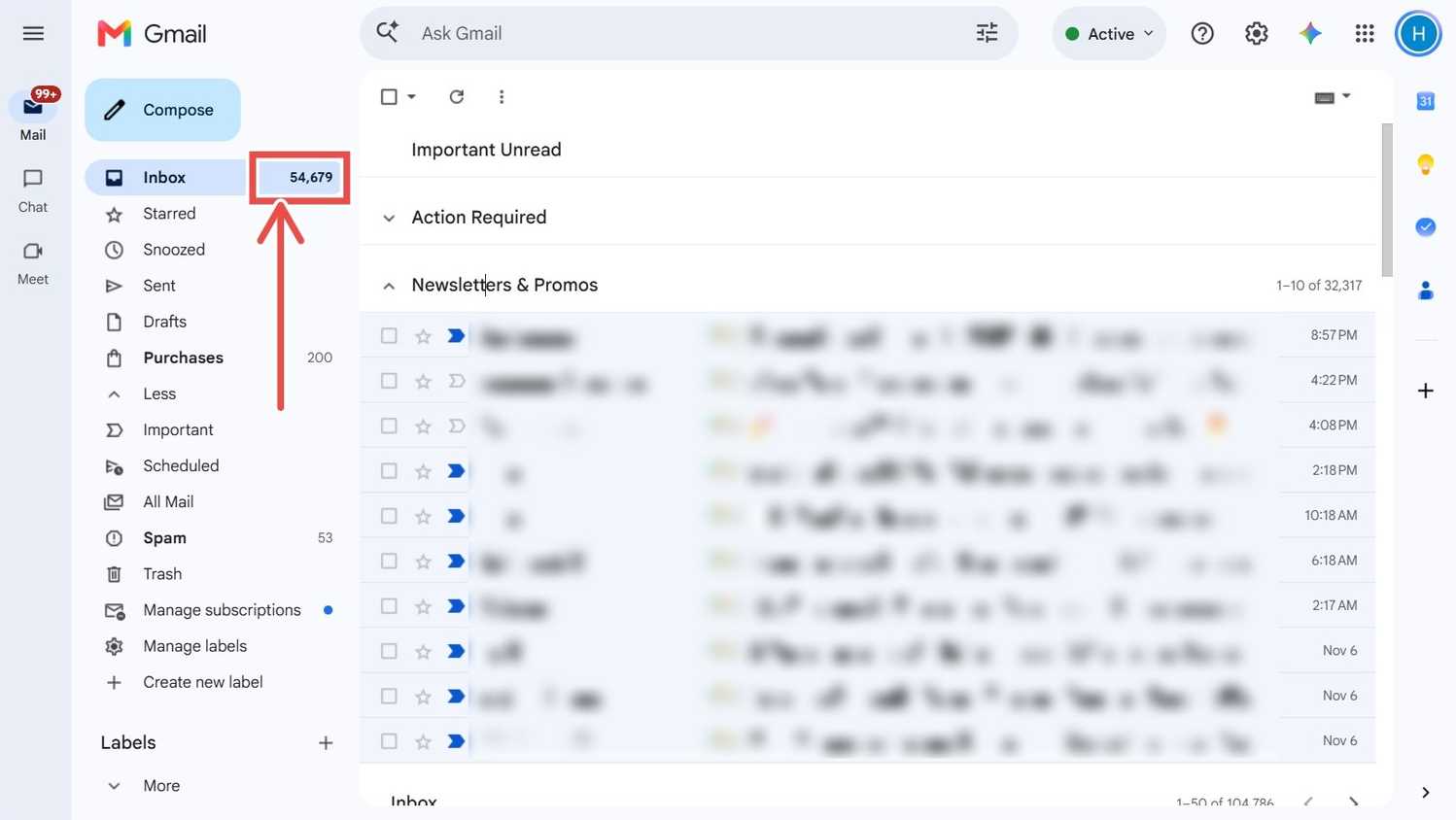
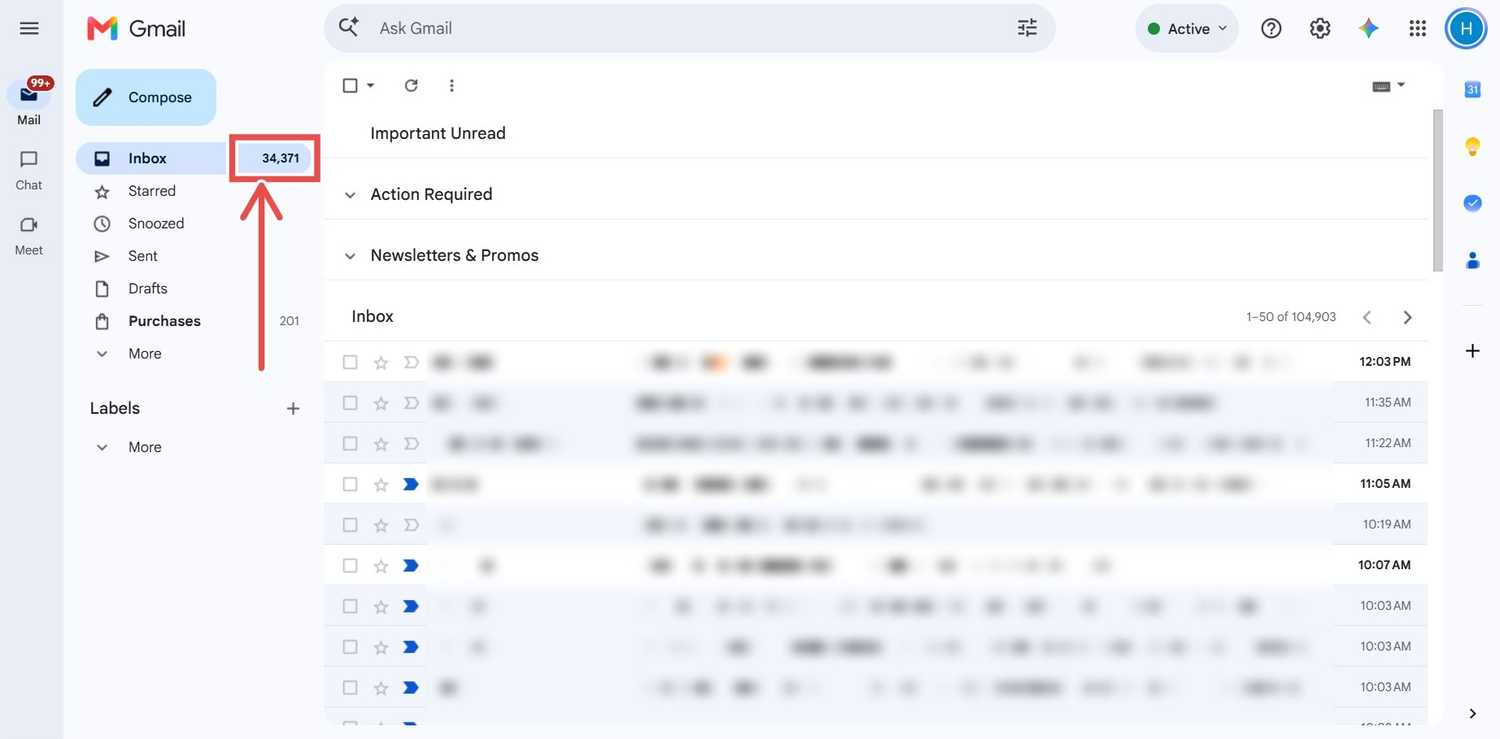
My unread email count dropped by over 20,000 almost instantly. And it was all promos I really didn't care for.
If you want even more options, my colleague Akshay set up five more Gmail filters for things like OTPs and receipts.
You may want to exclude the Updates category too
For emails that escape promotions and social
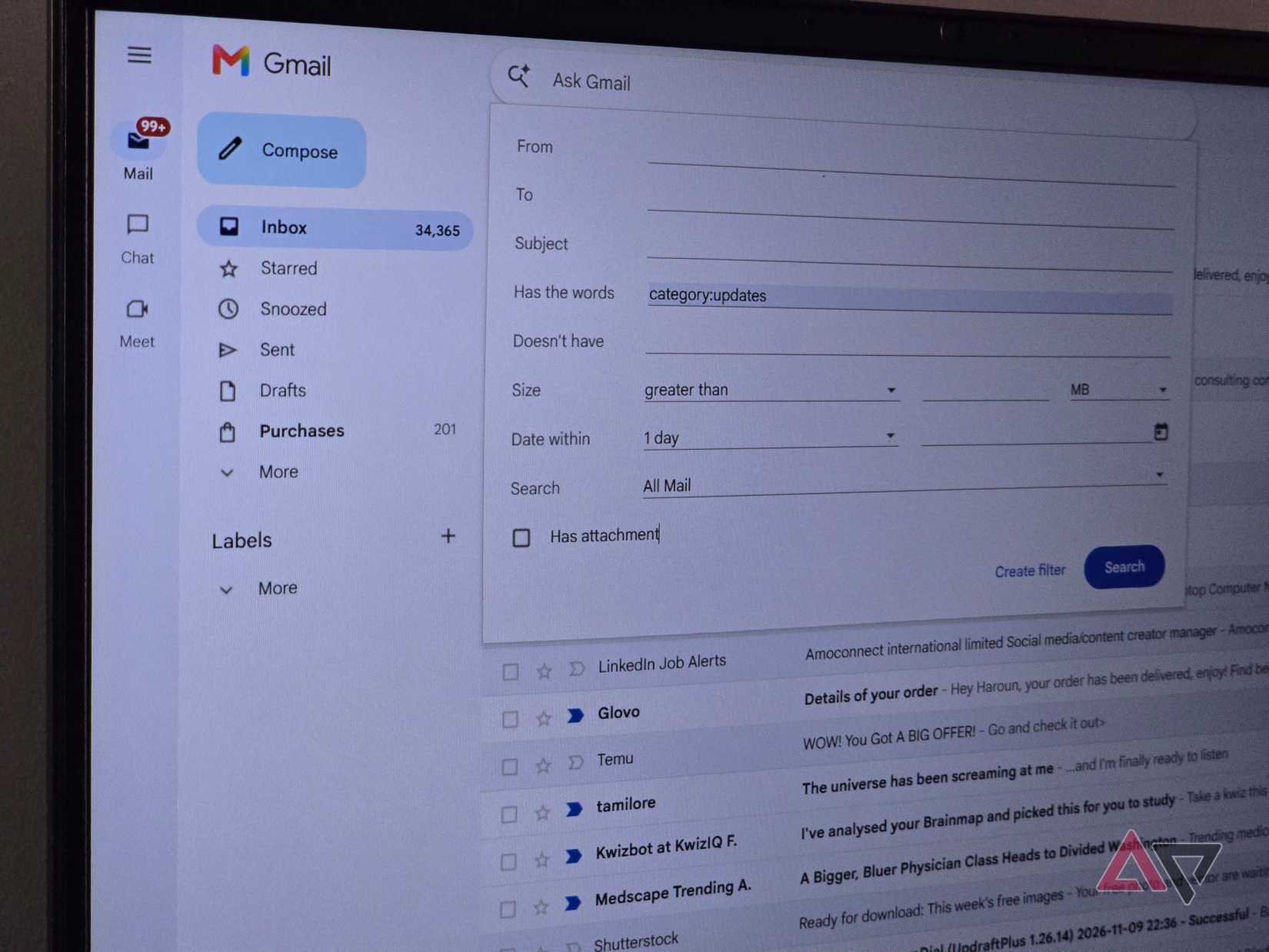
Even with these sections, you may still find unimportant emails in your section, like updates from some platforms, bank alerts, and so on.
In my case, I kept seeing LinkedIn job ads and Medscape newsletters, alongside order confirmations and bank emails.
The simple fix is to add to Section 1 of the Multiple inbox sections, so you have .
This works because Gmail sorts your email into categories like Promotions, Social, and Updates behind the scenes. This keeps the Important Unread section even cleaner.
You can also find your bank alerts in the general inbox.
It's not a perfect Superhuman clone
Your phone won't see any of it
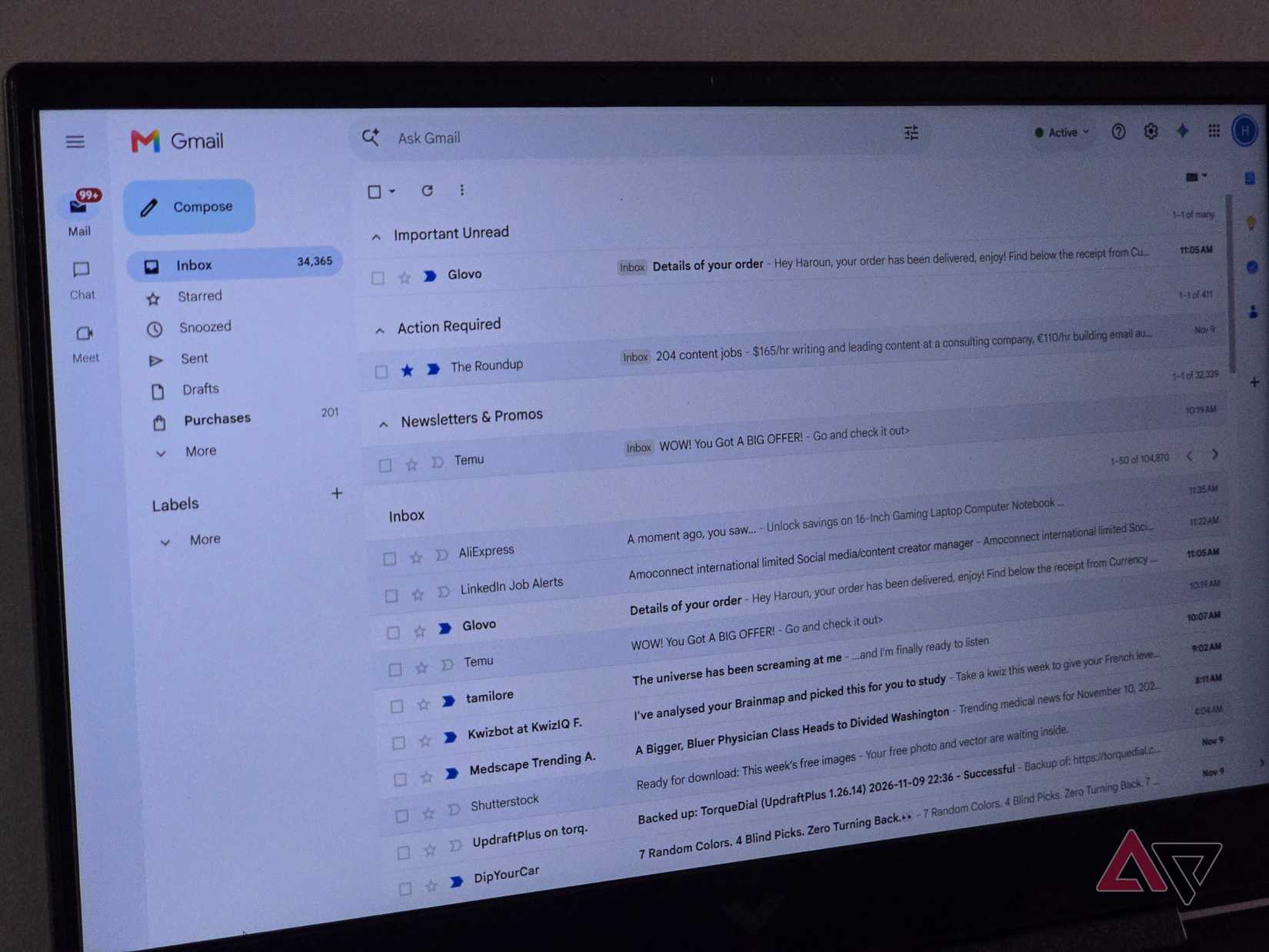
You can only set up Multiple Inboxes on the Gmail web app, and the sections don't appear on the mobile app.
When I opened Gmail on my Android phone, it showed my normal inbox, with none of the sections.
That's a big drawback if you mostly check emails on your phone. There are still several settings to tame Gmail on Android, but none of them give you this layout.
A cleaner Gmail inbox for free

If you mostly use Gmail on your computer, gives you something similar to Superhuman's Split Inbox without the monthly fee.
You'll get those promo emails out of the way, and anything you star waits for you at the top.
If you still want the same kind of sorting on your phone, you may need a dedicated email app. We've already covered one that makes it easy to clear your inbox completely on Android.