
On busy days, multitasking on a phone can be overwhelming, especially for work-related tasks.
I often forget to reply to emails, set reminders, or send updates when I have a lot to do and forget to pick up my phone to set them up.
Then I realized I could make my life easier by using on top of things without ever missing them.
Here's how I made my phone a hands-free productivity machine.
I start my day with a daily brief from Gemini so that I don't miss anything
A simple question keeps me on top of things
Before I could use my phone as a hands-free device, I connected some core Google apps to Gemini so it could communicate with them.
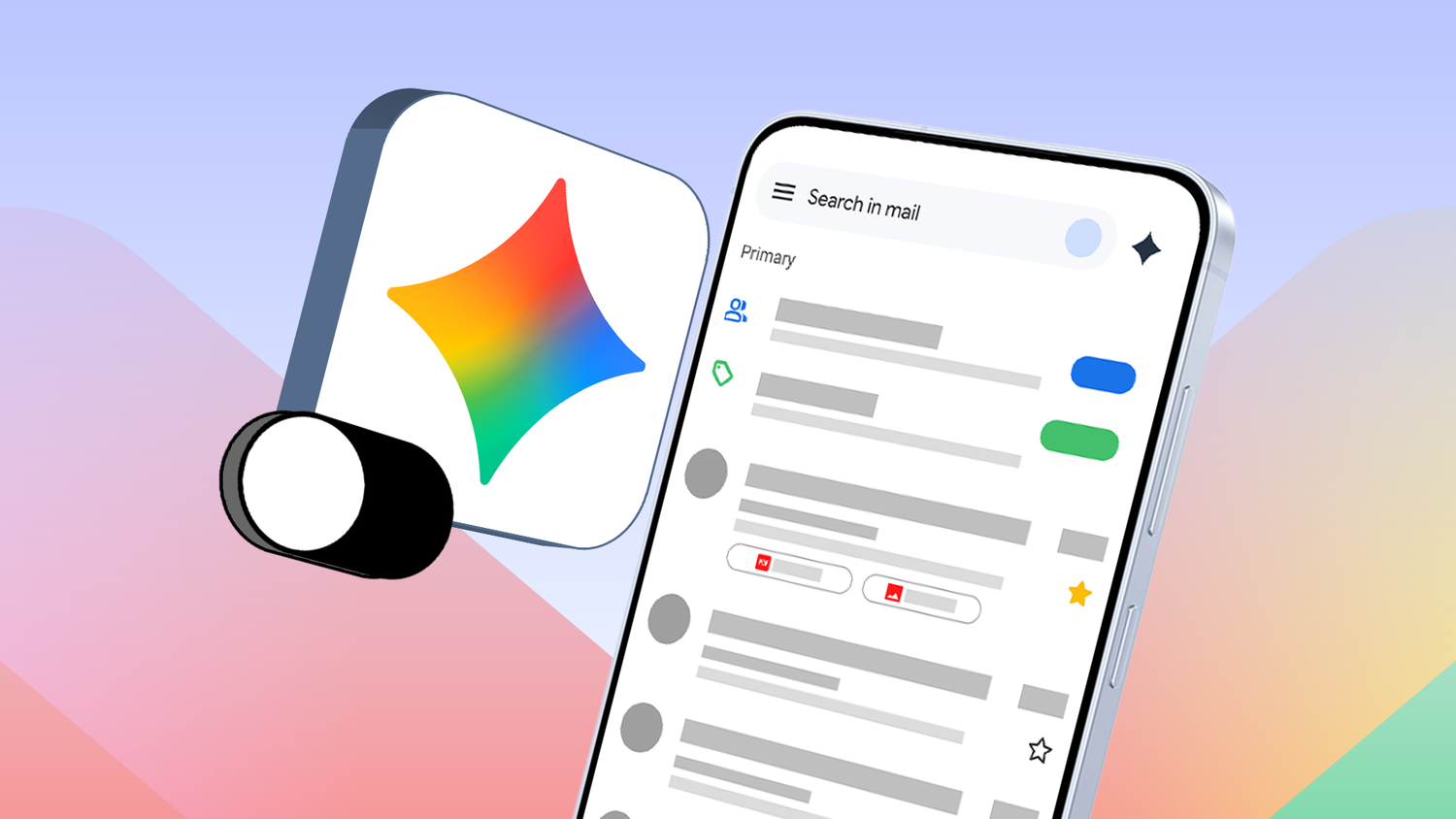
In Gemini's settings, go to > and turn on the toggle so that Gemini can send emails, set reminders, open apps, and adjust other phone settings.
I connected Google's apps (Gmail, Calendar, Keep, Messages, and WhatsApp) since I use them most for work. Then, I turned on Hey Google/hands-free talk so I could launch Gemini without unlocking or picking up the phone.
To use Gemini with apps using your voice, connect the apps to the service so it can communicate and take action.
After everything was set up, I started testing my first voice command: give me a brief every morning.
The voice prompt I use tells me any important emails I received when I signed off from work, pulls any meetings or appointments for the day from my Calendar, and reminds me of tasks I set up in Google Keep.
The prompt I use is simple and as follows:
What does my day look like, and what should I handle before my first meeting?
This prompt helps me clear tasks before my first meeting, so I don't fall behind. Ever since I started using this voice prompt, I've saved a lot of time because I don't have to open every app to see what I have in store for the day.
Instead, Gemini's brief changed how I started my morning. I became less reactive and focused more clearly on tasks that needed immediate attention.
I no longer need to type emails and can even get work done while driving
I started to dictate more emails than usual
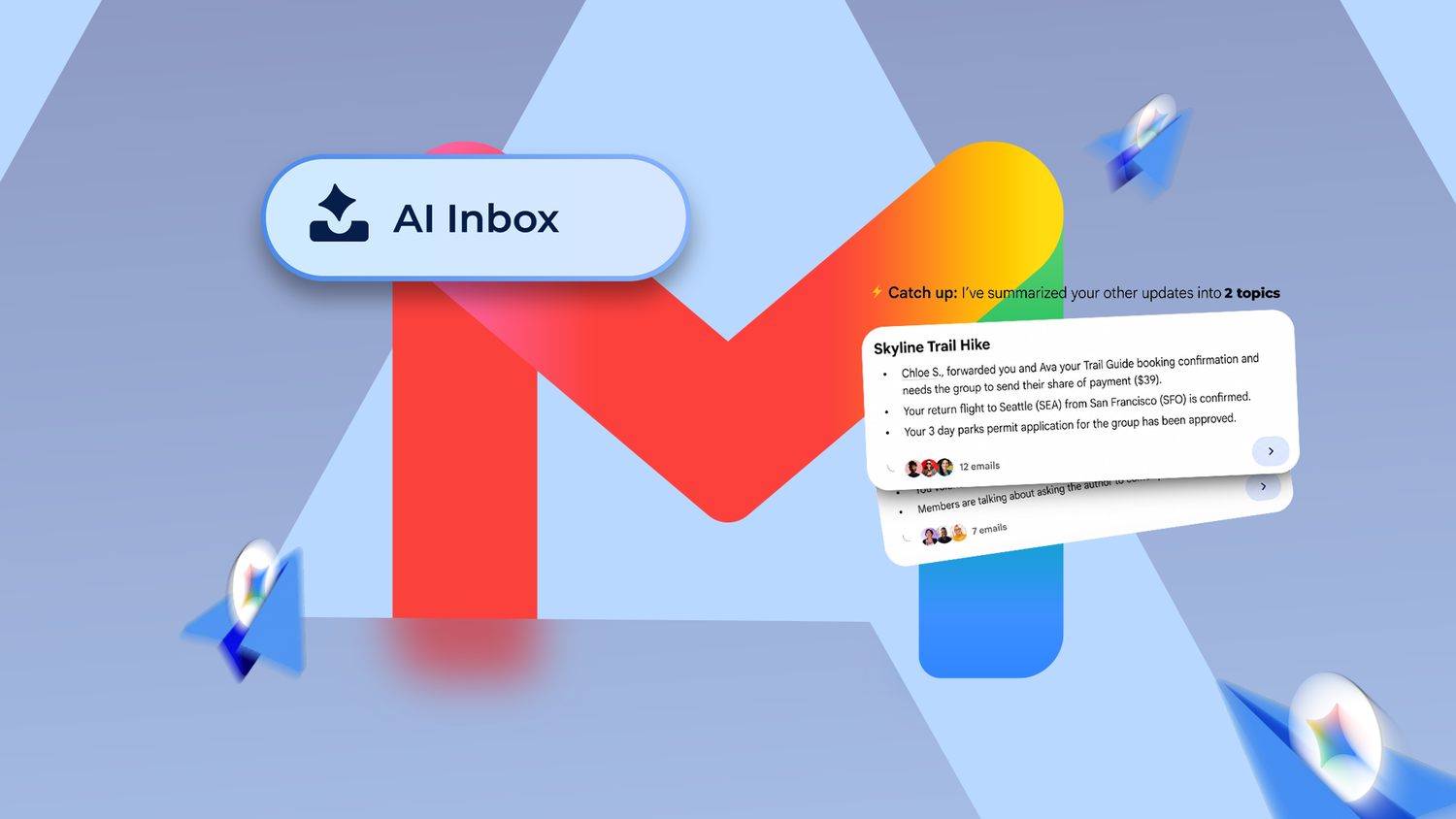
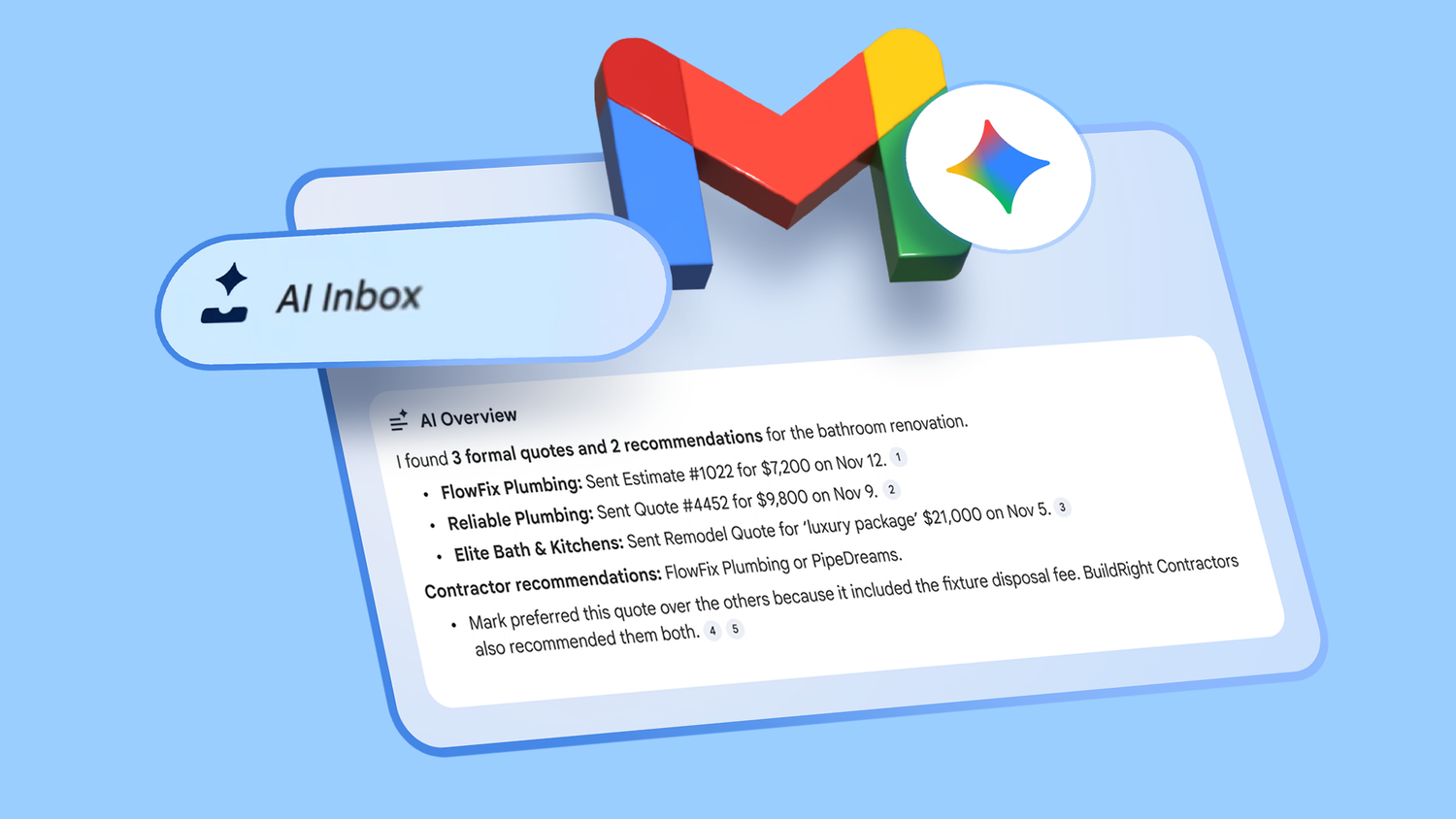
On busy days, I have to reply to a ton of emails, and sometimes replying to each one manually is tiring.
Many of these emails require detailed replies, which means a lot of typing. Typing long emails is time-consuming and gets fatiguing after a while.
But I realized that if I used Gemini to summarize and draft replies, I could save time. So that's exactly what I started to do.
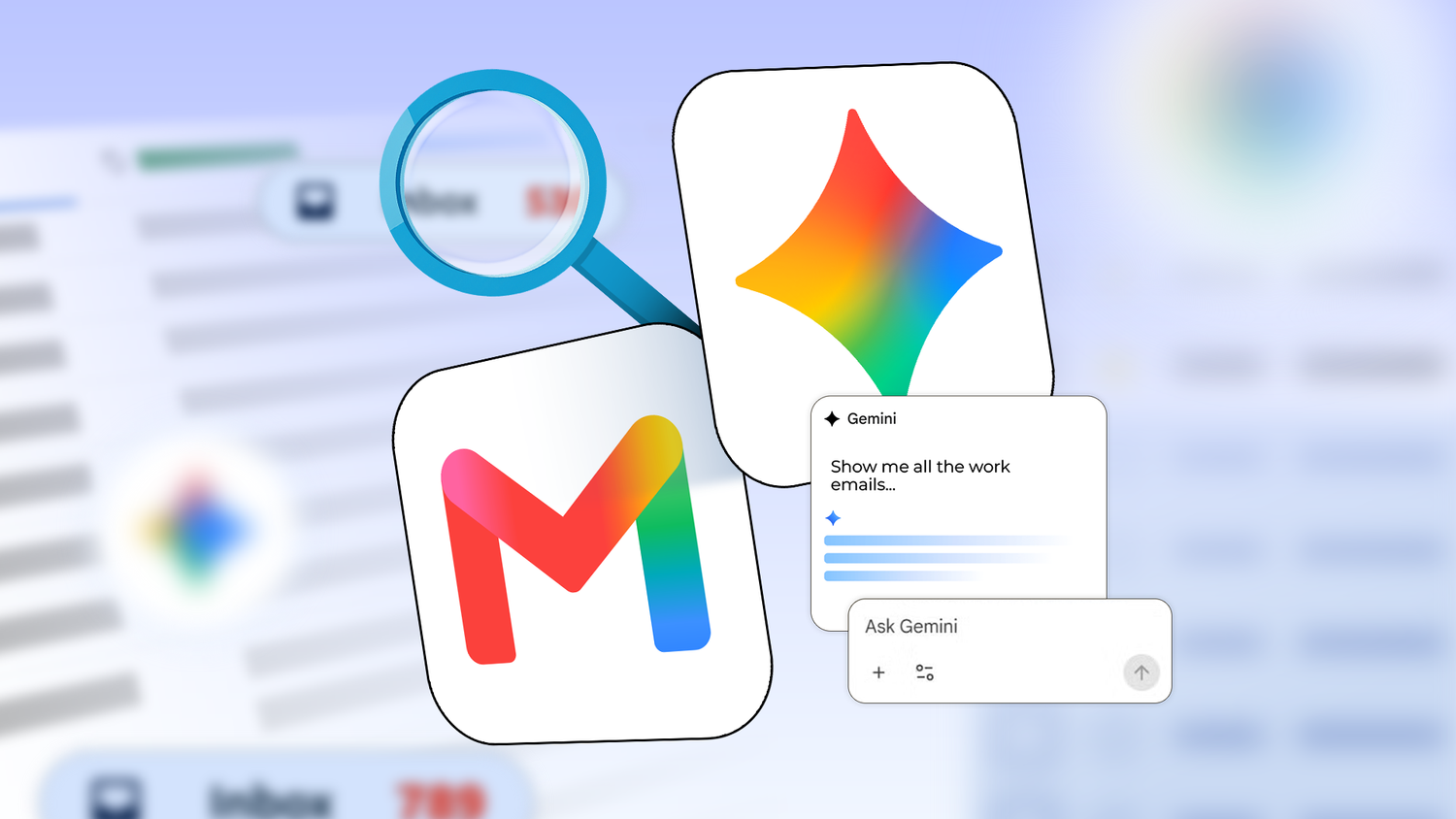
I would ask Gemini to summarize an email and tell me all the key points that need to be addressed.
After I understand the full contents of the email, I ask Gemini to draft a reply confirming something or asking more about any further issues.
Gemini processes my Gmail inbox and gives me key takeaways that would normally take longer. And since talking to Gemini is conversational, I started replying to emails more than I ever did manually.
The prompts I would use:
Summarize this email and give me takeaways. Highlight the key issues.
Draft a short reply confirming X and ask for information about Y.
What makes everything work well is Gemini's integration in Android Auto. While driving, I use the same chain as before. I ask Gemini to summarize, prioritize emails, and draft emails.
I even use this feature to summarize long YouTube videos I don't have time to watch.
Gemini voice works brilliantly with Google Keep
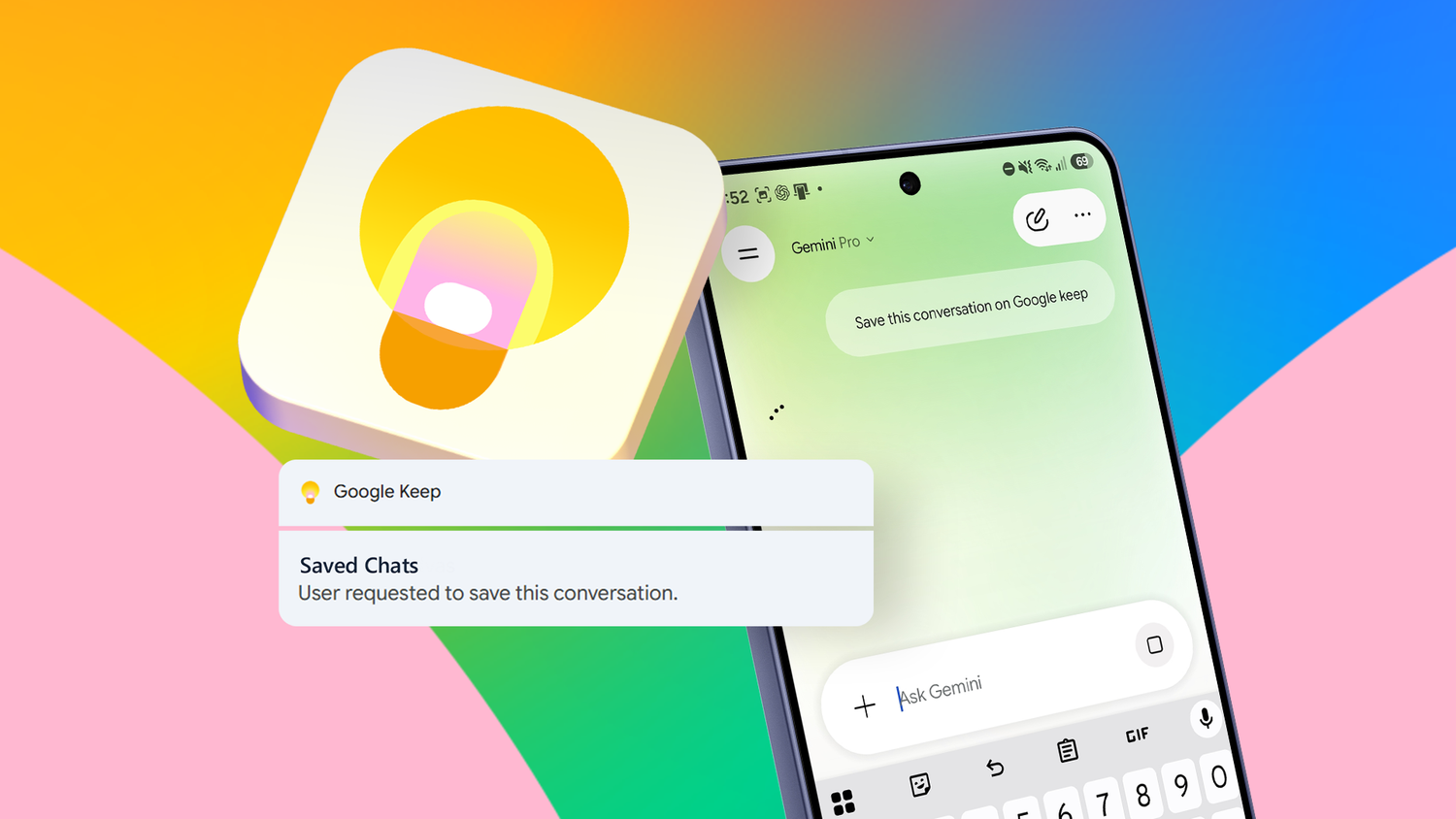
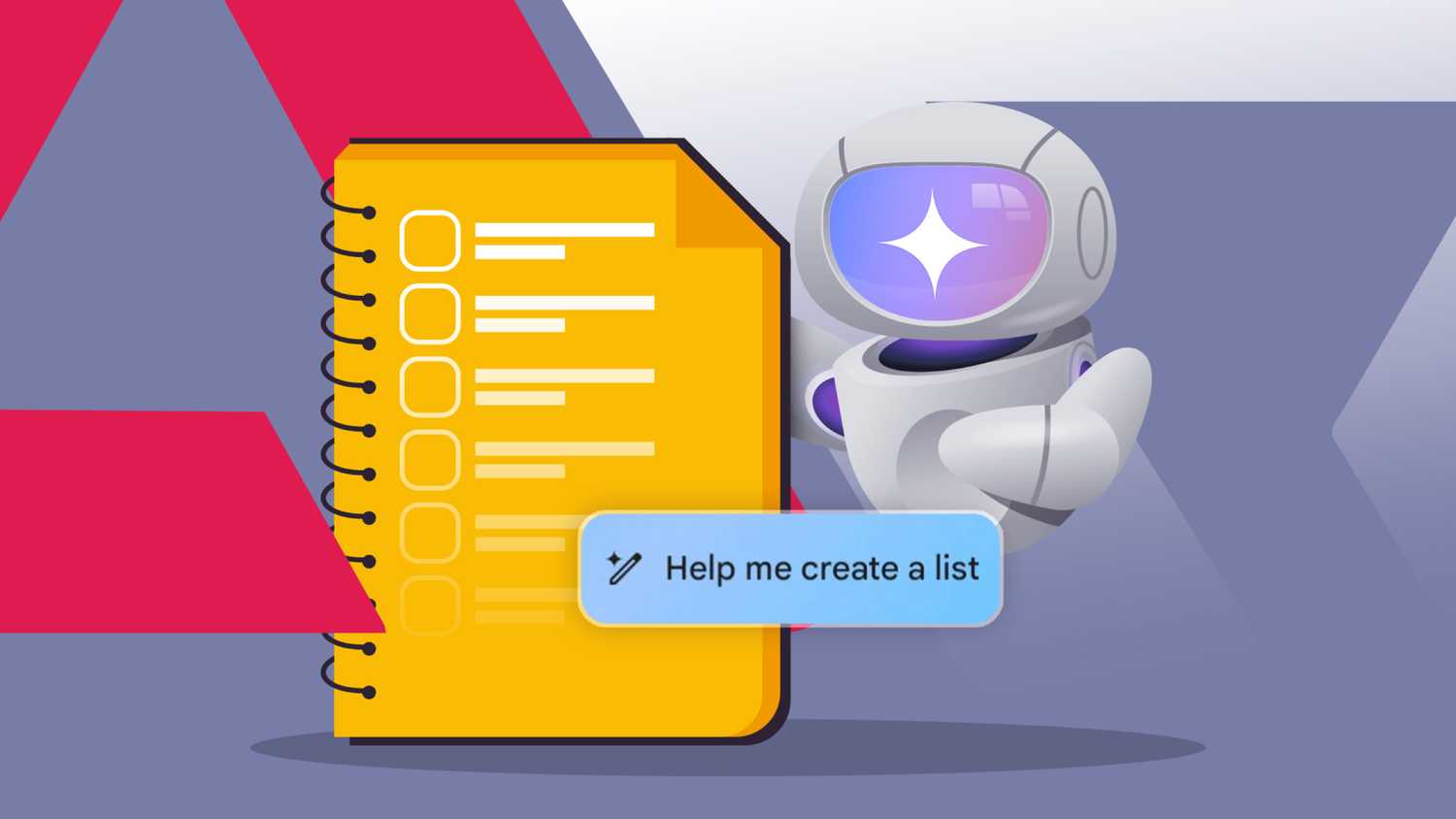
Gemini has a voice-to-text feature that lets you create checklists and reminders in Google Keep without opening either app.
Since I can fire up Gemini from my home screen or while driving via Android Auto, I started creating tasks and checklists without unlocking my screen.
Countless times, I needed to set reminders or create a grocery list or checklist for other tasks, but I often forgot about it on a busy day.
Now, I create a Google Keep note the moment the thought crosses my mind by asking Gemini from my home screen to create one. I can even use Gemini to pull information from my Gmail and create tasks, reminders, or checklists based on the email content.
I use it for grocery lists, reminders, meeting notes, among many other tasks. It would be an understatement to say that Gemini and Google Keep's voice integration saved me countless hours of manually organizing lists.
A good example of a prompt would be:
Create a grocery list in Google Keep and add milk, bread, bacon, butter, lettuce, and cheese.
I control my phone's core functions without ever touching it
Never break the flow
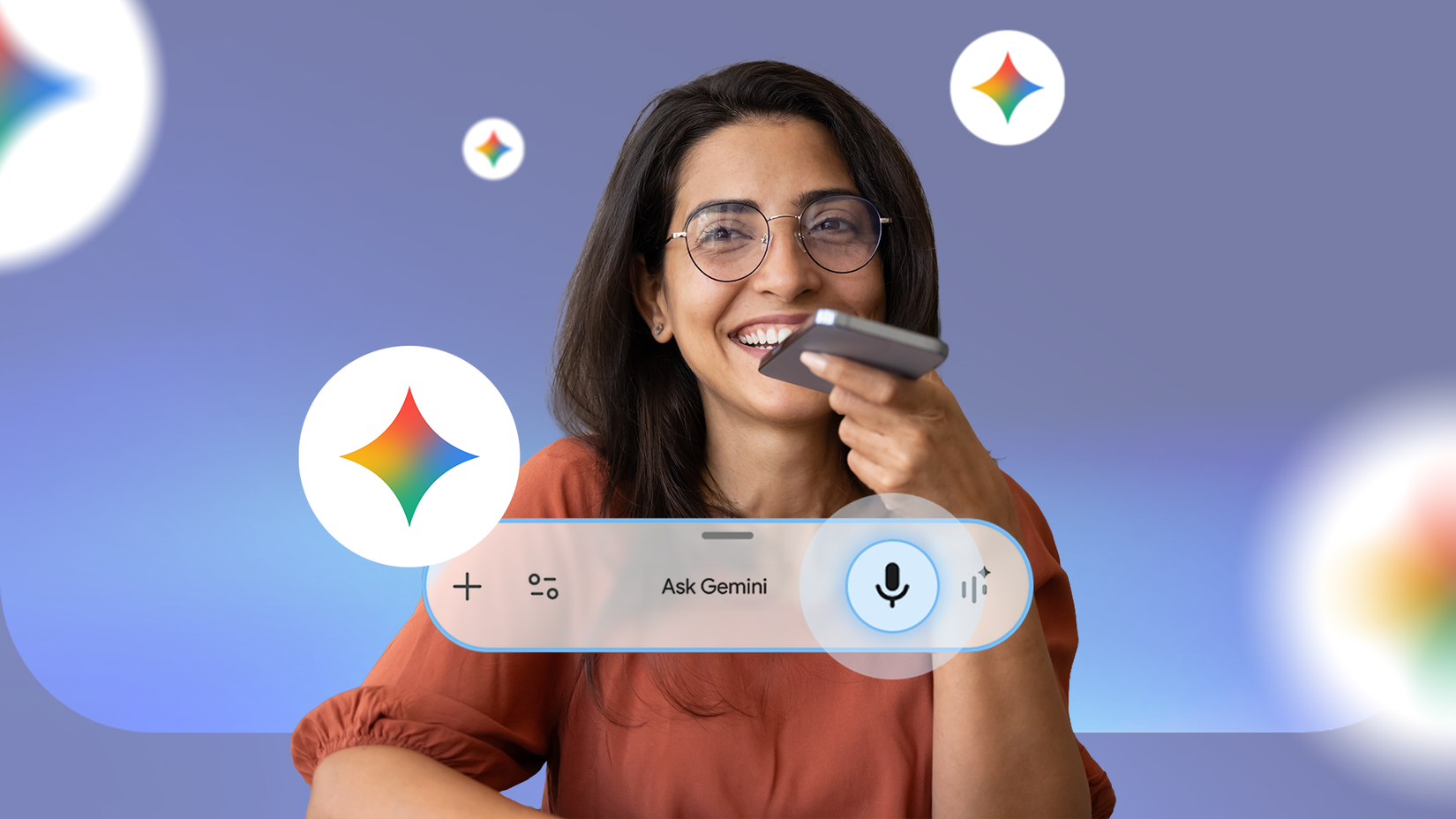
Since Gemini can also control my phone's core functions, I use it to adjust many settings without picking it up every time.
I can't begin to tell you how many times I've been annoyed trying to adjust a setting on my phone while I'm in the middle of work.
It breaks my flow and often frustrates me on a long day. But since I can control my phone's core settings with , I started relying on it more.
With Gemini's help, I adjust the phone's volume, screen brightness, and focus modes with my voice. My most-used feature is battery-saving mode, since I need it most at the end of the workday.
This workflow reduced how often I reached for my phone and helped me complete my task. It helped me focus more on the task at hand, since I no longer broke my flow to adjust a simple setting on my phone.
My phone is no longer a distraction device thanks to Gemini
I've used Gemini to make me more efficient at many tasks, but the moment I started using my voice, my habits changed quite a bit.
It turned my phone into a hands-free productivity powerhouse and reduced how often I got distracted by my phone.
I get more done from the moment I wake up until I clock out. Try the four voice commands yourself with Gemini to see if it makes a noticeable difference. It sure did for me.