The new Asus ProArt laptop costs up to $7,000, but it can run a gaggle of local AI agents.
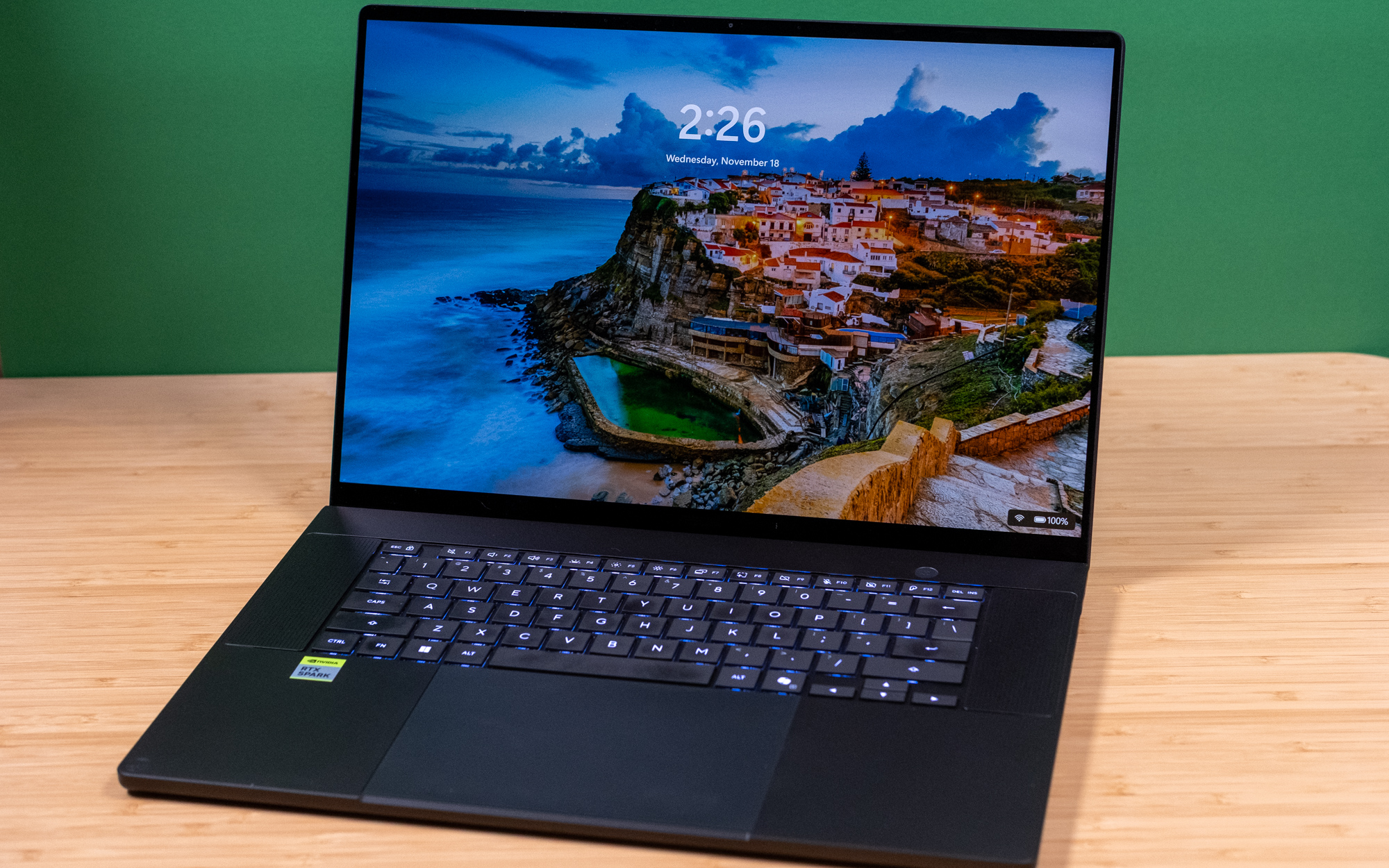
Buying a new computer in the last few years has meant wading through all manner of AI branding nonsense. Most of the AI pitches for laptops are little more than marketing hype, but the launch of Nvidia RTX Spark could bring a meaningful improvement in AI capabilities to the device you use every day. Asus has adopted Nvidia’s new chip in its latest ProArt lineup, offering a staggering amount of memory to run local AI models.
While it doesn’t have a traditional GPU, the Asus ProArt P16, with up to 128GB of memory, can also be your primary gaming and productivity machine, but this unified experience comes at a high price. If you want to run a small army of agents on your laptop, you’re looking at $7,000 for the top-end ProArt P16, and despite being more approachable on Windows, local AI still requires a lot of trial and error.
The PC stuff
Before we dive into the AI agents, let’s talk about the ProArt P16 as a laptop. Nvidia’s pitch is that the RTX Spark can be your one true machine for AI, productivity, and gaming. And it doesn’t skimp on the specs.
| Specs at a glance: Asus ProArt P16 (2026) | ||
| Base config | As reviewed | |
| ASUS Lumina OLED, 16.0-inch, 3K (2880 x 1800) 16:10 touch screen, 120Hz, 1100 nits peak brightness | ASUS Lumina Pro OLED, 16.0-inch 4K (3840 x 2400) 16:10 touch screen, 120Hz, 1600 nits peak brightness | |
| Windows 11 Home | Windows 11 Pro | |
| Nvidia RTX Spark N1X (5120-core GPU, 18-core CPU) | Nvidia RTX Spark N1X (6144-core GPU, 20-core CPU) (4.00 GHz) | |
| 64GB LPDDR5x unified memory | 128GB LPDDR5x unified memory | |
| Blackwell RTX GPU | Blackwell RTX GPU | |
| 1TB SSD | 2TB SSD | |
| Wi-Fi 7, Bluetooth 5.4 | Wi-Fi 7, Bluetooth 5.4 | |
| 3x USB 4.0 Gen 3 Type-C with support for display / power delivery (data speed up to 40Gbps) 1x USB 3.2 Gen 2 Type-A, 1x 3.5mm Combo Audio Jack |
3x USB 4.0 Gen 3 Type-C with support for display / power delivery (data speed up to 40Gbps) 1x USB 3.2 Gen 2 Type-A, 1x 3.5mm Combo Audio Jack |
|
| 13.94 x 9.57 x 0.51 ~ 0.63 inches | 13.94 x 9.57 x 0.51 ~ 0.63 inches | |
| 3.90 lbs (1.77 kg) | 3.90 lbs (1.77 kg) | |
| $4,399.99 | $6,999.99 | |
| Battery and charging | 99.9WHrs, 140W USB-C adapter | 99.9WHrs, 140W USB-C adapter |
Asus has released numerous ProArt laptops, but this one is notable for including the new Nvidia Spark RTX chip in its most powerful configuration. The Spark N1X has a 20-core Grace CPU, divided between 10 high-performance Arm Cortex-X925 cores and 10 power-efficient Arm Cortex-A725 cores. The performance cluster reaches boost speeds between 4.0 and 4.1 GHz, while the efficiency cores peak at 2.8 GHz. Memory caching on the processor totals 49MB, split between 24MB of shared L3 cache and 25MB of L2 cache.
Graphics and AI are the purview of the Nvidia GB20B Blackwell GPU. It packs 6,144 cores in this configuration across 48 streaming multiprocessors, backed by its own 24MB L2 cache. These 5th-generation Tensor Cores support the full suite of Nvidia technologies, including DLSS, Reflex, ACE, G-Sync, CUDA, and NVFP4. In all, you’re looking at up to 31 TFLOPS of FP32 graphical performance and about 1,000 TOPS of FP4 AI compute.
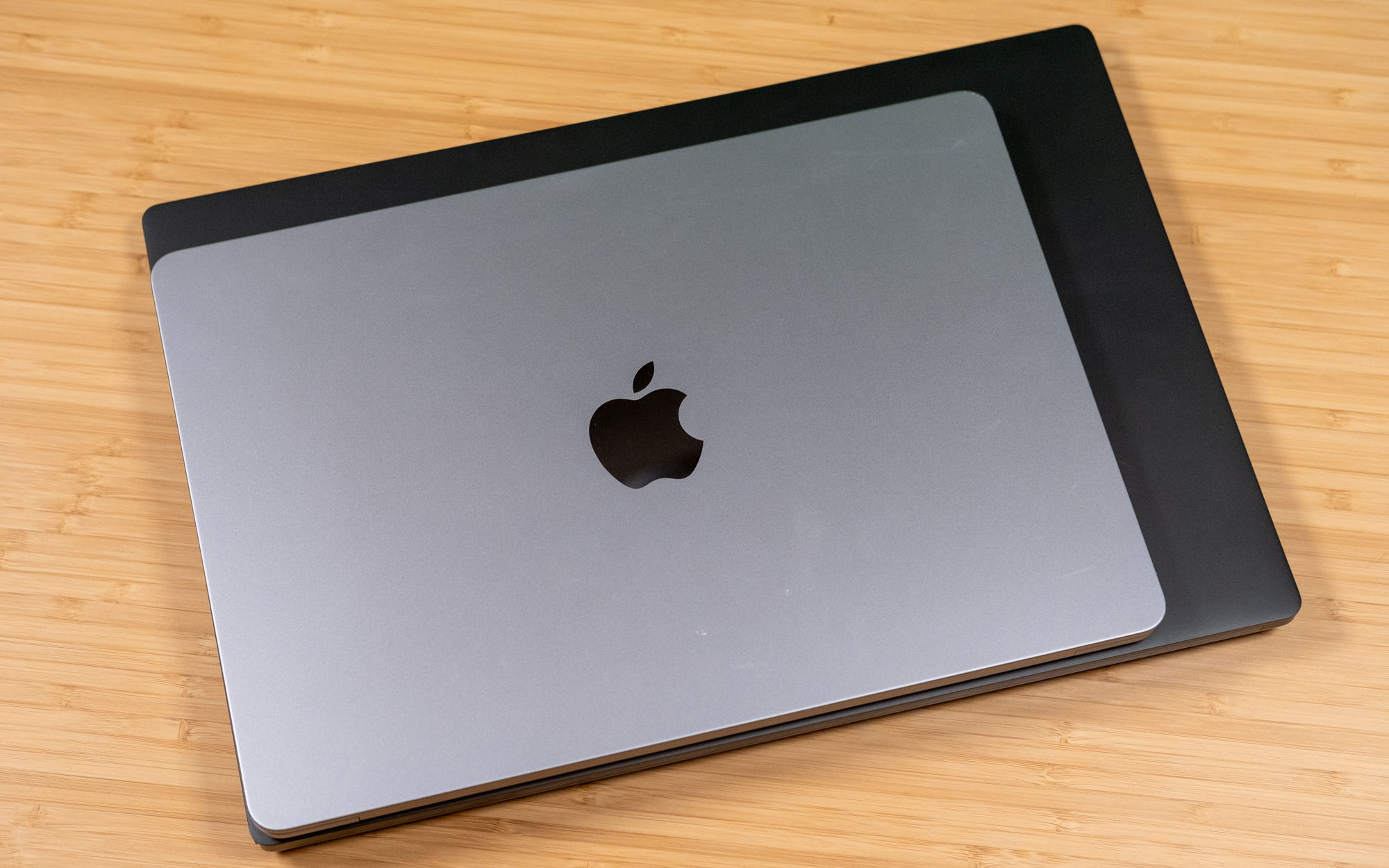
Asus will sell this device in two memory configurations (plus some lower-specced retailer-specific SKUs), but the one I’ve been testing (and the one that makes the most sense alongside the RTX Spark) has 128GB of LPDDR5x RAM. It supports up to 300GB/s of raw bandwidth, which is fast for shared system memory. However, using a dedicated GPU typically gets you higher throughput with a GDDR7 memory interface. Still, you get several times more memory than a gaming GPU in this machine.
This is essentially an Nvidia Spark DGX workstation with a screen and keyboard. It also runs Windows 11, which lowers the barrier to entry if you want local AI agents. While many local AI setups focus on 27-billion-parameter models that will fit on a video card, the Asus ProArt P16 can easily load models with 100-plus billion parameters, with enough left over for lighter background AI tasks.
Nvidia and Asus say the Spark’s AI compute and ample memory are enough power to run frontier-level AI models locally. That means you can get powerful AI compute without running through your allotment of expensive tokens or sending all your data to a server in the cloud. Ignoring the AI angle, the ProArt P16 has to be a good laptop before it makes sense for even the most AI-obsessed buyers to consider it. Luckily, it gets all the basic laptop things right.
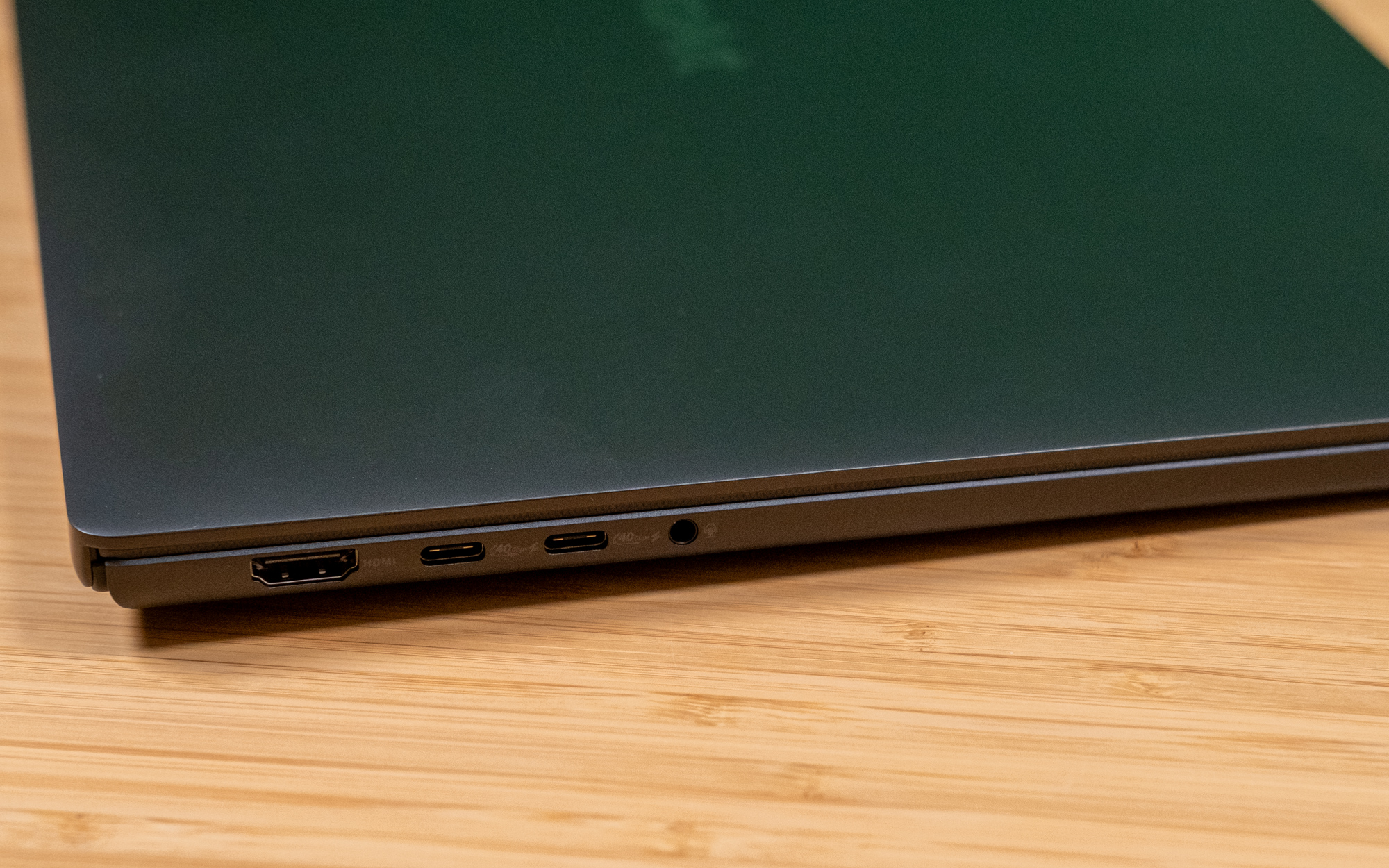
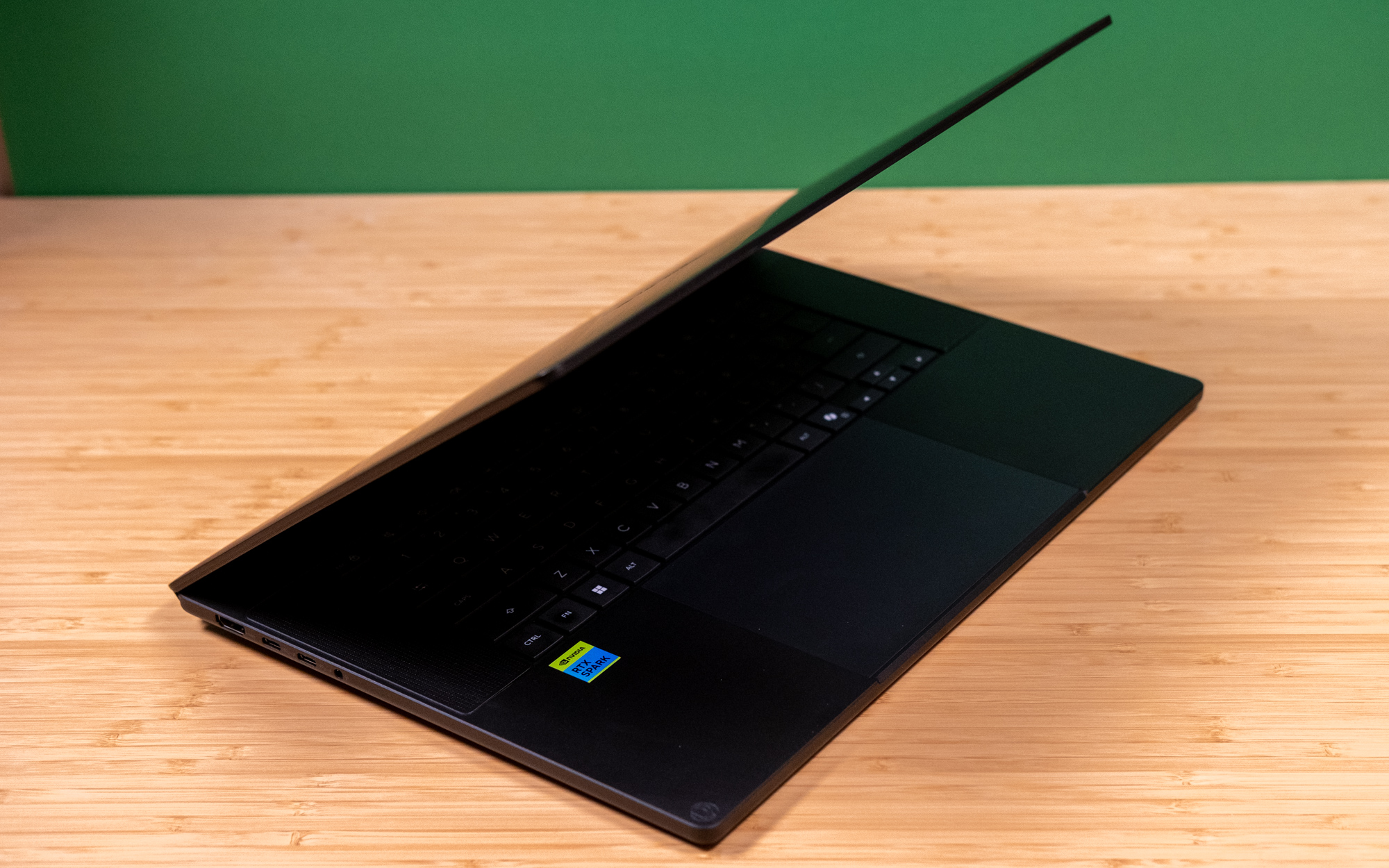
It’s nice to see a wide array of ports on this machine. There are three USB-C ports with USB4 support, and they’re split between the left and right sides. That makes connecting devices and charging much easier. There’s also a legacy USB-A 3.2 Gen 2 port, full HDMI, a 3.5 mm jack, and an SD card reader.
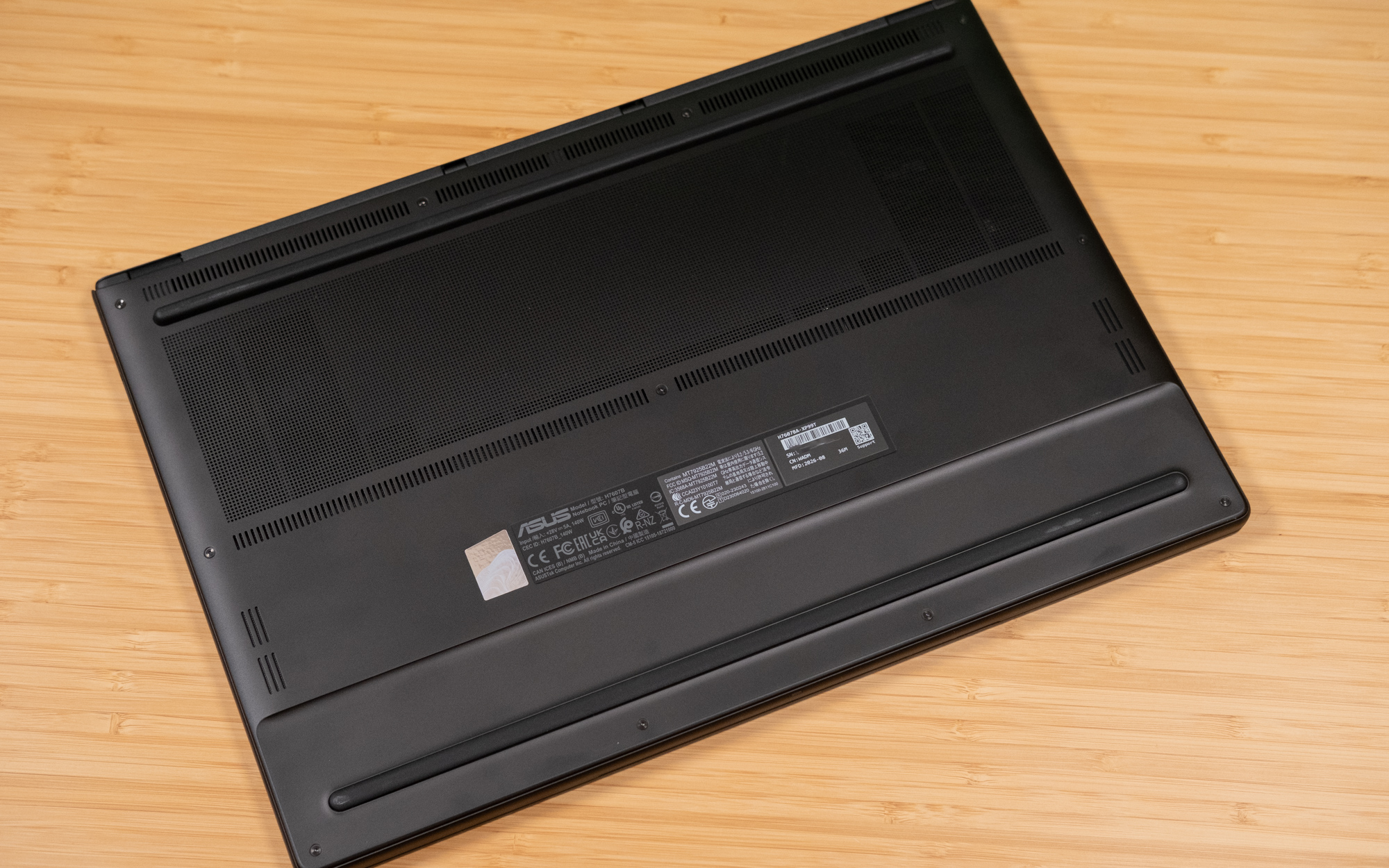
The machine comes with a beefy 140 W USB-C charger, which can get you a few hours of use in just a minute or two of charging. Asus says you can get up to 12 hours of use per charge, but that depends very much on what you’re doing. Watching video at low brightness might get you even more than 12 hours, but expect somewhat less for mixed use and even less for heavy AI workloads. In my (unscientific) testing, after a full workday and tinkering with AI on the side, the P16 usually has about 30 percent of its battery left.
The 16-inch 120Hz OLED display is overall very good, sporting a 4K+ resolution of 3840 x 2400. The stacked (tandem) pixels mean you get an incredibly high 1,600 nits of peak brightness. However, tandem OLEDs do tend to look a bit grainy with solid colors at lower brightness levels. I’ve laid eyes on two P16 units, one of which was noticeably more grainy than the other—so that’s something to look out for. However, the texture is easy to ignore at normal viewing distances and mid-to-high brightness.
The trackpad is enormous (150.3 x 99.5 mm) and relies on haptic clicks instead of a physical mechanism. This is a relatively new thing for Windows laptops, which are still catching up to Apple’s trackpads. That said, the ProArt’s pad works very well. It’s appropriately sensitive, and you can adjust the click intensity and detection threshold.
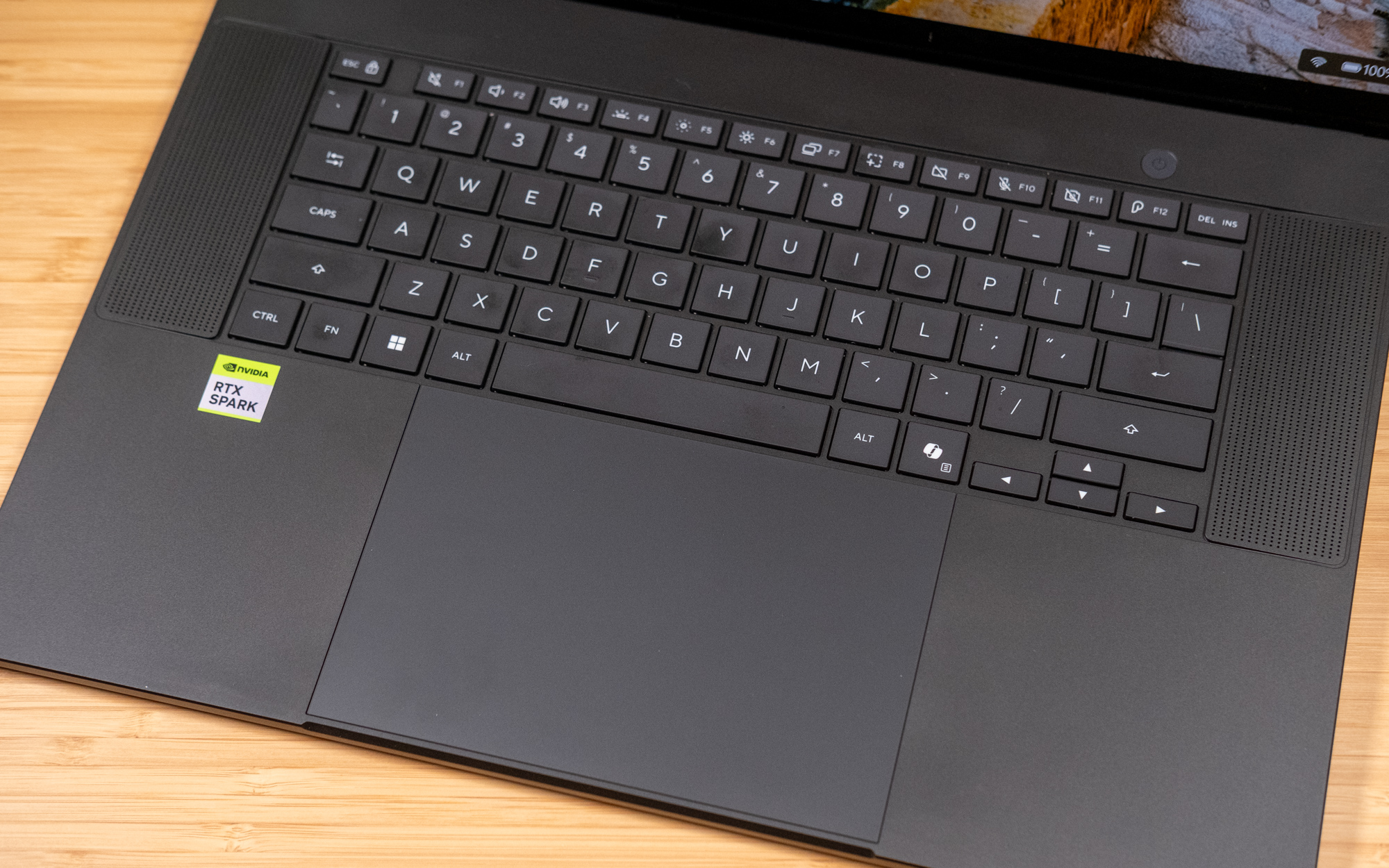
The keyboard is a little on the narrow side for a larger laptop, but the keys feel great. There’s ample travel, the tactility is sharp, and the firm keyboard deck ensures no flex at the bottom of each keystroke. The aluminum chassis is overall very solid, but it only comes in white or black, with the latter being your only option for the high-end model. The matte case looks great, but it is a magnet for smudges (particularly the plastic of the keys).
An AI powerhouse (if you need that)
Unlike previous ProArt laptops that had standard GPUs, there’s no dedicated memory for the RTX Spark’s graphics and AI cores. Windows sees the machine as having 64GB of system RAM and 64GB of video memory, but in reality, this shared 128GB of memory is adjusted dynamically based on what you’re doing.
Since this is a Windows machine, there is some overhead that limits your AI workloads. On a DGX Spark box with the same underlying hardware, all the memory is available for AI. Here, you’re capped at about 110GB. That’s still a huge amount of memory for AI, far surpassing what you can get on even the most expensive consumer-level GPUs.
There are a few clear advantages to making the ProArt P16 your AI hub. Running an AI model locally on the Spark’s Blackwell cores lets you keep all your data private. When you interact with ChatGPT or Gemini, your interactions and data become training and advertising fodder. You’re also trusting the AI provider to run your workloads on the right model, and they’ll often route requests to cheaper ones to save money.
With an RTX Spark laptop, you have total control over how the AI operates. That also means you have to do all the setup and management yourself. The ProArt comes with a few Asus apps, which will streamline setup for a subset of AI-powered tasks, but installing a third-party agent is where things get interesting (but not always good).
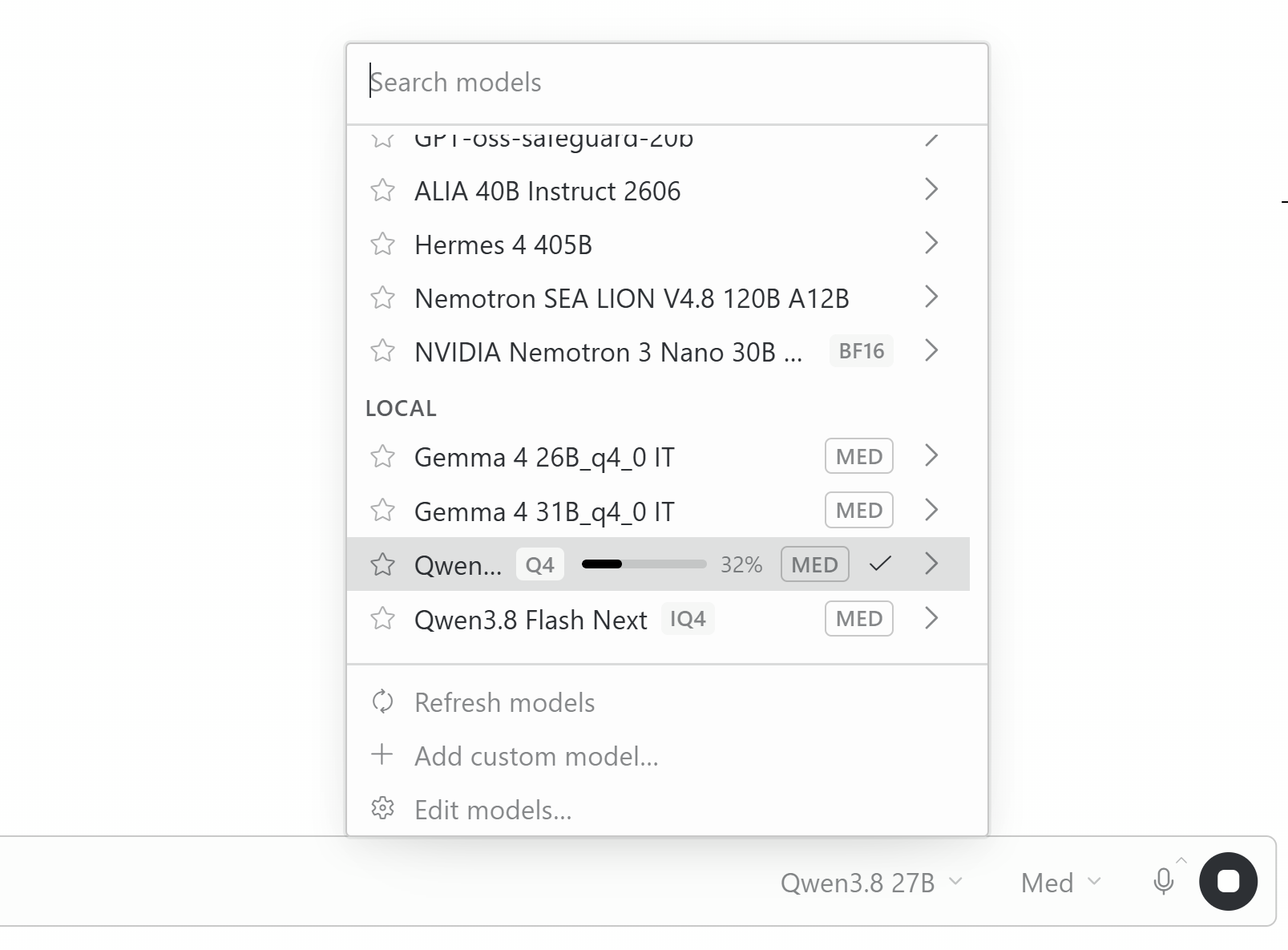
Nvidia’s laptop AI chip is optimized for desktop clients like OpenClaw and Hermes, allowing you to download the AI models of your choice in a fairly simple graphical UI. I tested various models in different size ranges. Asus recommends starting with Qwen 27B, a Mixture-of-Experts (MoE) model that splits the difference between size and efficiency. I also loaded a few versions of Google’s Gemma open models in the same size range.
But these are all small enough that you could run them on a high-end GPU. To push the Spark, I grabbed a few larger models like the Qwen Flash Next, a 90GB download with 125 billion parameters. This model occupies almost all the shared memory when active, whereas the smaller ones won’t even go beyond the GPU’s reserved 64GB.
The nice (and scary) thing about setting up a local agent on Windows is that it can control the PC. Once the model is loaded in your preferred AI framework, you can just ask it to handle additional configuration. Need to set up access for your online accounts? Just ask. Manage installed tools and apps? Just ask. Surely nothing could go wrong, right?
In short order, I set up agent workflows to access and analyze data from test email accounts, manage local files, update a coding project, and analyze the content of images in my photo library. I also used ComfyUI workflows to generate images and videos locally without worrying about running through a limited allotment of tokens in the cloud. I’ll admit, I don’t have much use for media generation, but some of these local image models have gotten surprisingly good. Of course, the machine itself is expensive enough that you could pay for the most extravagant AI plans for a few years before breaking even. Still, the data and compute are all yours.
A few tragic tales about local agents nuking file directories or exposing data have made the rounds, and that’s a real concern when you start giving these things access to your PC—these models can do whatever you can do while sitting at the keyboard. I tested the P16’s AI capabilities with that in mind, ensuring I had no irreplaceable or sensitive data on the machine. Agents are supposed to seek authorization before taking action, but mistakes may happen, even if you’re being careful.
The agents didn’t make any huge mistakes in my testing, but watching the chain of thought bounce around can be maddening, like an unguided robot vacuum bouncing into walls. But like a vacuum, today’s AI agents usually get to the right place.
Sometimes, it does feel very futuristic. You give the machine a problem or tell it to troubleshoot something, and it does it without sharing any data with anyone. It’s a different way of using a PC. That’s cool, but it’s also not without frustration. Even though these models are often able to arrive at the correct result, they may not do so very quickly.
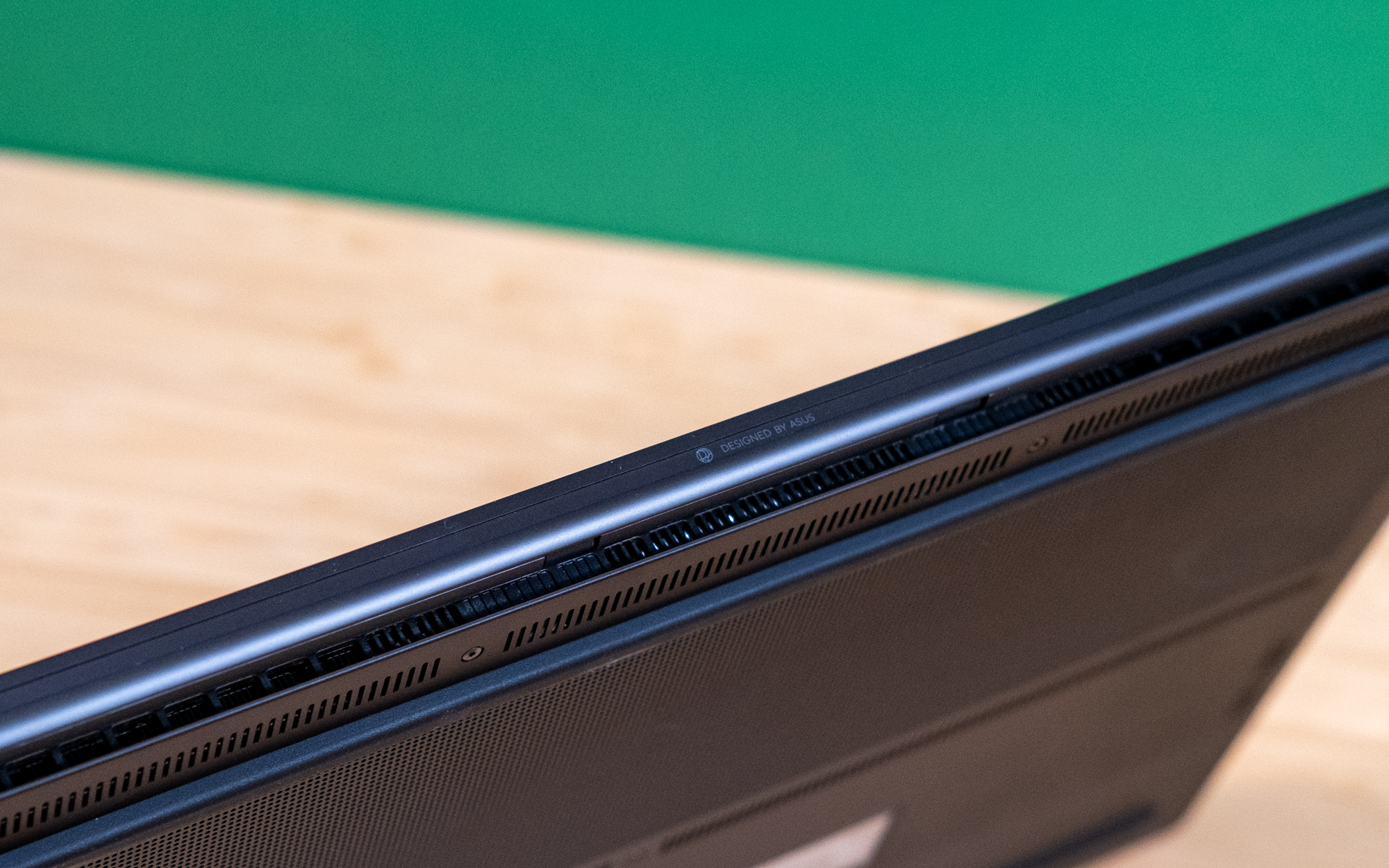
During normal operation, the Asus ProArt P16 is whisper-quiet. As soon as you start running inference for AI, though, the fans kick into high gear. The machine absolutely burns through the enormous 100 Wh battery, which is the largest cell you can legally bring on an airplane in the US. You really only get about two hours of inference without the power cable, and you might not get as much done as you’d think in that time. For example, scanning a day’s emails and generating action items takes around five minutes with a mid-weight model.
With simple tasks, models like Qwen 27B can churn through 20 or so tokens per second (with default “medium” effort mode). That’s a bit slower than you’ll get with cloud-based frontier models, which are also more capable thanks to their powerful server hardware. As long as you don’t need to ask it if Taiwan is a country, Qwen seems like the best option for local AI currently. Google’s mid-weight Gemma models can occasionally hit up to 40 tokens per second, but that figure tends to come down to a quarter of that speed for more complex tasks.
While Qwen Flash Next does produce better results, it takes so long I usually stick with the smaller models—it chugs along at just a few tokens per second unless you drop its thinking level. You can still make use of all that RAM by running multiple concurrent agents, though. That may be the real promise of RTX Spark machines, but that requires you to have a lot of AI-powered projects in mind. If you’re just using a Spark laptop as an alternative to keeping a ChatGPT window open, you should probably pay for ChatGPT Pro instead of buying a $7,000 PC.
Performance and gaming
While the RTX Spark is aimed at AI workloads, it’s also an all-around speedy Windows platform. It is, however, an Arm-based chip with 20 Nvidia Grace CPU cores. Microsoft has a sordid history with Windows on Arm, but things are finally in a better place.
The Windows Prism emulator can run x86 and x64 programs well enough that you won’t usually notice the difference, and some past software gaps, like Google Drive and VPN apps, have been addressed with native Arm versions. So you don’t need to fear Arm chips on Windows anymore unless you have very specific legacy software and hardware needs.
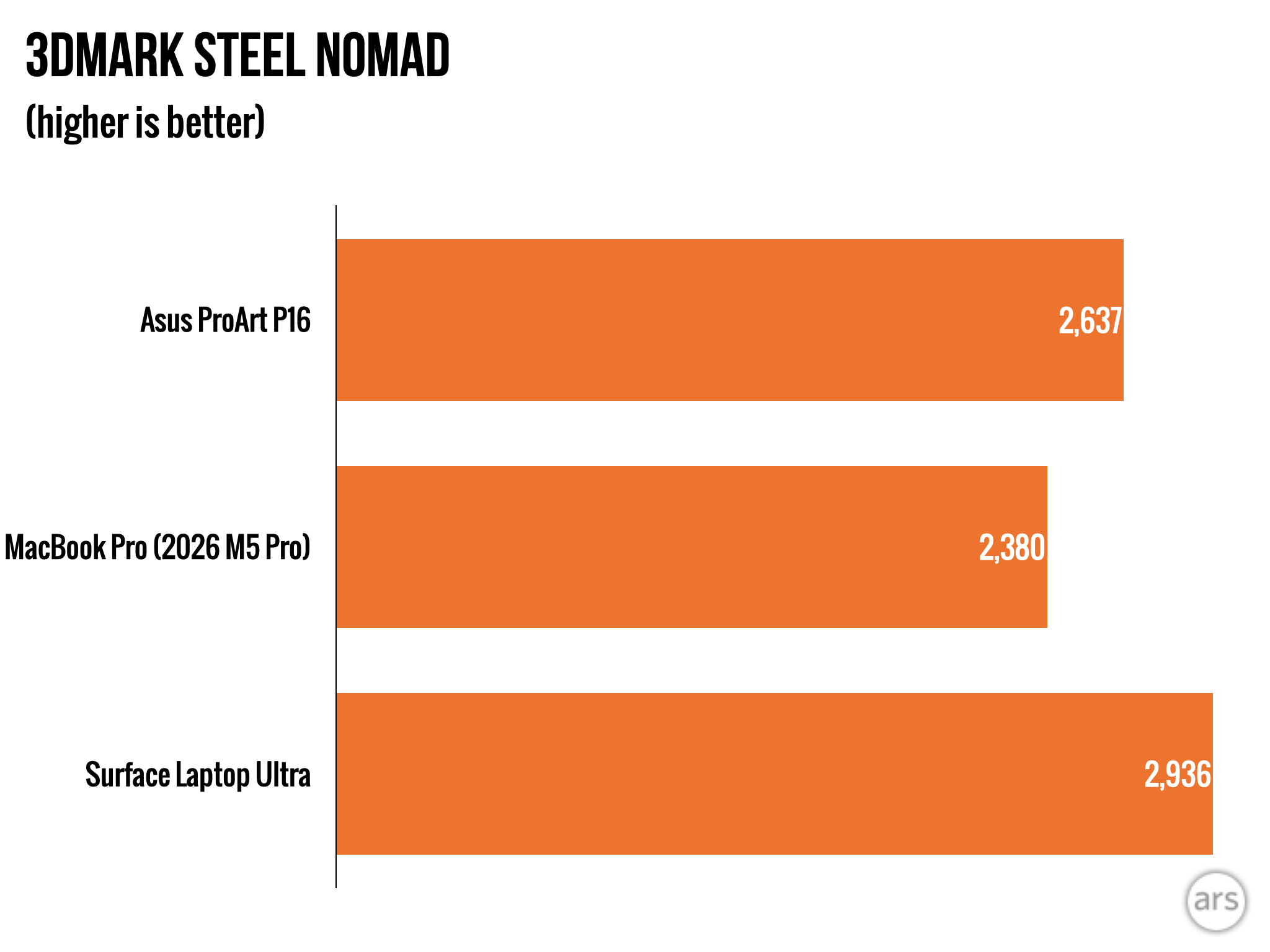
In daily use, the ProArt P16 with RTX Spark is extremely responsive. It’s still usable even when you fill up the memory with AI agents running inference in the background. There are very few systems that directly compare to the RTX Spark right now, but here are some system benchmarks of the Asus ProArt P16.
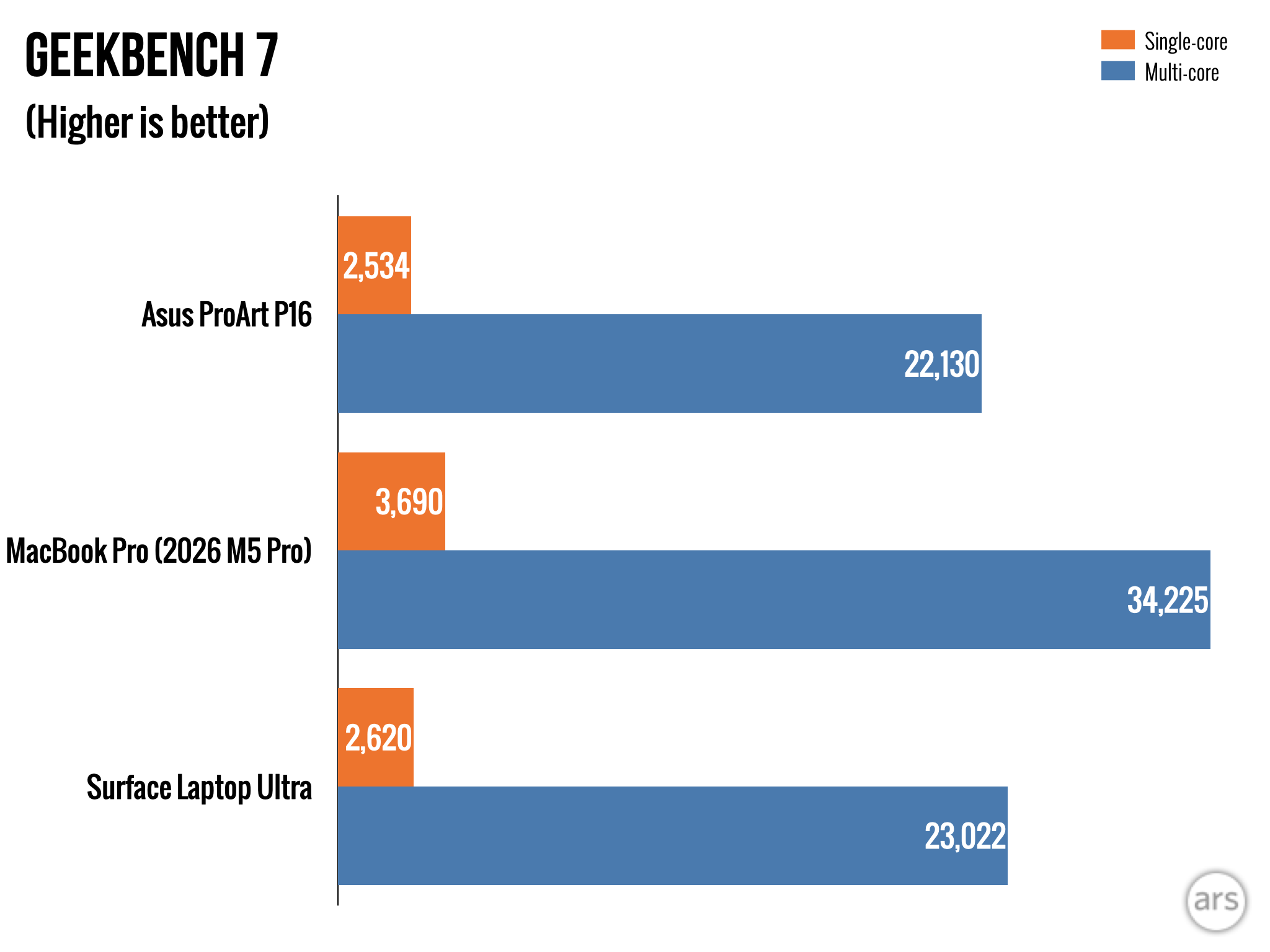
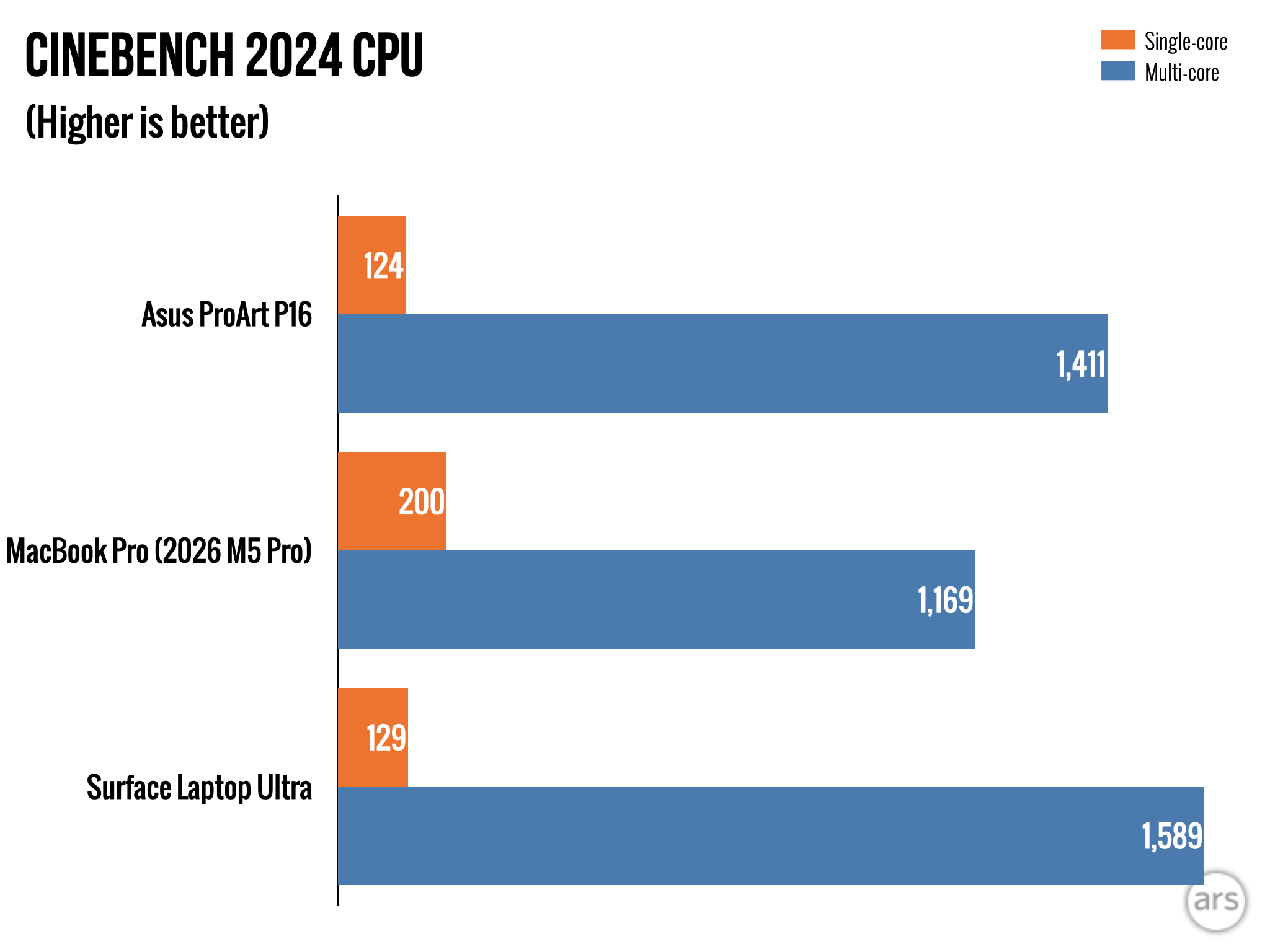
Nvidia has pushed the idea that Spark can be your primary gaming machine, too. But here, emulation is more of a bother. There are virtually no native Arm games for Windows, and emulation takes a bite out of your performance. Titles that require system-level anti-cheat measures may not run because those cannot be emulated. However, Nvidia has made progress here, collaborating with some major vendors like Easy Anti-Cheat, BattlEye, and Denuvo to support their technology on Spark. It’s still early, though, and you may encounter errors.
The GPU component of the Spark N1X is equivalent to the most powerful Blackwell-based gaming GPUs on the market, but emulation means performance won’t quite measure up. You also have to remember that the ProArt P16 has an incredibly high-resolution OLED screen. Running games at native resolution, even without the emulation overhead, is already pushing the limits of the hardware.
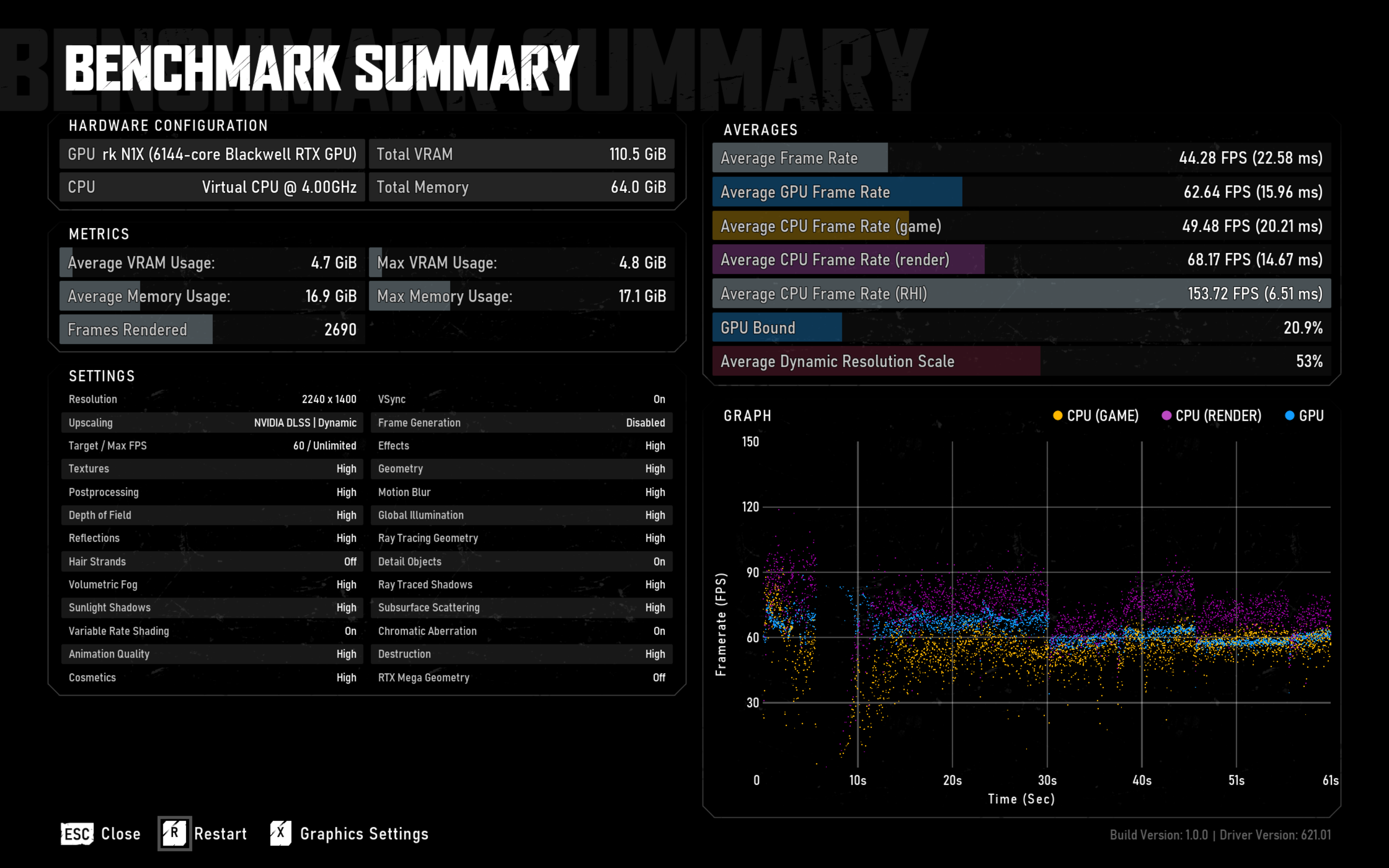
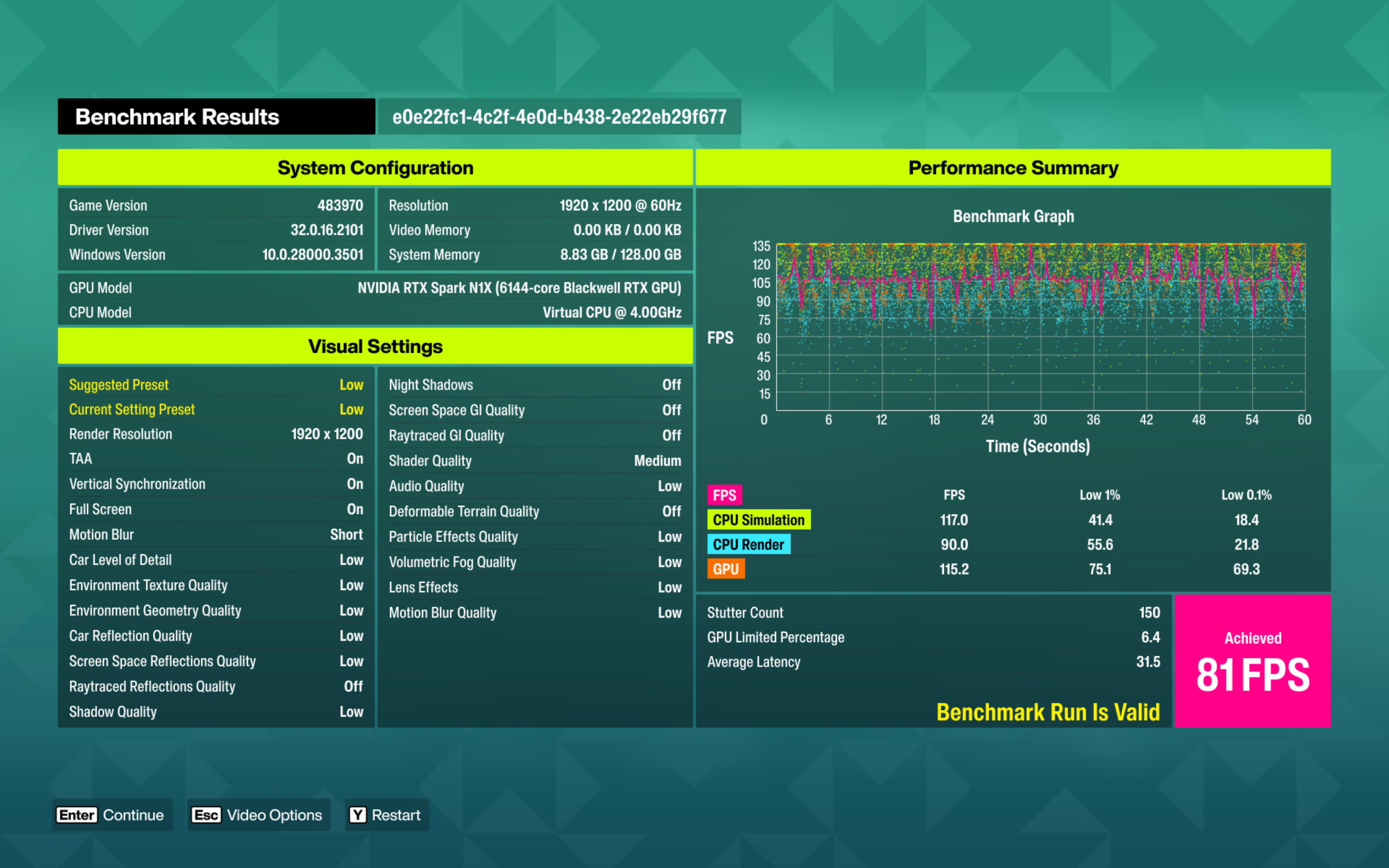
Aside from the benchmark numbers, I put the ProArt P16 to work playing some games. While they ran well enough to play, it’s not as simple as cranking the settings to max like you would on an x86 system with a Blackwell GPU. For example, is not exactly a graphical tour de force, and it’s more CPU-bound than some other AAA games.
I had to make some compromises to maintain 60 fps, even in less busy areas of the game. It was basically a trade-off between lowering detail and using aggressive DLSS or dropping the game below native resolution. You can expect Spark-based machines like this to run most games with high graphical settings, but ultra settings will be out of reach if you want to maintain good frame rates.
The AI future of your dreams and/or nightmares
In a purely technical way, it’s cool that you can run powerful 100GB AI models on a laptop. Devices like the DGX Spark and DIY GPU clusters can perform similar tasks, but having everything centralized on one machine makes it more appealing as a way to get things done with AI, and Windows makes it easy to get started.
The ProArt P16 can be your one and only computer, handling gaming, productivity, and AI inference. However, it can be hard to really take advantage of all the AI capabilities of the machine. You’re looking at running either one or two large, powerful agents at very slow speeds or a collection of smaller models much faster. That means you need to have plenty of AI applications in mind. Otherwise, you might as well get a standard laptop.
You probably already know if that’s something you want. The kind of person running multiple concurrent agentic tasks using cloud systems might benefit from a PC like the ProArt P16, and in some extreme instances, they might want to spend $7,000 on the machine with 128GB of RAM. However, you could also step down to the 64GB model to save a few thousand dollars and still get some useful AI capabilities as models get more efficient.
The Asus ProArt P16 is really a niche machine. If you want something primarily for gaming, an x86 system with a discrete GPU makes more sense, and a lighter, productivity-focused laptop is better for most buyers. The ProArt P16 offers a glimpse of how a local AI-powered future could work, but it’s not a good purchase for anyone but the most fervent AI boosters right now.
The good
- Excellent overall performance
- Great at running AI models locally
- Solid keyboard and a big haptic trackpad
- All-day battery
The bad
- Extremely high price
- Tandem OLED looks a bit grainy up close
- Not as good for gaming as an x86 system