Let your friends know what time you'll be arriving.
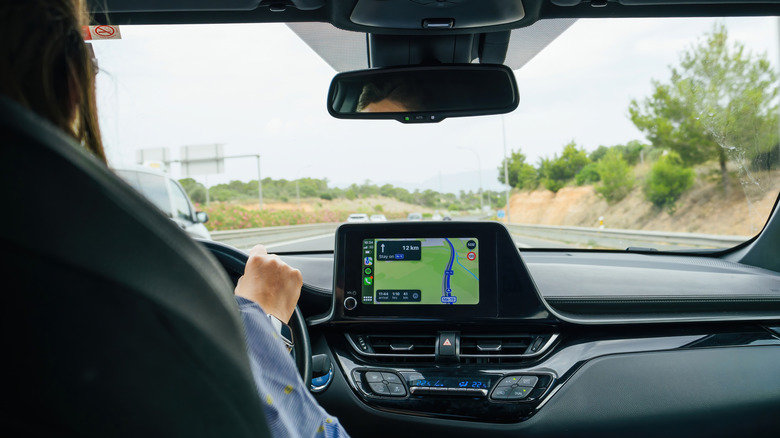
For many iPhone users, Apple CarPlay has become synonymous with a quality driving experience, from playing their favorite tunes to navigating to their next destination. And although Apple continues to upgrade its popular infotainment system, one of its most useful features has been hidden in Apple Maps for years and is critical to letting your family, friends, and, if you are like me, enemies know when you will arrive at your destination.
I am, of course, referring to sharing your estimated time of arrival (ETA) through Apple Maps. Most users are probably familiar with Apple's Find My and location-sharing functions, but CarPlay's Share ETA feature is woefully underappreciated. Both simple to use and highly customizable, the feature is a godsend for worried parents and surprise parties everywhere.
To enable Share ETA, go to > > . From here, scroll down to and enable the feature. You can also enable location sharing in Messages, Contacts and Find My. You may also want to turn on Siri to make sharing an ETA more convenient. To do so, go to your iPhone's , tap and enable Turn on Siri.
How to share your ETA
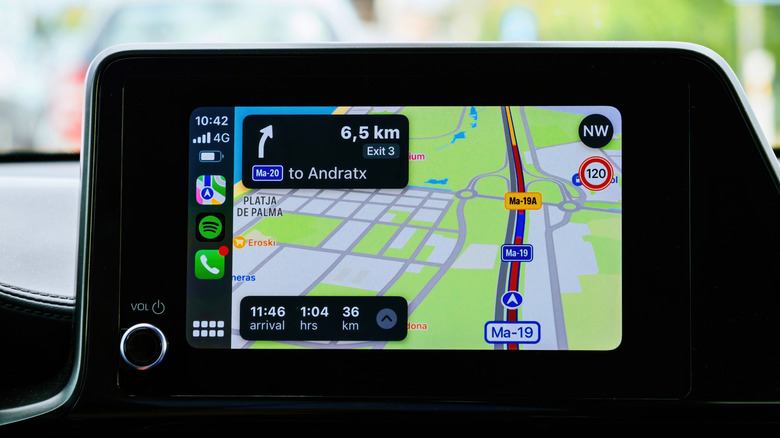
Sharing your ETA is a simple way to improve your CarPlay experience. If you're using Siri, you can initiate a voice command when you're following Maps directions, either by holding the voice command button on your steering wheel or saying "Hey Siri" if your car supports voice activation. Next, say "share my ETA with (contact name)."
If you would rather not use Apple's voice assistant, you can share your ETA directly in . After you've set off, at the bottom of the screen, then and choose a recipient. If the contact isn't on the list, you can find them under . To share with more than one person, tap Sharing with at the bottom of the screen, and select your intended recipients. You can also stop sharing your ETA by opening the again, tapping Sharing with, selecting and choosing the contact you want to stop sharing with.
You can also automatically share your ETA with someone by adding their contact to a pinned location. First, go to > > . Next, tap the > . Next, tap the desired contact and confirm the selection. Now, whenever you select the pinned location in Apple Maps and tap , it will automatically share your ETA.