A black screen on your MacBook doesn't necessarily mean you're dealing with a hardware issue.
MacBooks are usually very reliable laptops, but they're not immune to bugs and hardware failures. One of the most common issues is getting stuck on a black screen, which can cause many owners to panic. The good news is that a black screen doesn't always mean your Mac is completely dead. Instead, you may just be dealing with a software bug or an issue you can fix yourself in a few steps. If your MacBook is stuck on a black screen, try these first before taking it to an Apple Store.
What to do if your MacBook is stuck on a black screen
There are many different reasons why a MacBook might get stuck on a black screen, but power is usually the first thing to check. If you've left your Mac unplugged for days, it may not have enough power to show the low battery icon. Plug your MacBook into the charger and wait a few minutes to see if it shows any signs of life. Also, check your power adapter and USB-C or MagSafe cable to make sure they're working — your Mac could just be failing to charge without you realizing it.
In some cases, the Mac starts up fine and you can hear system sounds or the fans spinning, but the screen stays completely black. The first thing to do is force a reboot. Press and hold the Power button until you hear the classic startup chime. If the Apple logo appears and everything returns to normal, your black screen was likely caused by a software bug. If the screen stays black after the reboot, you may have a hardware issue, such as a faulty display.
There's a fairly easy way to check if your MacBook's display is at fault. Plug your laptop into an external monitor or a TV (you'll need an HDMI cable and possibly a USB-C to HDMI adapter) and see what happens. If the video appears normally on the monitor but not on your MacBook, you're very likely facing a problem with the display hardware.
Other fixes to try
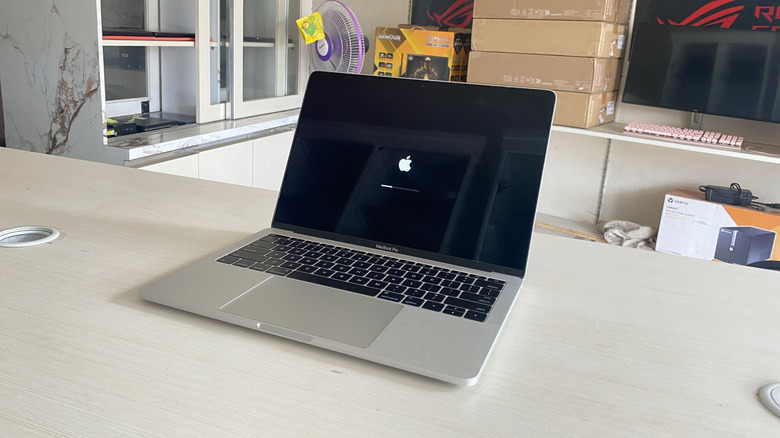
There are a few other things to try before resorting to Apple Support. If you have an Intel MacBook, resetting the SMC (a subsystem that controls low-level hardware functions) may help if your Mac won't turn on or display video. Shut down your MacBook, then press and hold + + for about seven seconds, then press the Power button at the same time. Keep holding all four keys for another seven seconds, then release them. Wait a few seconds and try turning on your MacBook again.
Some older Macs require a different key sequence to reset the SMC. If the first sequence didn't work on your Mac, shut it down and press + + (all on the left side) along with the button. Hold these keys down for about 10 seconds, then release them and try powering up your Mac. This doesn't apply to MacBooks with Apple Silicon, since the SMC resets automatically every time you reboot your Mac.
If you've tried everything and your Mac still has a black screen, it's likely a hardware failure. Your best option now is to set up an appointment with Apple Support so they can diagnose and repair your Mac. And if your Mac is still working fine, now is a good time to think about backing up all your data.