This tool is a great alternative to Event Viewer.
An unstable PC can be a nightmare to diagnose. Figuring out what's causing a blue screen or a driver crash can take hours if you're digging through event logs and checking for faulty applications. Thankfully, Windows has a suite of troubleshooting programs built specifically to help users diagnose system issues. Most people know about Performance Monitor and Event Viewer, but arguably the best tool to start a troubleshooting session is the long-forgotten Windows Reliability Monitor.
Introduced with Windows Vista back in 2008, Windows Reliability Monitor is a convenient way to check all of your computer's logged events. This includes crashed drivers, failed applications and other system health issues you might not otherwise notice. It even gives a stability score to help inexperienced users diagnose stability issues, although that score can be somewhat misleading. It's a great tool to use when your PC starts experiencing sudden stability issues that need further investigation.
How to use Windows Reliability Monitor
Windows Reliability Monitor is an easy application to use, although accessing the program itself can be a little tricky. Every version of Windows can access the program by opening the Run box (Windows Key + R) and typing in:
If you are using Windows 8 or later, you can also find the Reliability Monitor by opening the Start menu and typing in "reliability." You should see "View reliability history" as an option. Click on it to bring up the Reliability Monitor. The Control Panel is a third way to access the Reliability Monitor, located under the "Security and Maintenance" subsection of the Security tab.
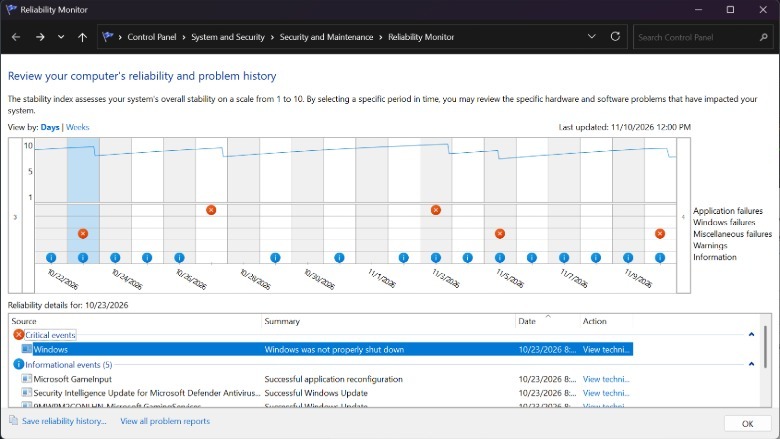
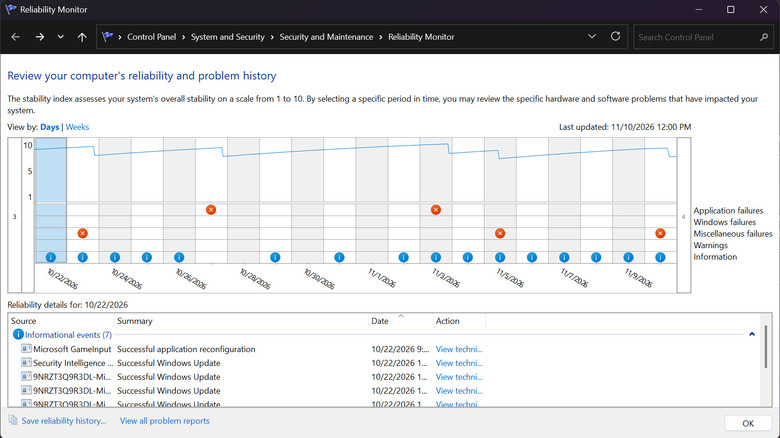
The application itself is easy to understand. You'll see a grid of events that break down your system's stability based on event logs. Windows keeps track of hardware and application performance at all times, so if something goes wrong, it creates an event log entry that shows up here.
Clicking the blue "i" icons brings up information about your system that day, such as successful updates or software installations. Any days that experienced a critical software or hardware failure will have a red "x" icon next to them. Clicking the red icon will open the flagged events for further investigation. Days are also ranked with a stability score, indicating how long your PC has gone without issues. It's not the most reliable data point since you can easily inflate the score by not using your PC, but it can be a starting point when troubleshooting.
Can Windows Reliability Monitor help with performance?
While Windows Reliability Monitor doesn't directly improve performance, it can help you find applications and faulty drivers that are causing performance problems. For example, if you experience frequent GPU crashes while running certain applications, those problems would be logged as events and appear in Reliability Monitor. Inspecting the event provides information on what caused the crash, when it occurred and what applications were running at the time. This can help diagnose whether it's a hardware or software issue, giving you a clear path to fix the error and improve your system's stability and overall performance.
If you are more focused on your system's performance, Windows offers the Performance Monitor tool to check your hardware's real-time usage. This is a better tool for diagnosing issues with a potentially faulty CPU, GPU, RAM, or network instability. Task Manager is also an invaluable tool for inspecting background applications that could be using your PC's resources.
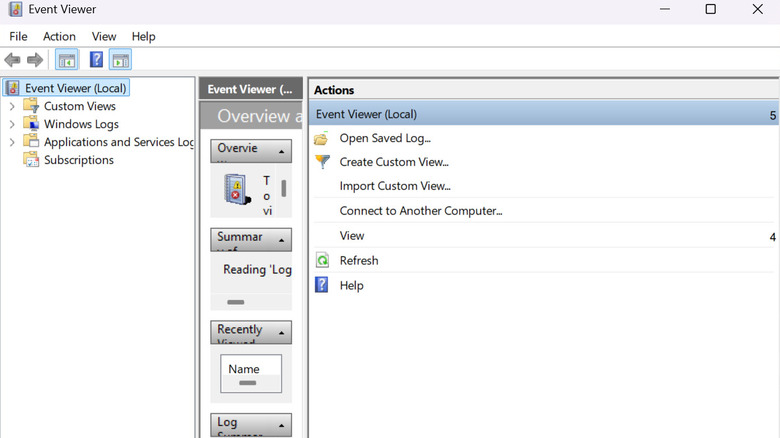
More experienced Windows users might wonder why they'd use the Reliability Monitor over the Event Viewer. For experienced PC users who want an exhaustive breakdown of each event log, the Event Viewer is unmatched. It offers significantly more information on each system event and has multiple ways to filter information to help pinpoint what's wrong.
Where Reliability Monitor shines is its simplicity. It gives a clean UI to see which events caused an issue, when they occurred and a rough outline of what happened. Event Viewer can help if you need details on the exact application or your PC's state during failure, yet that information is often overkill for the average Windows user. If you need more information on the issue, then we'd suggest swapping to Event Viewer to get a better idea of what's happening. For sudden performance or stability issues, it's much more convenient to use Reliability Monitor first.