Charging on Android isn't complicated. Yet, it's more than simply plugging your charger into your phone.
I've learned that an expensive charger is no better than a budget one if it doesn't support your phone's fast-charging protocol. Surely, there are nuances, like heat and battery protection.
But you can rule out most slowdowns when you know your cable's power rating.
A MacBook app has been my saving grace in sorting out the USB-C cables I charge my Android phones with. Here's how I tested them.
Cross-platform loyalty pays off in ports
My MacBook diagnoses the cables my Pixel depends on
There's much to praise in a USB-C-centric PC like Apple's product. The brand was among the first to go all-in on the port, with the 12-inch MacBook's single USB-C port in 2015. Now, most laptops on the market use it.
The design made my recent cable test easier to run, because I could plug both ends of each cable into my computer's two USB-C ports and read it without any extra hardware.
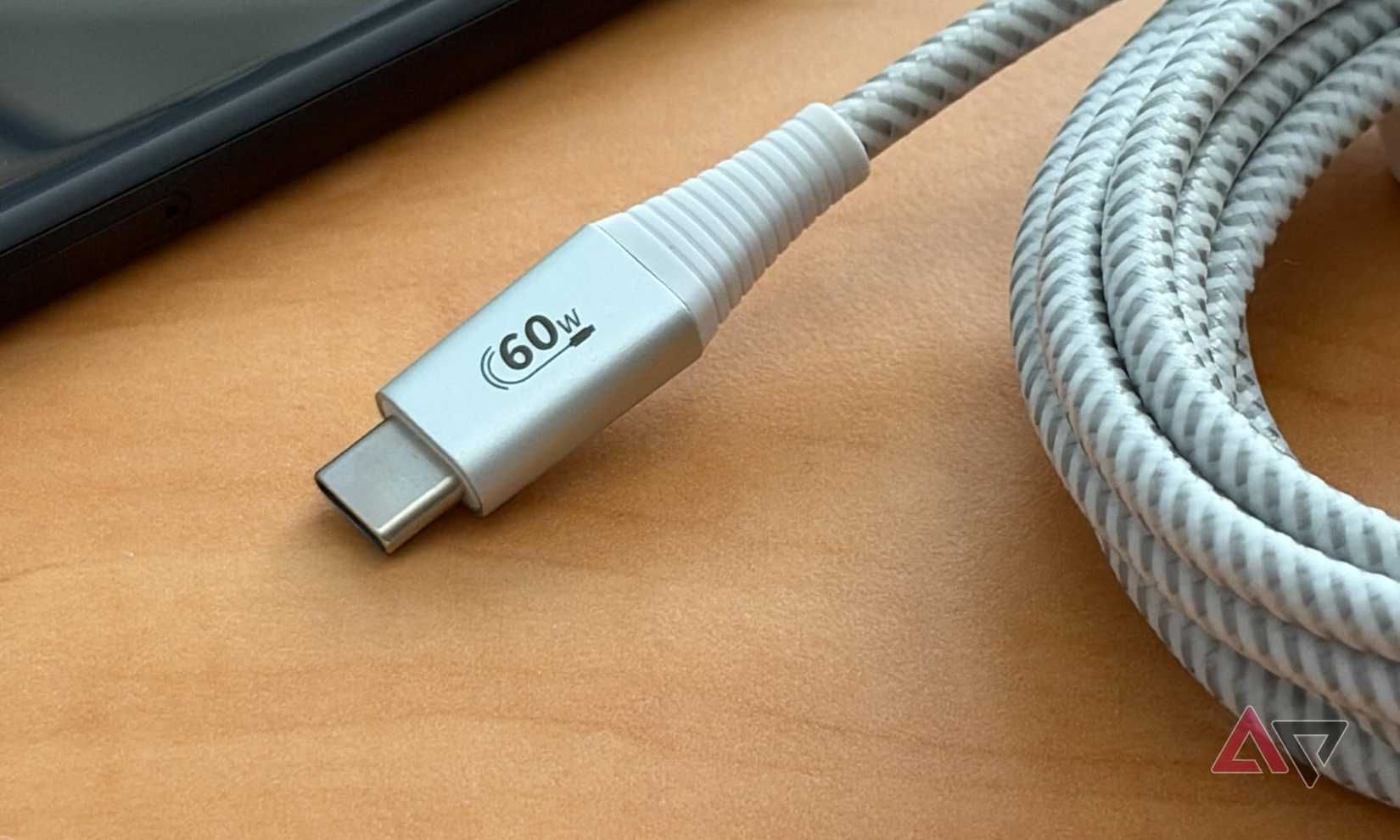
Under the USB-C standard, a cable needs an electronic marker (e-marker) to carry more than 60W or to support USB 3 data. Cables without one, like most USB 2.0 charging cables, are capped at 60W.
I charge my Google Pixel 8 with a 65W Yesido charger and a 240W cable, though the phone draws at most 27W. I believed both were original, but I still wanted proof that the cable lived up to its 240W label.
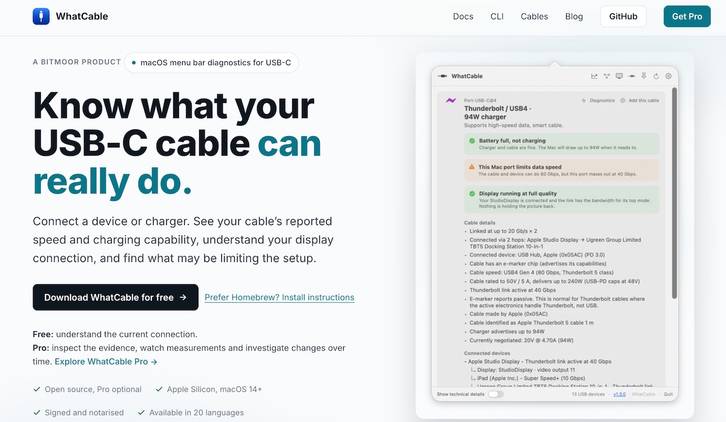
So I tested it alongside two other cables with WhatCable. The PC software is available for free on its official website and GitHub page, but not on the Mac App Store.
The download is a 21.5MB zip file that expands to 82.2MB after you unzip it. Because it comes from outside the App Store, your Mac may refuse to open it the first time and warn you that it's from an unidentified developer.
Go to > , scroll down to the section, and click next to the WhatCable message. Then enter your password to confirm.
The app then opens as a small in the in the upper-right corner of the screen. I clicked it, and a panel listed each USB-C port on my Mac as Port-USB-C@1 and Port-USB-C@2.
I put my cables to a power test
WhatCable reads invisible numbers left out of the packaging
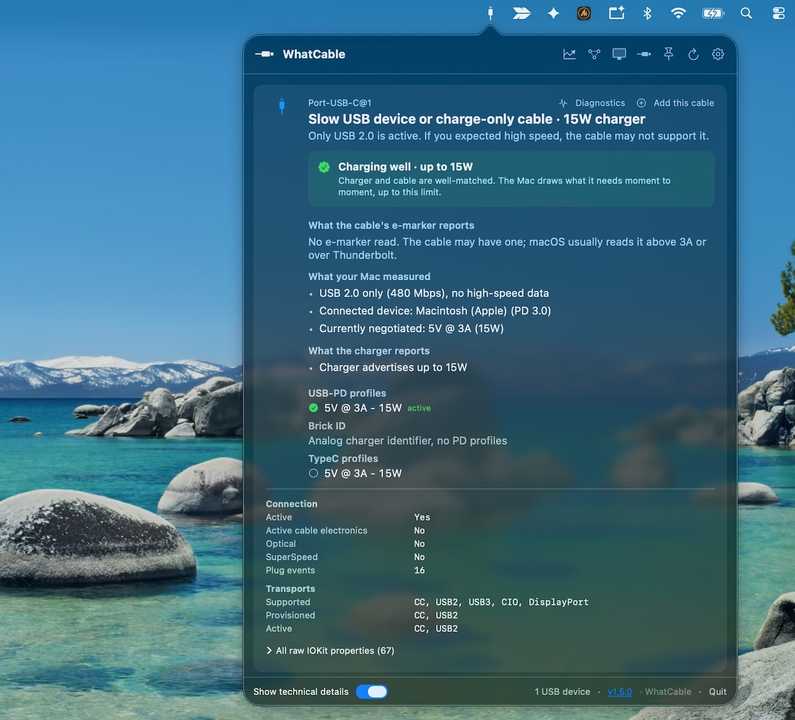
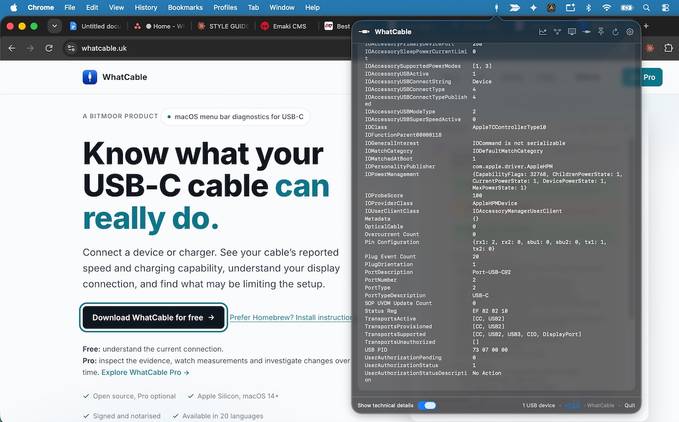
You'll see a summary of any connection and a cable's e-marker data on WhatCable. A Show technical details toggle in the lower-left corner adds connection data and raw system properties.
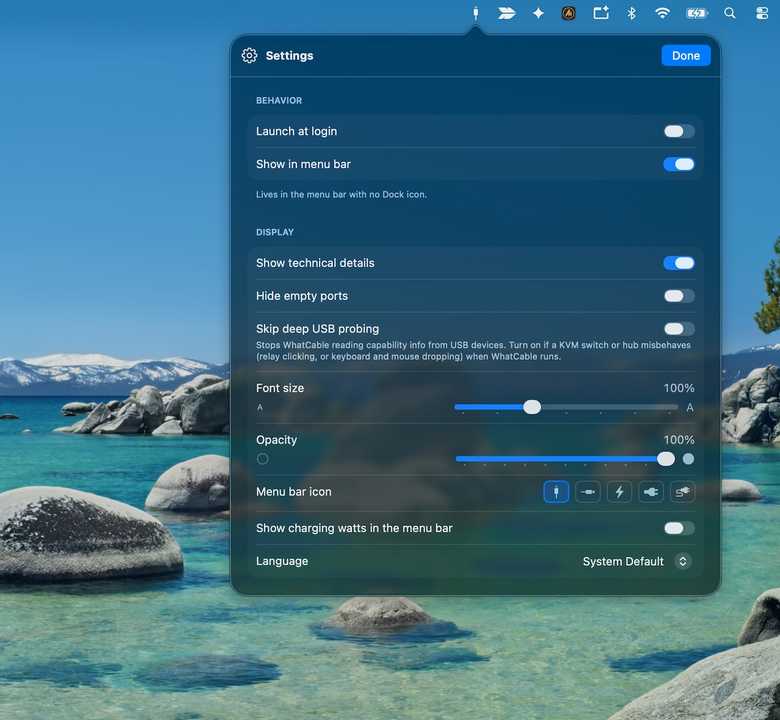
A settings menu covers launch at login, empty-port visibility, font size, the menu bar icon, and charging watts in the menu bar.
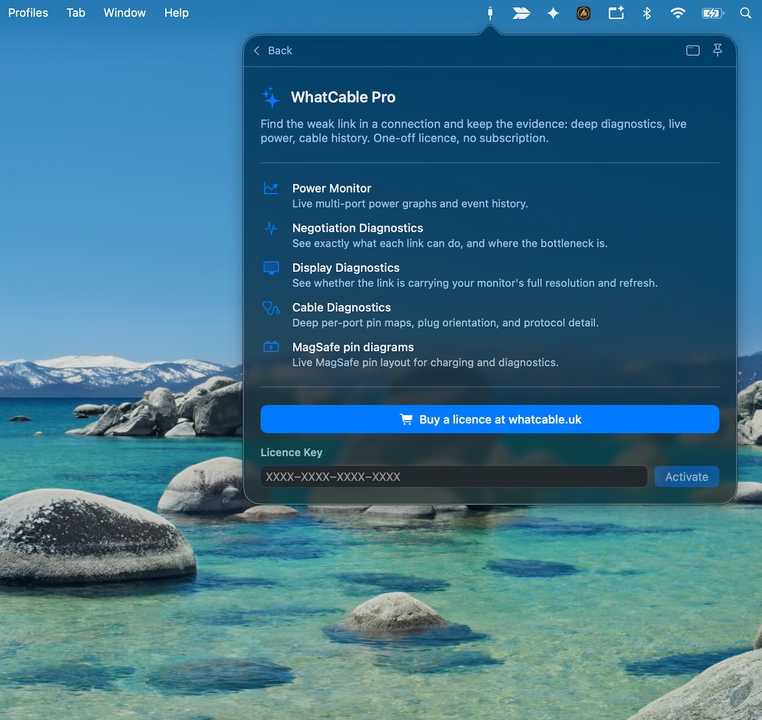
Much of the app is inaccessible unless you pay for the Pro license, which offers live power graphs, negotiation diagnostics, display diagnostics, cable pin maps, and MagSafe pin diagrams.
The Pro license costs $13 as a one-time purchase for two Macs, which seems fair, although I'm hesitant to throw money at most offers. With the app's basic version, you're good to go.
Of the cables I tested, two are originals: the 1-meter USB-C cable that came with my Meta Quest 3S headset and the 2-in-1 USB-C cable that came with my Maono PD200W mic.
The third is a 240W USB-C cable I share with my phones and PC. For my first test, I plugged both ends of each cable into my PC.
That way, one port supplies power and the other receives it, so the computer can read the cable's e-marker without another device attached.
macOS asked me to allow the accessory to connect, and I clicked . The 240W cable's e-marker reported a rating of 50V at 5A, or 240W, which matches its label.
It's a passive cable, and its data speed is USB 2.0, or 480Mbps. The software noted that the e-marker doesn't report a vendor ID, which is common even on authentic cables.
So, a blank vendor ID says more about the maker cutting registration costs than about the cable's quality. That aside, WhatCable couldn't read an e-marker for my USB 2.0 Quest 3S and Maono cables, which was expected.
They don't meet either condition that requires one under the USB-C standard. Also, they were undocumented because Meta and Maono didn't publish ratings for them.
I found the weak link in my charging setup
Five watts went missing quietly
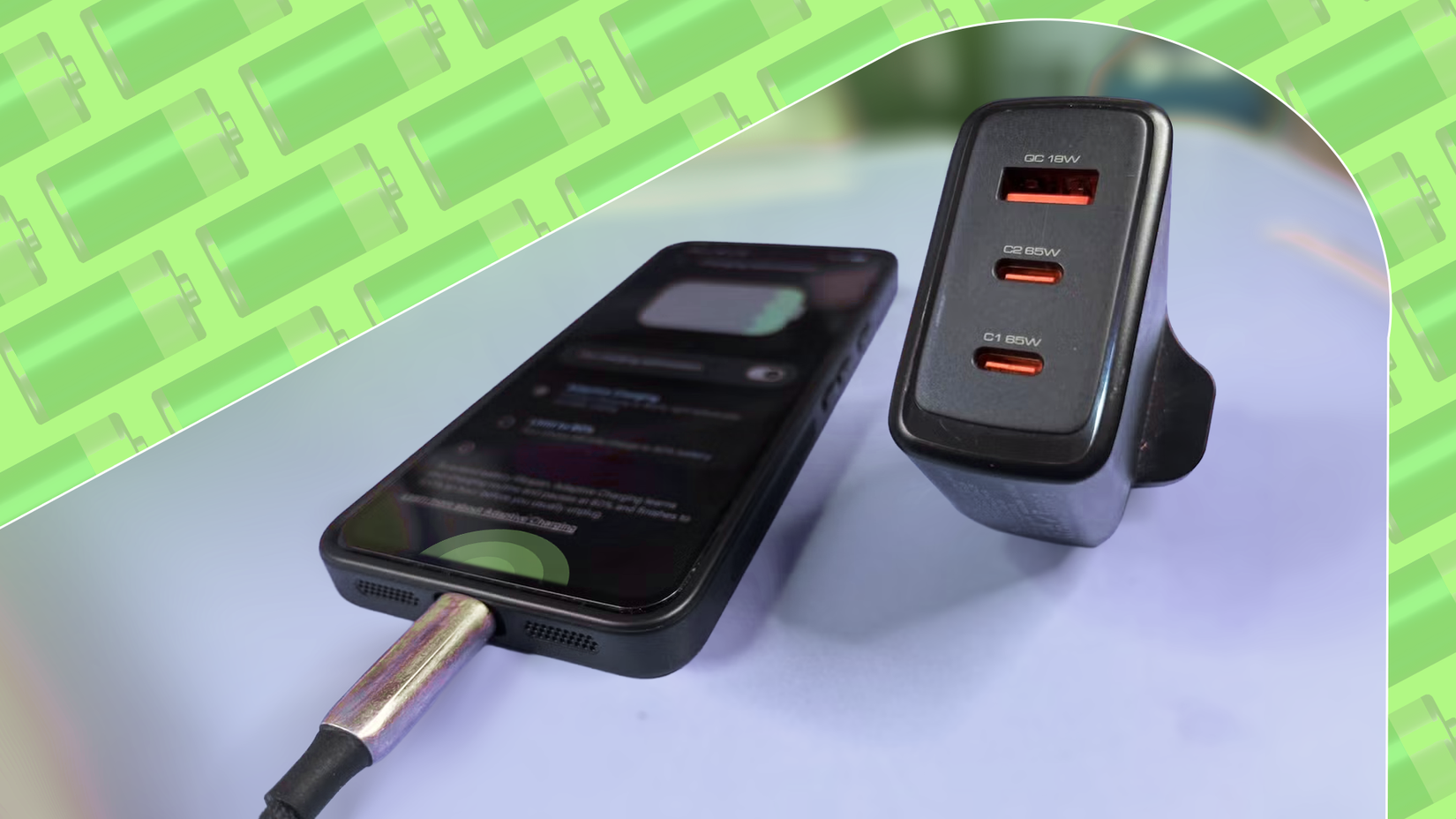
For my second test, I connected my Pixel 8 to the MacBook with the 240W cable. WhatCable identified the phone and showed a USB Power Delivery (PD) 3.0 connection, which is a protocol that covers charging only.
However, data moves at the speed of the slowest part of the chain, and the 240W cable can only carry USB 2.0 data. So my data connection ran at USB 2.0 speed, even though both devices could go faster.
These results are largely consistent with a previous test I ran, which confirmed that my Pixel 8 charges at its full 27W on this cable, picking 9V at 3A from my Yesido charger.
What I didn't know until now was that it was the wrong cable for moving files to my computer. USB 2.0 maxes out at 480Mbps, which is about 30 to 40MB per second.
A batch of 100 photos should take under 20 seconds, but backing up my 12GB photo folder will take several minutes.
For my third test, I charged my MacBook with the Yesido charger and the 240W cable. WhatCable listed the charger's power options, from 5V at 3A (15W) up to 20V at 3.25A (65W).
The MacBook took the top option, 20V at 3.25A, for the full 65W. For my fourth test, I swapped in my Maono cable. The charger's top option dropped to 20V at 3A, and the MacBook charged at 60W, costing my MacBook 5W.
However, WhatCable still labeled the connection "Charging well." I only spotted the drop by comparing the two results.
The Maono cable works with my MacBook, but it isn't fully compatible with my charger's top power option. It's a clear case of a cable limiting the charge, and it gives a strong reason to use the software to catch mismatches.
Don't judge a cable by its plug
All my cables look similar in a drawer. But apps like WhatCable offer deeper visibility into my charging system beyond and wattage.
They help me rule out the weak links before I trust them with my devices. Incompatible cables aren't necessarily dangerous. Slower charging produces less heat, which is gentler on batteries.
But you'll face bottlenecks if fast charging and transfer are the priority.