If your PC can't sleep through the night, you can help it get a better rest.
Windows PCs are full of odd behaviors and strange design decisions. For example, Microsoft thinks the Windows 11 lock screen is a great place to insert random widgets like Daily Wonder, even though most of us blitz through it with our passcode or facial recognition.
An odd problem I've had from time to time is my PC waking up at random. You'd assume that when you put a computer to sleep, it would stay that way until you intentionally woke it up. In reality, there are a variety of conditions that can wake up a PC, and they're far from random.
Sometimes, settings can allow third-party apps and peripherals to take control. In other cases, it could be that Windows is waking itself up for important tasks. Thankfully, there are easy fixes available, as well as diagnostic tools to dig deeper.
Why your PC is waking up by itself, and how to fix it

On my own machine, one of the most common causes of this issue is the mouse. Being a gaming mouse, it's sensitive enough that lightly jostling my desk can be enough to make Windows think I'm sitting down to play.
To control which USB devices can turn on your PC, you can unplug some when you aren't using them, but that's not practical. Instead, open from the menu. Find the relevant hardware in the list, right-click on it, then select . Under the tab, uncheck Allow this device to wake the computer, then click . You can repeat this for the keyboard, but it's a good idea to have at least one input device available to wake Windows intentionally (the power button will always work). It's possible that other devices have a valid reason to resume your PC's session.
Speaking of which, a feature known as Wake-on-LAN (WoL) allows devices on your home network to get your PC moving when necessary — say, if your smart TV needs to access the movies on your PC's media server. If you don't have any need for this, expand the Network adapters section in Device Manager, then select your Wi-Fi and/or Ethernet adapters. You can turn off Allow this device to wake the computer if you like, but leaving that on and checking Only allow a magic packet to wake the computer may be all you need to eliminate unwanted wakeups. Typically, devices will only send magic packets when they actually require WoL functions.
Less likely is that a feature called (search for it from the Start menu) is involved. This runs functions like software updates and security scans during off hours. You can prevent it from waking your PC by unchecking Allow scheduled maintenance to wake up my computer at the scheduled time. It shouldn't be a problem, however, as long as you pick a convenient time and your PC is set to go back to sleep after inactivity. To change sleep timers, head to Settings > System > Power & battery > Screen, sleep, & hibernate timeouts. Adjust Make my device sleep after as desired.
Diagnosing wakeups, plus other possible fixes
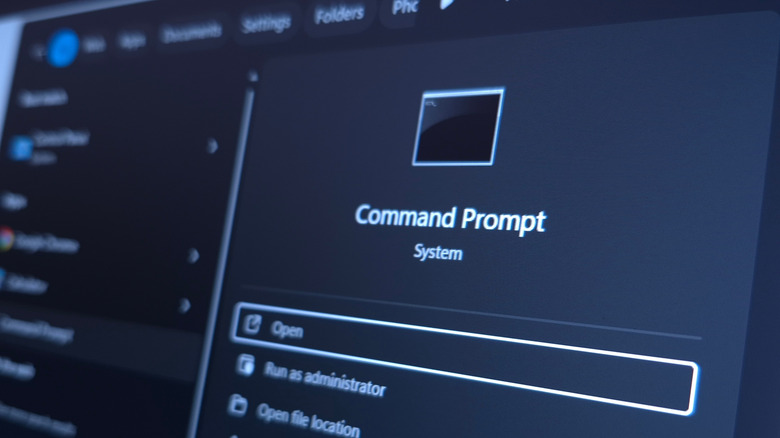
If you still have no idea what could be waking up your PC, type "terminal" into the Start menu, then right-click its entry and choose Run as administrator. In its window, run these commands one-by-one:
- to identify what your PC last woke up from
- to see what is scheduled to wake your system up in the future
- to see what devices have the power to wake up Windows
These can point you toward what to adjust in Device Manager if you missed it earlier. It's also possible that some third-party apps may be triggering their own wake timers, such as a cloud backup service. Double-check the settings of any apps these prompts turn up. You might also want to check the Windows Task Scheduler for processes scheduled to run at regular intervals.
The nuclear option is to disable wake timers entirely. Open Edit power plan via a Start menu search, then click Change advanced power settings. Drill down to Sleep > Allow wake timers, where you can select or . The latter isn't perfectly defined; it won't allow wakeups for events like antivirus scans, but it will for automatic reboots after Windows updates install.
Generally, it's better to err on the side of generosity — not just with wake timers, but with USB and network wakeups as well. As long as you've got security measures and sleep timers in place, the occasional strange wakeup is likely a fair trade for knowing your software and hardware can do what it needs to do, when it needs to.